Set up the captain app on a waiter's phone.
The one-use QR from Staff & pay joins the phone to the restaurant. The staff PIN signs the captain into a shift. The EasyKOT Desktop App's 5-minute Wi-Fi code adds an optional local route. On Android, a captain who carries a printer chooses Take orders and print them and confirms a test slip.
Android 8+ · mobile data or Wi-Fi · no per-waiter charge · one-use QR from Staff & pay
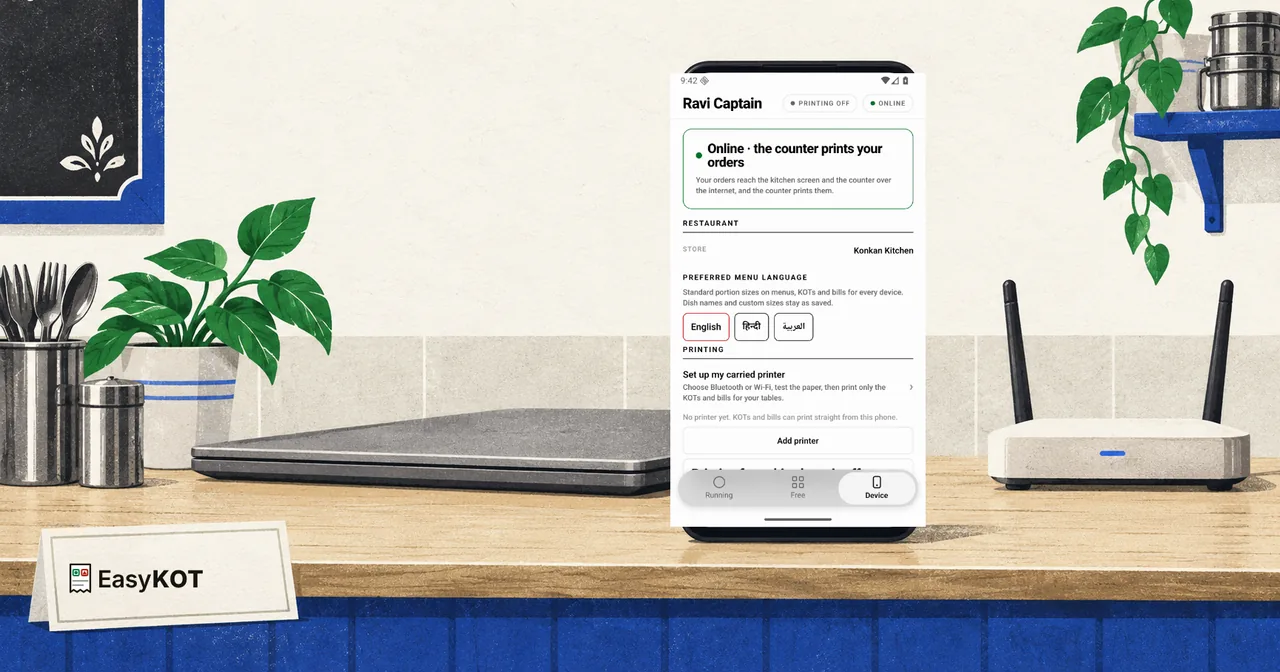
What you need on the table in front of you.
- The owner dashboard. Open Staff & pay, add the captain, set their PIN, then tap Connect their phone.
- Internet on the phone. Mobile data or Wi-Fi can download the restaurant and carry orders. Use the same restaurant Wi-Fi only for a network printer or the optional local link to the Desktop App.
- A phone per waiter: their own. Android 8 or newer. No per-waiter charge, no device bought from us, no MDM. (The iPhone build is not in the App Store yet.)
- Your staff added, with PINs. The dashboard's Staff page mints them. You already chose yours on Get started.
No laptop at the counter at all? Then the phone is not a captain: it runs the whole shop, and it must be enrolled that way. That is a different setup: run a whole service day on one Android phone. A manager can make any joined phone the whole-store printer fallback from Device → Printers; that is not a per-captain own-table mode. Use Run the counter for a phone-only store.
Six steps, once per phone.
Open the captain app on the phone
Install EasyKOT Captain from Google Play on any Android 8 or newer phone the waiter already owns: there is no per-waiter or per-phone charge. The iPhone build is not in the App Store yet. The app offers Run the counter, Take orders at the tables, and Take orders and print them for a captain carrying a printer. Just looking? See a sample menu opens a practice restaurant with nothing connected.
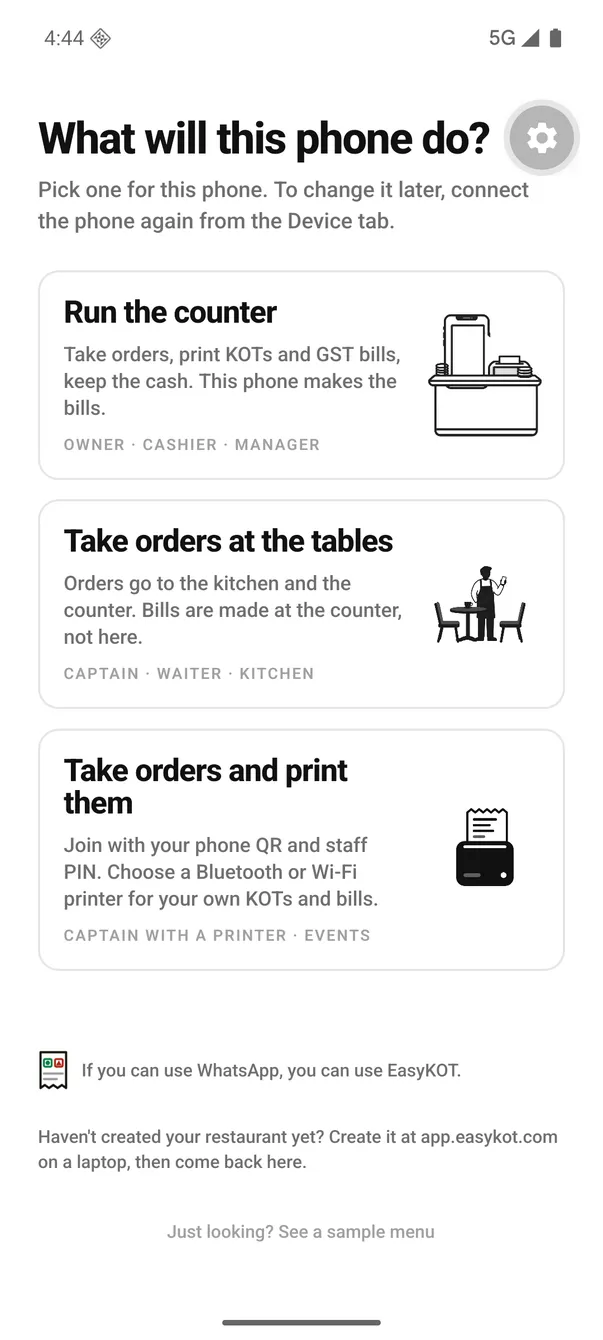
The first screen the phone shows. A waiter's phone takes the second card.
Connect the captain's phone from Staff & pay
In the owner dashboard open Staff & pay, add the captain, set their PIN, then tap Connect their phone. On the phone choose Take orders and print them and scan the one-use QR. The restaurant, menu, tables and staff download to the phone. The QR connects the handset and gives its bills a separate number series; the captain still signs in with their own PIN. Nobody enters an email or password on the waiter's phone.
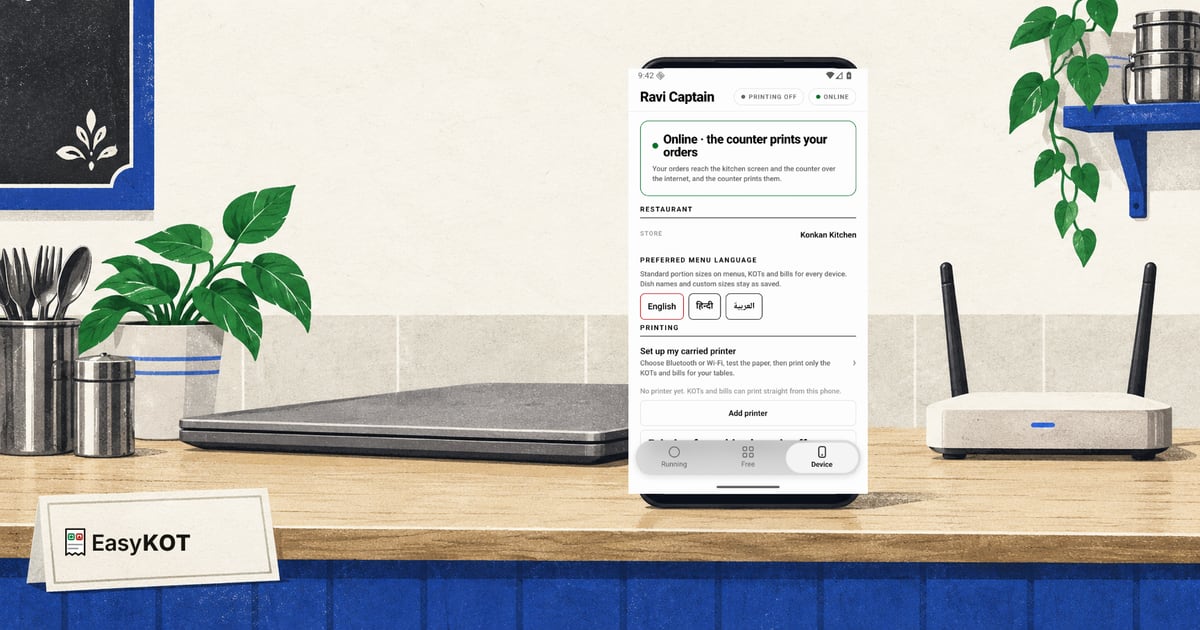
Read the video transcript
This is the recorded narration. Screen labels and steps reflect the video as published.
In the owner dashboard, open Staff and pay, then select Add person. Choose Captain. This role takes orders on a phone. Enter Ravi Captain and choose a private four-to-twelve-digit PIN. Add and show PIN saves the person. A new PIN is shown once, so write it down and keep it private. Ravi’s saved Captain profile is ready for this demo. Now open Devices and select Add device. Staff identity and phone enrollment are separate. Choose Captain, name it Ravi table phone, and select Create and get setup code. Copy the one-use setup code. It connects the handset, but it does not sign Ravi in. On Android, choose Take orders at the tables. On Join your restaurant, paste the setup code and select Connect. After Konkan Kitchen downloads, select Set up later to keep Ravi’s orders printing at the counter. On Enter your PIN, sign in with Ravi’s staff PIN. Open Device and verify Ravi Captain and the captain role. Back in Devices, confirm Ravi table phone is connected and the one-use code is retired.
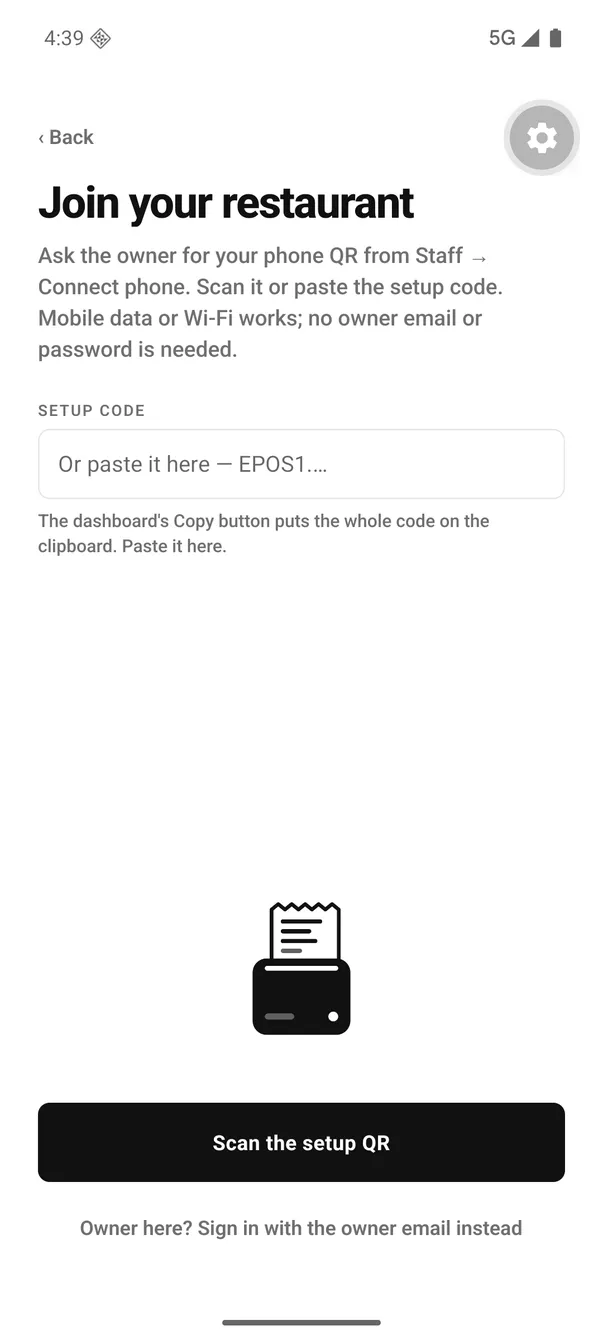
Join your restaurant. Scan the one-use QR from Staff & pay, then sign in with the captain's own PIN.
Use the QR beside the captain in Staff & pay. It connects one handset and gives a printing captain a separate bill series. The QR never signs anyone in as the owner; the captain's own PIN comes next.
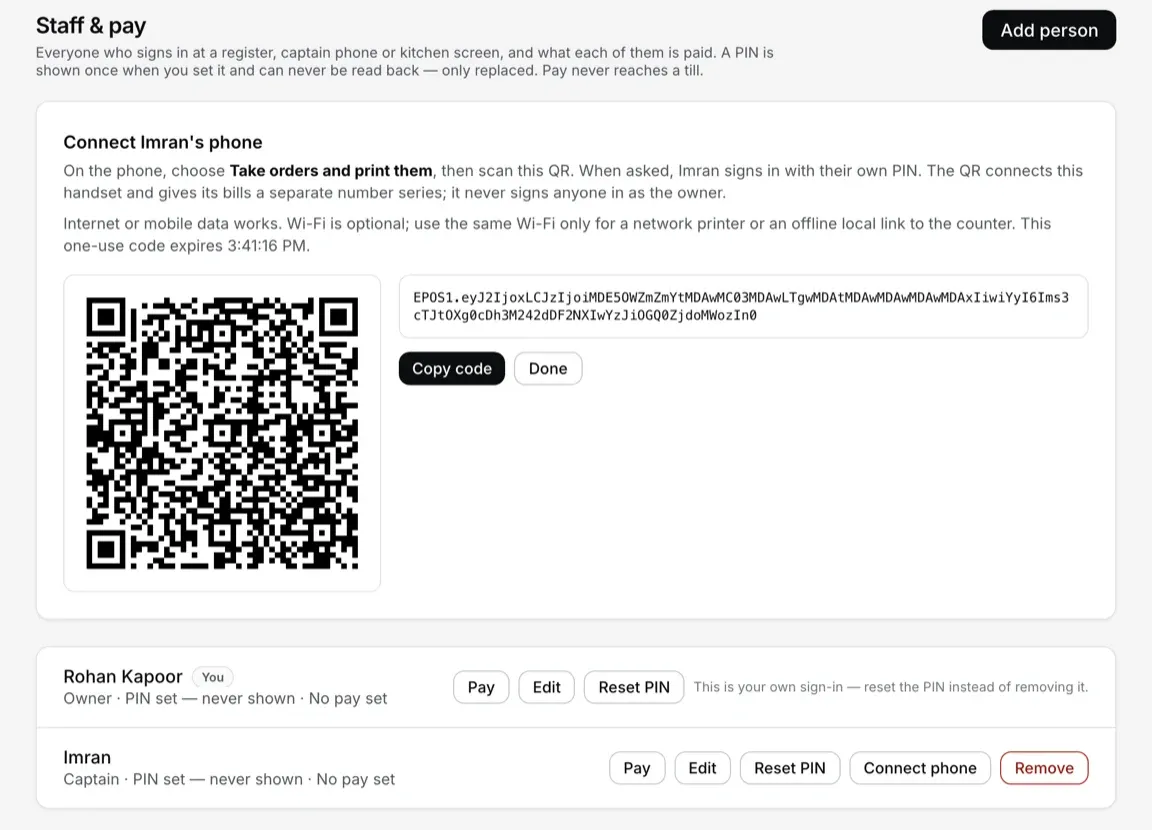
Staff & pay shows the one-use QR and code together.
Optional: connect straight to the Desktop App over Wi-Fi
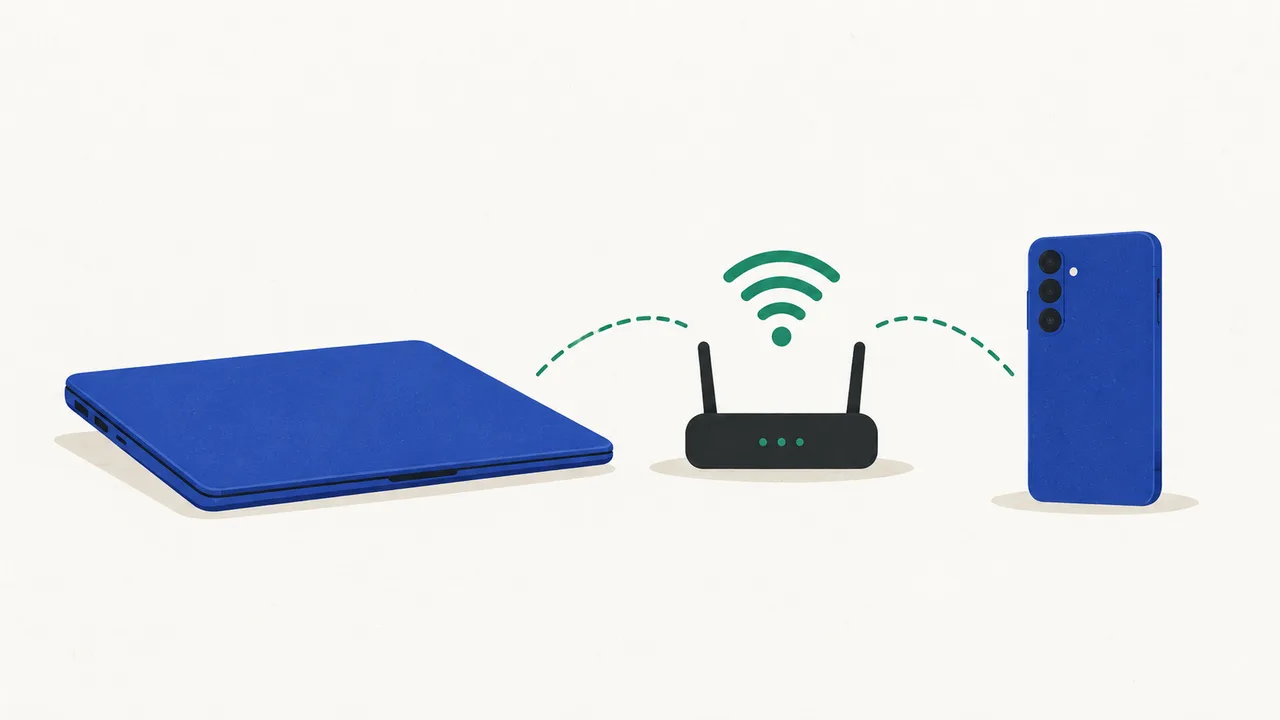
The phone works over mobile data or any internet connection after the restaurant downloads. For the faster local path, tap Optional: connect to the Desktop App over Wi-Fi on the PIN screen. In the Desktop App, open Settings → Connected devices → Main register → Connect a phone, then scan that 5-minute code. Only this local link needs both devices on the same restaurant Wi-Fi. A phone set up with Take orders and print them does not need the Desktop App link because it prints its own paper.
Read the video transcript
This is the recorded narration. Screen labels and steps reflect the video as published.
Keep the phone and Counter 1 on the same Wi-Fi. In Multi-device, keep Host the hub and Captain app on. Select Code for a phone. Note the shown address. The code expires in five minutes. On the phone, open Device and Sign out of this shift. The restaurant stays connected; the PIN screen returns. Select Optional: connect to the Desktop App over Wi-Fi, then Type the code instead. Name it Captain 1. Enter the shown address and phone code, then select Connect this phone. Connected shows Konkan Kitchen and nineteen items. Continue, then sign in with Ravi's staff PIN. Device now shows Linked. Orders, Kay O Teas and bills reach the Desktop App instantly. Phone printing is off, so the counter prints. Refresh Paired devices on Counter 1. Captain 1 appears as a phone. During service, keep both on the restaurant Wi-Fi, with the EasyKOT Desktop App open and the laptop awake.
The recording shows earlier labels. The current path is Settings → Connected devices → Main register → Connect a phone.
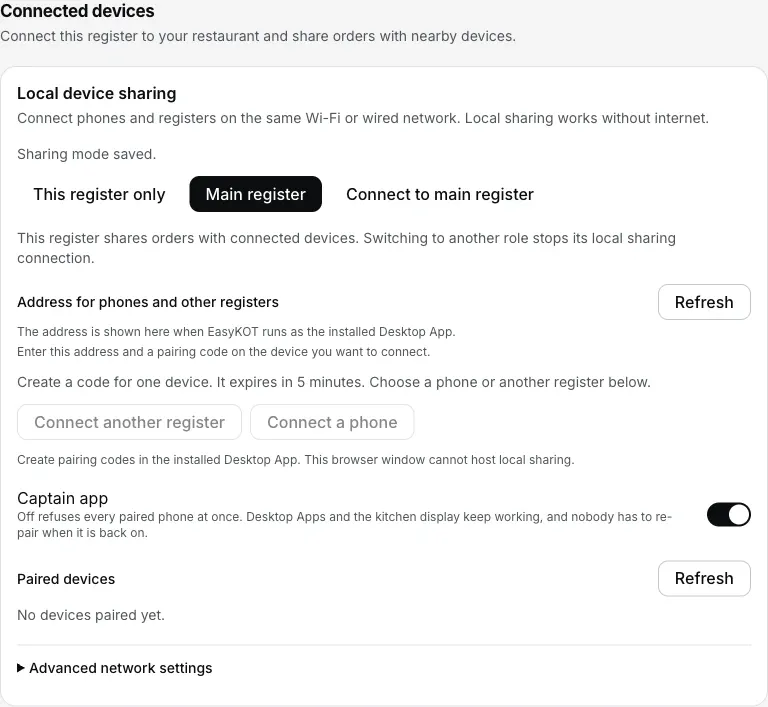
The Desktop App's side: Settings → Connected devices → Main register → Connect a phone.
- Type the Desktop App's LAN address, not
0.0.0.0: the app refuses that one by name. - The camera is an accelerator, never the only door. A waiter who declines the camera prompt lands on typed fields and pairs exactly the same way.
- "No Desktop App, or later — orders go over the internet" uses the server route. Check delivery confirmation; it can take longer than the local route.
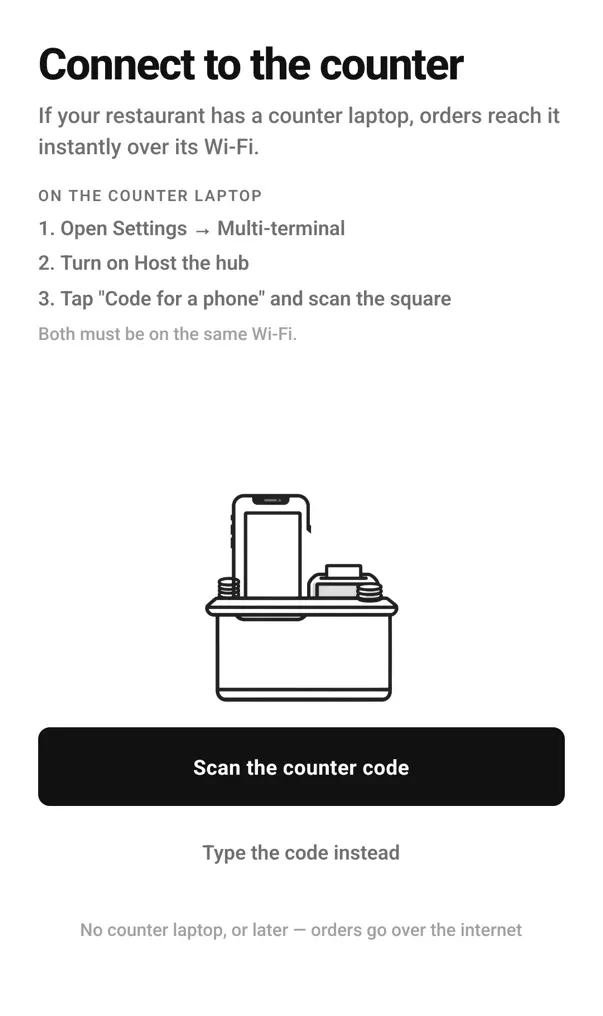
The phone's side, on “Connect to the EasyKOT Desktop App”: scan the Desktop App code, or tap Type the code instead for the screen below.
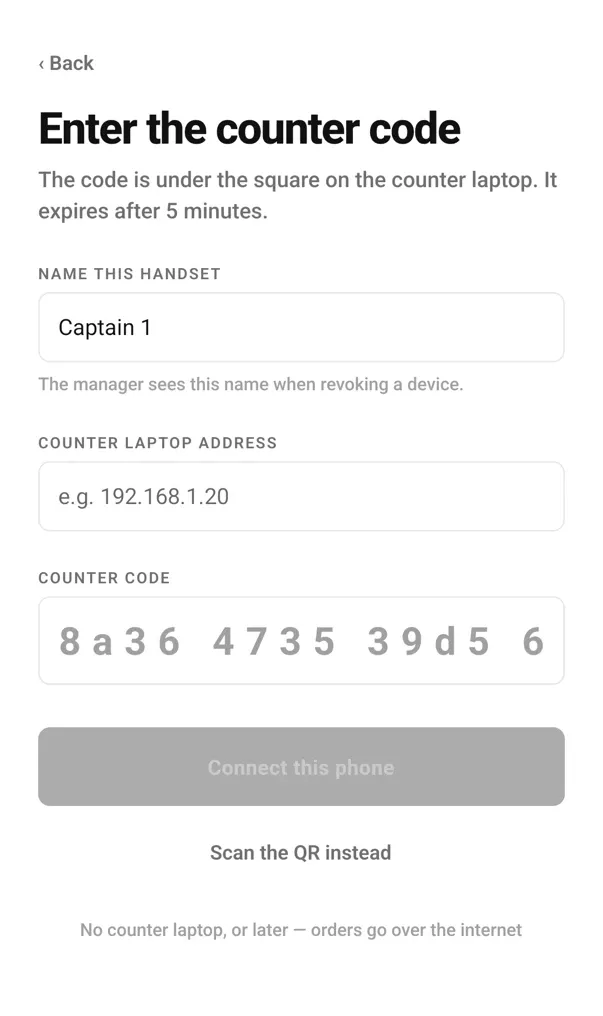
Typed by hand: the handset name, then the Desktop App's address and its code from the screen above.
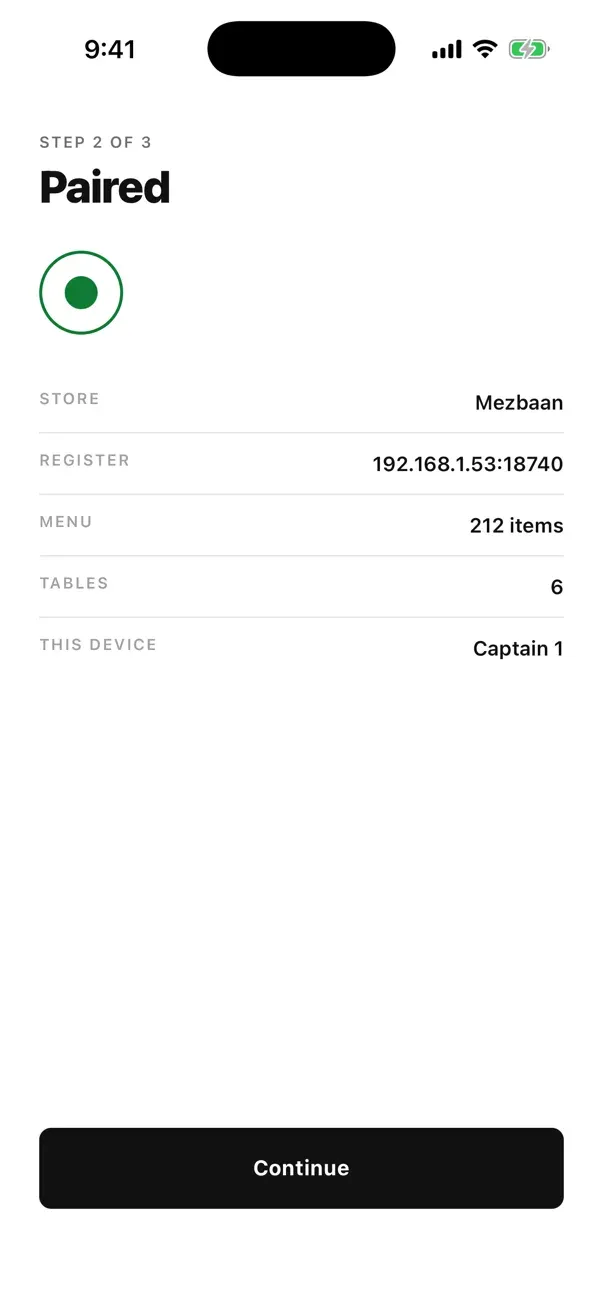
Paired: the phone now knows the store, the menu size and the table count.
Choose and test this phone's printer
A captain who carries a printer picks Take orders and print them on the first screen (Android only). After the restaurant downloads, the phone shows Choose this phone's printer. Add a Bluetooth or Wi-Fi printer, choose 58 mm or 80 mm paper and tap Test print. EasyKOT asks "Did a slip come out?" and turns printing on only after Yes, it printed. Only the KOTs and bills for tables taken on this phone print there. On Captain 0.2.11, stop later from Device → Printers → Stop printing on this phone. Since Captain 0.2.12, an already-connected phone can also open Device → Printing → Carry a printer for my orders, without resetting. Printing every table from one phone is the Run the counter setup; the laptop-free guide covers it.
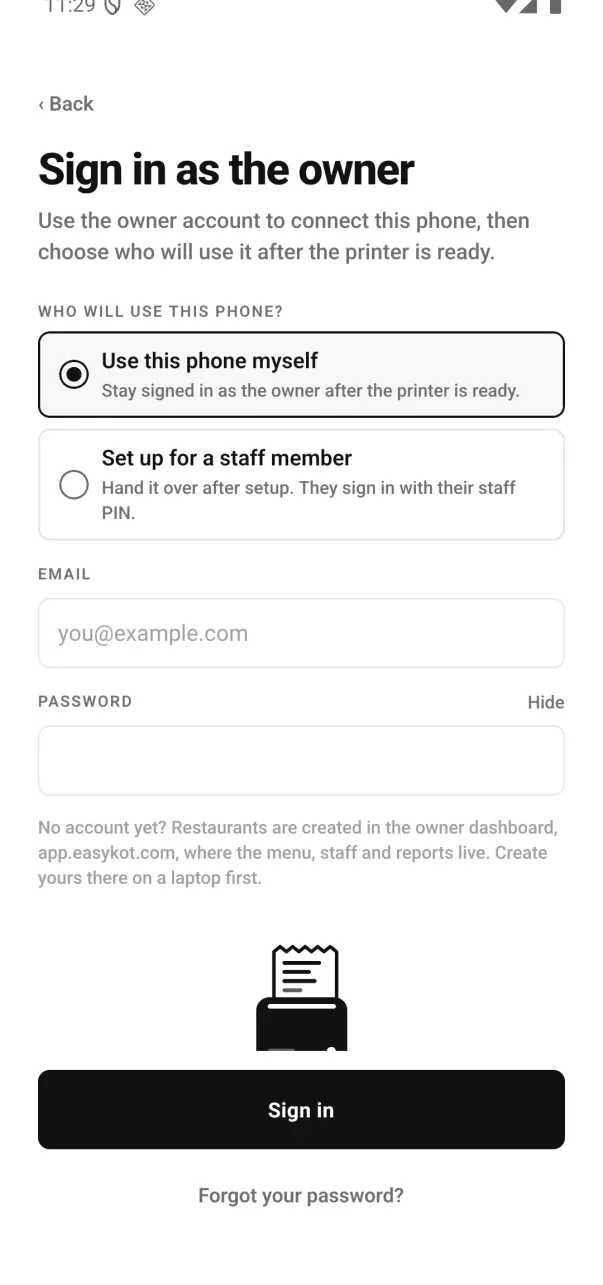
Signed 0.2.12 testing build: the owner chooses whether to keep using this printing phone or hand it to a staff member after setup.
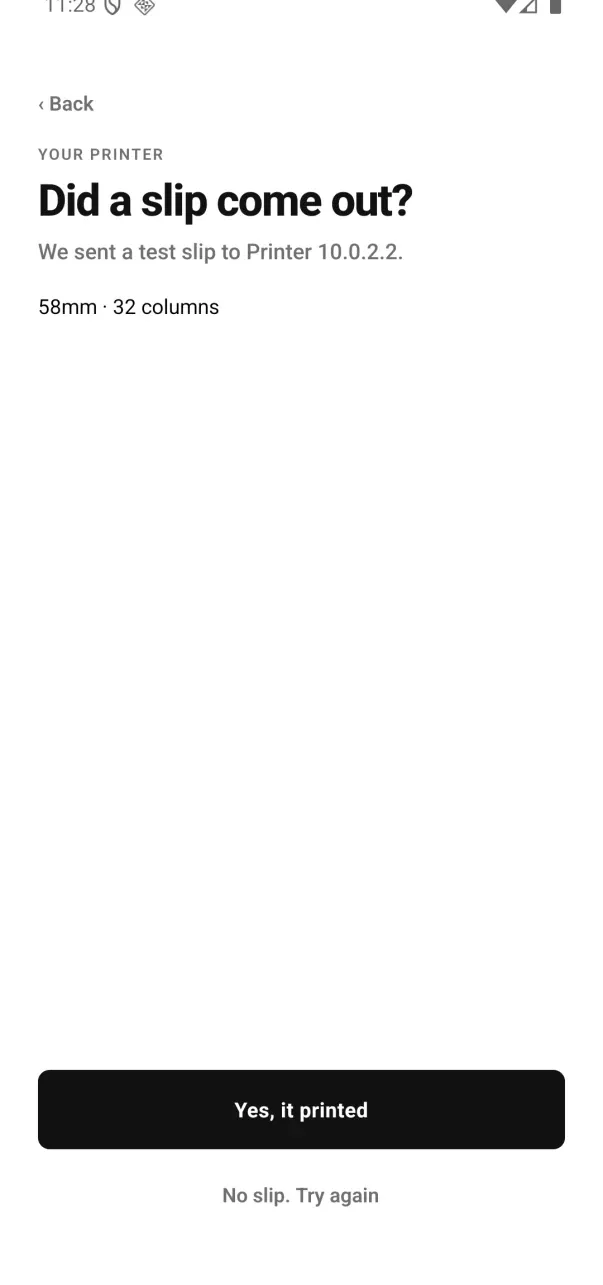
The phone waits for Yes, it printed before it selects the carried printer for KOTs and bills.
Give each waiter their own PIN
Staff PINs come from the dashboard's Staff page, are 4 to 12 digits, and work offline. A staff QR setup ends at "Enter your PIN", with "Forgot the PIN? The owner can sign in with email" under the pad. Since Captain 0.2.12, an owner signing in by email on the printing path can keep Use this phone myself selected and stay signed in after setup. Set up for a staff member still hands over to the PIN screen. Separate PINs keep the day-end readable: who rang what, who approved a discount, whose table carried the void.
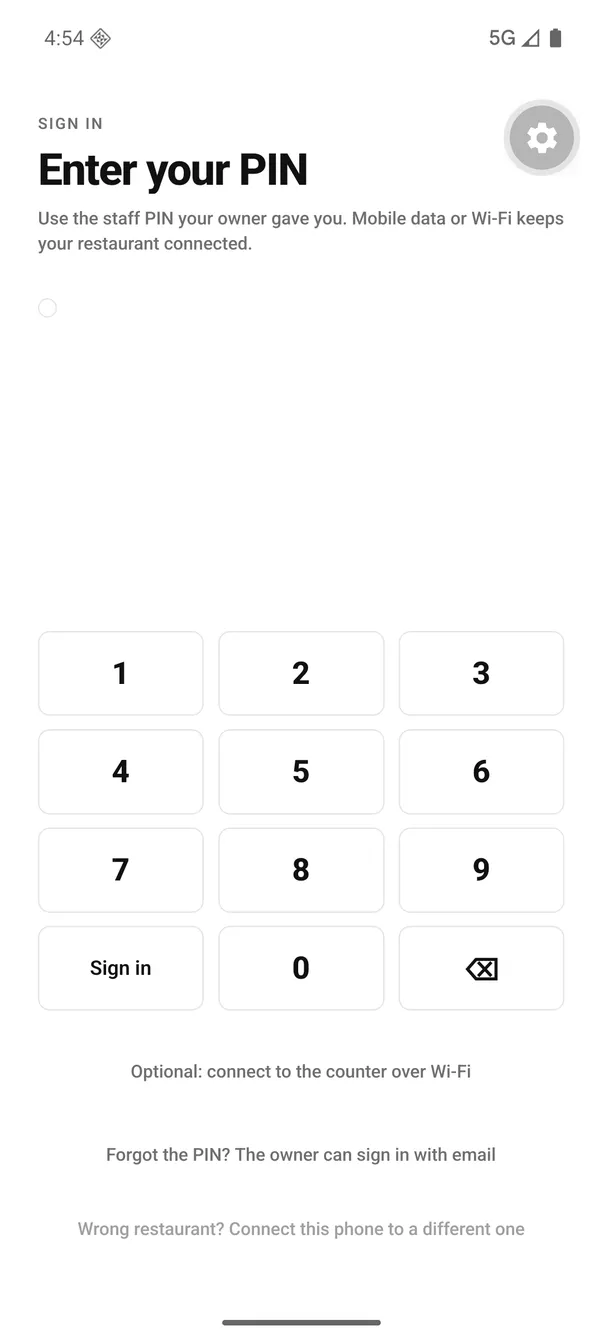
Each waiter signs in with their own PIN, not a shared one.
Fire a test KOT before service
Open a free table, add one cheap item and press Send KOT. The KOT prints in the kitchen (or lands on the kitchen display) and the round appears on the Desktop App's cart within a second on your own Wi-Fi. Do this before the first guest walks in, not during the rush.
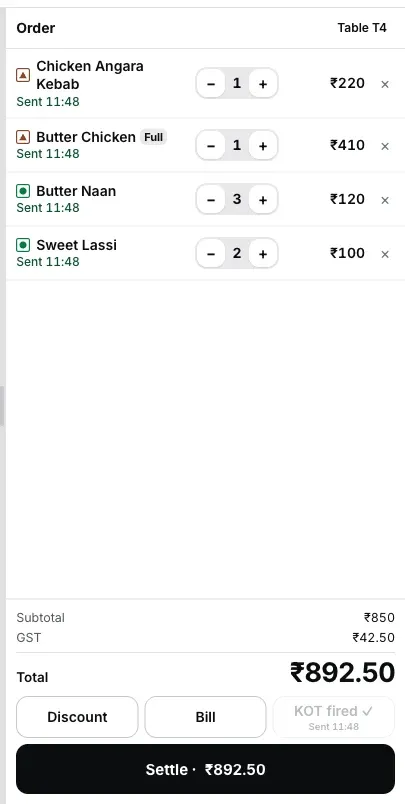
The other end of the test: the round lands on the Desktop App's cart, marked as sent to the kitchen.
What is in the app's four tabs?
- Running. Open tabs, oldest first, each with an elapsed timer and an amount, under a summary row: Running · To send · Over 45m. A waiter's phone starts with Only my orders ticked, so it lists the tabs that waiter worked on and counts the rest as more by others, with Show all; the counter phone lists every tab. Since Captain 0.2.12, Only my orders sits beside Running, with To send and Over 45m below when needed. Seating timers warn at 45 minutes and go late at 75, with a colour and an outline around the card, so it reads without colour vision. A check with every dish removed shows Empty and is left out of Over 45m.
- Free. Only unoccupied tables, plus a + Takeaway button. Occupied tables are hidden, so a second tab on one table is not a mistake anybody can make.
- Today. Every order of the store's current day, counted from the day start the owner sets (4am unless changed), newest first, each marked Paid, Running or Cancelled. The top shows what was collected, how many bills, and the Cash / UPI split. Tap a running table to open it. Tap a finished bill to see its items, tax and payments, who took the money or cancelled it, and why. Reprint bill prints a copy marked DUPLICATE on this phone's printer or, when the phone does not print, at the counter. It shows today only, with no earlier days and no search, and a bill paid two ways counts as Split. A chef's phone does not show this tab.
- Device. The phone's pairing, update, sign-in and shift settings live here. Since Captain 0.2.12, Printing → Carry a printer for my orders adds a carried printer to an already-connected phone.
Want to see the Desktop App half before you set anything up? Open the live demo on a laptop and ring a bill yourself: it is the real Desktop App running in the browser, so it needs a laptop-size screen. Reading this on a phone? EasyKOT on an Android phone is the nearer door.
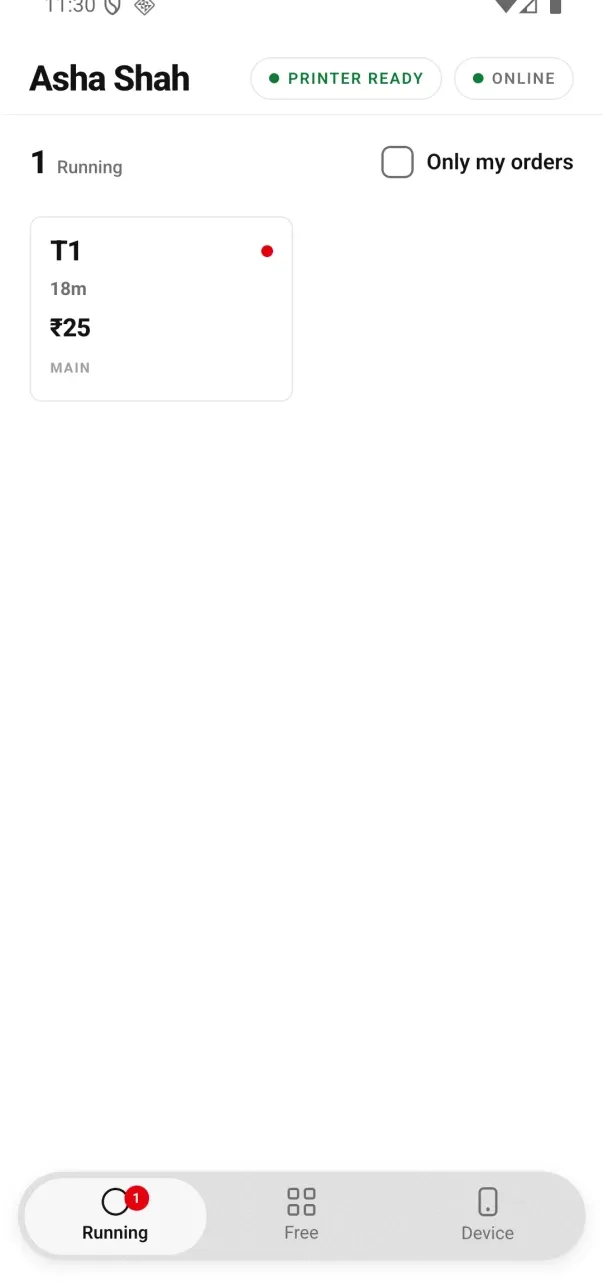
Signed 0.2.12 testing build: the order filter now sits beside the Running count.
How many phones do you actually need?
There is no per-waiter or per-phone charge for one outlet, so choose the count for the floor rather than for billing.
- A small place: one phone. Keep it at the pass for whoever takes the next table. The table, rather than the phone, owns the check.
- A full floor: one per waiter on shift. Their own handset and PIN keep staff records separate.
- Each phone is connected separately. In Staff & pay, tap Connect phone for that captain and make a fresh one-use QR for the handset.
Mobile data or Wi-Fi both work.
With internet, orders travel through EasyKOT whether the phone is on restaurant Wi-Fi or mobile data. If you also connect the phone to the Desktop App over the restaurant Wi-Fi, EasyKOT can use that faster local path.
- Local Desktop App link: one hop. Once you connect the phone to the Desktop App's hub, the round can travel directly on the restaurant Wi-Fi with no internet.
- Internet up: a few seconds. On mobile data, guest Wi-Fi or restaurant Wi-Fi without the local link, the round goes via our server and reaches the counter that prints it.
- Neither route: the round waits on the phone and retries. Treat it as delivered only after the counter confirms it. The app says: "The counter hasn't got this. Stay on the restaurant Wi-Fi, or tell the kitchen."
Do not ignore the waiting badge. If the counter has not confirmed delivery, tell the kitchen.
A phone that won't pair — four checks.
- Different networks. The phone may be on guest Wi-Fi or mobile data. Put the phone and the Desktop App on the same restaurant network. The app says: "No Desktop App at that address on this Wi-Fi. Check the address, not the code."
- The code expired. The pairing code is single-use and lasts five minutes. Follow the app's exact instruction: "That code was refused — make a new one in the Desktop App."
- The Desktop App is asleep or the hub is not hosted. Keep the Desktop App awake and turn on Settings → Connected devices → Main register.
- The wrong address was typed. Use the LAN address shown on the Desktop App.
0.0.0.0is not reachable and is rejected.
Still stuck? Choose "No Desktop App, or later — orders go over the internet". Check each round's delivery status on the server route, then complete local pairing after close.
Straight answers.
Can waiters use their own phones?
Does the captain app need internet?
What happens if a waiter's phone dies mid-order?
How many phones can connect at once?
Does each waiter need a separate login?
Is there an iPhone version?
How do I update the captain app?
Do I need to buy a separate phone for the captain app?
Setup is done. Now learn the waiter's daily order flow.
Now take a test order
Pick the table, tap the dishes, add the kitchen note, send the KOT and check delivery status.
How a waiter sends a KOT →What the captain app does
See the current order, KOT, payment-permission and device scope for an owner.
See the captain app →Where the KOT comes out
Add the kitchen printer on the Desktop App, set Role to Kitchen (KOT), and inspect a test slip.
Set up the kitchen printer →Also worth a look: the kitchen display, if you would rather skip paper, or Bluetooth printer pairing for the released Android Run the counter mode.
Run it 3 months, then pay for it.
Three months free, full product, no card. Made in India, for the counter: built inside a running restaurant.