Create your restaurant account
Create the owner account, add the restaurant and finish the first EasyKOT signup steps.
Read the step-by-step guide →Read the video transcript →
Set EasyKOT up in three passes: get the EasyKOT Desktop App or the phone billing, connect the printer that prints the bill, then add the kitchen printer and the waiters' phones. Most restaurants are printing a real GST bill within twenty minutes. Every step below is a page of its own.
Not set up yet? Try the Desktop App in your browser : the real app, your own made-up orders, nothing to install · ₹299/month
If you've just signed up, the order is: add your menu, choose your Desktop App PIN, install the Desktop App (or set up the phone), connect a printer, then ring one sale and watch the slip come out. The five signup-to-first-bill steps cover the account side; the guides below cover the hardware and the people.
This is the recorded narration. Screen labels and steps reflect the video as published.
Let's create your EasyKOT account and restaurant. Keep your email and WhatsApp number ready. Visit the Owner Admin Panel at app.easykot.com. Open the signup form. This is the Create your store page. Your first three months are free. Enter your name in Your name. In Restaurant name, enter your restaurant's name. We're using Konkan Kitchen for this walkthrough. Enter an email you can access. You'll use this email to sign in again. Choose your country and enter your mobile number. Use your WhatsApp number because setup help and videos come there. Create a password. In Confirm password, enter the same password again. If you've received an invite code, enter it here. Read the terms of service and privacy policy. If you agree, tick this box. Let the browser check Finish if it appears. Then click Create store. When your store is created, Get started opens. Check that your WhatsApp number is correct. If it needs changing, use Settings. Your account is ready. Next, we'll add your menu in a separate video. Already have a store? Use Sign in on the signup page.
Let's import Konkan Kitchen's menu from a menu photo into EasyKOT. Visit the owner admin at app.easykot.com and sign in. On Get started, find Add your menu. Click Choose a file and select your menu photo. Use a clear photo so dish names and prices are easy to check. EasyKOT reads the menu and prepares a draft. Wait for the review screen. Nothing has been saved yet. Compare every dish, category, portion, price, and veg or non-veg label with your menu card. Scroll through the whole list. Check both prices for dishes sold by portion. Chicken Biryani Half ₹180. Chicken Biryani Full ₹320. Paneer Butter Masala Half ₹160. Paneer Butter Masala Full ₹280. If anything needs correcting, edit it here before importing. Do not continue with a missing or incorrect price. When everything matches, click Import 15 dishes. Wait for the import result. Your menu is now saved. Open Menu & stock, then All items to check it. Here are our 15 dishes. Updating dishes and adding varieties each have separate videos.
Open Menu & stock Add a dish yourself Choose the STARTERS category Enter Kothimbir Vadi Set price to ₹90 Select Add item Dish appears in menu Quick add saves basics Open Edit for details Mark the dish Veg Confirm the STARTERS category Add the dish description Crispy coriander with green chutney Confirm STARTERS, Veg and ₹90 Select Save to finish Kothimbir Vadi is ready
Open Chicken Biryani Scroll to Portions Half ₹180 · Full ₹320 Enter the Family size Select Add size Set Family price ₹580 Reorder Half, Full, Family Stop one size Turn Family back on Select Save portions Check all three prices Sizes are shared Review every portion dish Butter Chicken: Family off Select Save portions Repeat for other dishes Keep Half and Full
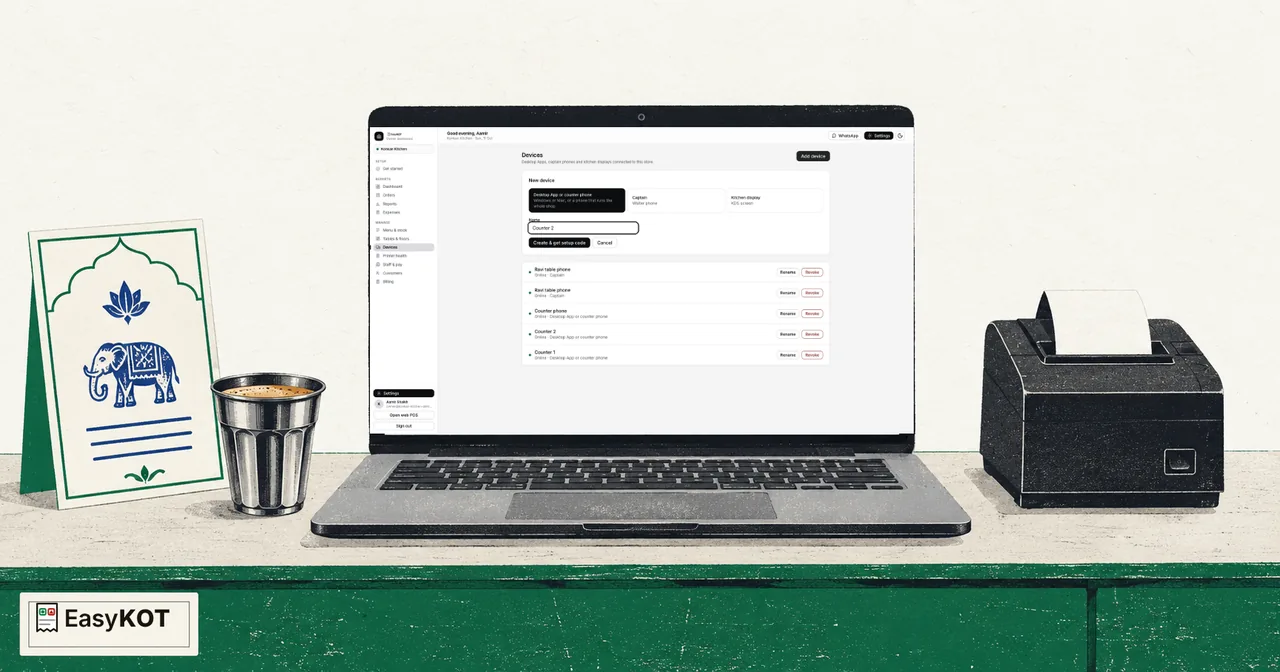
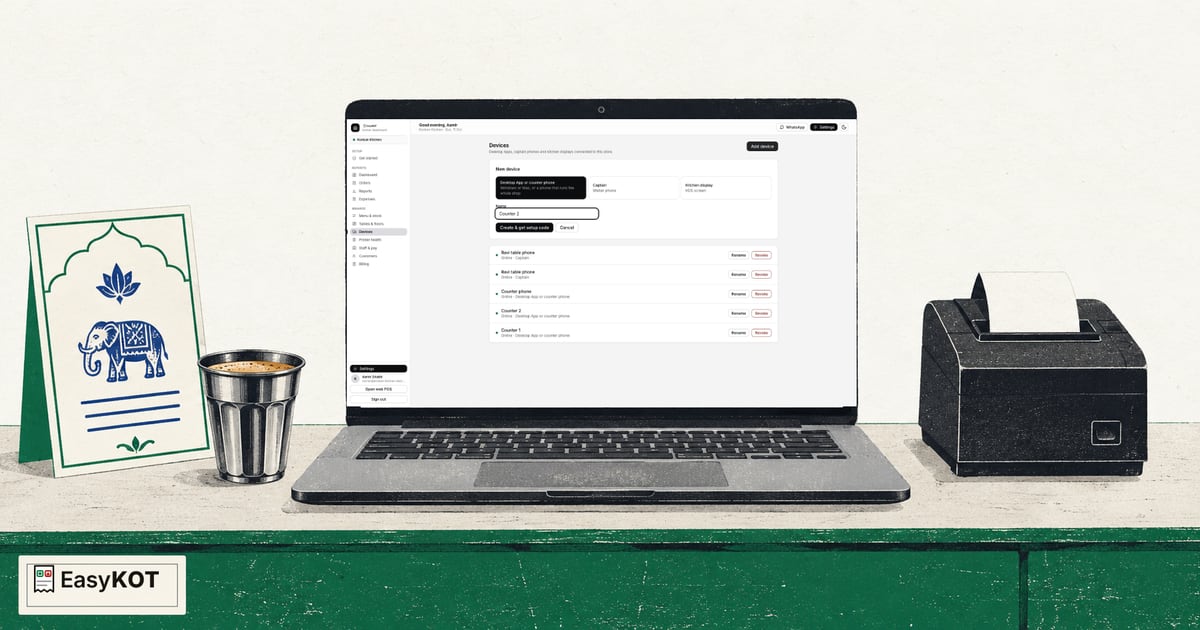
In the owner dashboard, open Get started. Four of five steps are complete, and Choose your PIN says PIN set. For the EasyKOT Desktop App, open EasyKOT dot com slash download. Choose Windows 10/11 and Download dot exe, or Mac, Intel and Apple Silicon and Download dot dmg. After downloading, follow the first-open instructions shown for your operating system, then open the installed Desktop App. This video continues with an app that is already installed. Back in the owner dashboard, choose Devices in the left sidebar, then select Add device. Choose Desktop App or counter phone, then enter Counter 2 in Name. Select Create and get setup code, then Copy code. This code is shown once, so keep the code and QR private. The fresh app opens on Connect this Desktop App. It offers I have a setup code and Owner sign-in. Use the setup-code tab here. Paste the copied value into Setup code, then select Connect Desktop App. After Connect Desktop App, the real app moves to Enter your PIN to start your shift. Reaching this screen confirms the setup code was accepted. At Enter your PIN to start your shift, type the owner PIN already saved in the dashboard, then select Enter. Counter 2 is connected to Konkan Kitchen, and the real register is ready with all nineteen menu items.
On the Android app, choose Run the counter.
On Sign in as the owner, use the same email and password as the EasyKOT owner dashboard.
Select Sign in. This connects the owner's phone without a setup QR or staff PIN.
Wait while the phone connects, downloads the Konkan Kitchen menu and tables, and opens the counter.
On Add your printer, choose Not now — I will add one later.
The Running tab now shows Konkan Kitchen’s orders. This phone is signed in as the owner.
In the Device tab, verify the connected store and the owner's signed-in identity.
You can add or change printers later from the Device tab.
In the owner dashboard, open Staff and pay, then select Add person. Choose Captain. This role takes orders on a phone. Enter Ravi Captain and choose a private four-to-twelve-digit PIN. Add and show PIN saves the person. A new PIN is shown once, so write it down and keep it private. Ravi’s saved Captain profile is ready for this demo. Now open Devices and select Add device. Staff identity and phone enrollment are separate. Choose Captain, name it Ravi table phone, and select Create and get setup code. Copy the one-use setup code. It connects the handset, but it does not sign Ravi in. On Android, choose Take orders at the tables. On Join your restaurant, paste the setup code and select Connect. After Konkan Kitchen downloads, select Set up later to keep Ravi’s orders printing at the counter. On Enter your PIN, sign in with Ravi’s staff PIN. Open Device and verify Ravi Captain and the captain role. Back in Devices, confirm Ravi table phone is connected and the one-use code is retired.
Keep the phone and Counter 1 on the same Wi-Fi. In Multi-device, keep Host the hub and Captain app on. Select Code for a phone. Note the shown address. The code expires in five minutes. On the phone, open Device and Sign out of this shift. The restaurant stays connected; the PIN screen returns. Select Optional: connect to the Desktop App over Wi-Fi, then Type the code instead. Name it Captain 1. Enter the shown address and phone code, then select Connect this phone. Connected shows Konkan Kitchen and nineteen items. Continue, then sign in with Ravi's staff PIN. Device now shows Linked. Orders, Kay O Teas and bills reach the Desktop App instantly. Phone printing is off, so the counter prints. Refresh Paired devices on Counter 1. Captain 1 appears as a phone. During service, keep both on the restaurant Wi-Fi, with the EasyKOT Desktop App open and the laptop awake.
Counter 1 and Counter 2 are already connected to the same Konkan Kitchen store. Keep both on the restaurant's local Wi-Fi. On Counter 1, open Settings, then Multi-device. Select Host the hub. Keep this laptop awake and EasyKOT running during service. Use the address shown here, then select Code for a Desktop App. This single-use code expires in five minutes. On Counter 2, open Multi-device and select Join a hub. Choose Find hub, or type the exact address shown on Counter 1. Enter the Pairing code, then select Pair and save. Wait for Paired. This Desktop App has its own hub credential. Counter 1 now lists the device, and both status bars show the live hub. Now start the real T2-001 order for four hundred rupees on Counter 2. Each laptop saves locally, which is designed to keep the counter working during a future internet problem. This recording keeps the internet on. The local hub shares that order with Counter 1's Orders list. Fire the Kay O Tea on Counter 2 only after the same order appears there. In a paired store, Counter 1 is the print server. Configure the kitchen printer there, and verify the real Kay O Tea before service. Cloud sync still runs separately on each laptop. Keep Counter 1 running for live sharing and printing. If Counter 1 restarts, create a new code and pair Counter 2 again.
On Counter 1, unlock as an owner and open Settings, then Printers & KDS. With the USB cable connected and paper ready, select Detect printers. The scan finds RONGTA USB Receipt Printer. Because this store already has a saved printer profile, go Back instead of selecting the detected candidate and creating a duplicate. Select Edit on the existing printer row. This keeps the saved profile while updating its connection. Set Connection to USB. Choose eighty millimetre, forty-two chars, and set Role to Both for Kay O Teas and bills. Select Print test page. The sent message confirms only that the command was handed off. Check the real paper. If the test page is clear, select Yes. Select Save printer. The existing profile returns as Connected. Now create the real five-hundred-and-thirty-rupee order: one Malvani Fish Curry Full, two Tandoori Roti, and two Solkadhi. Fire the Kay O Tea to send the new dishes to the kitchen. Check the printed item names and quantities. Print the matching bill. Here, Order T1-001 shows a total of five hundred and thirty rupees. Check the total before handing the bill to the customer.
The complete 13-minute walkthrough, from the account to an actual KOT and bill on a USB printer.
Watch the complete setup video and chapters →
Pick only the job you need now. Ten setup lessons have English and Hindi videos. The original Android and Bluetooth walkthrough is in English.
Create the owner account, add the restaurant and finish the first EasyKOT signup steps.
Read the step-by-step guide →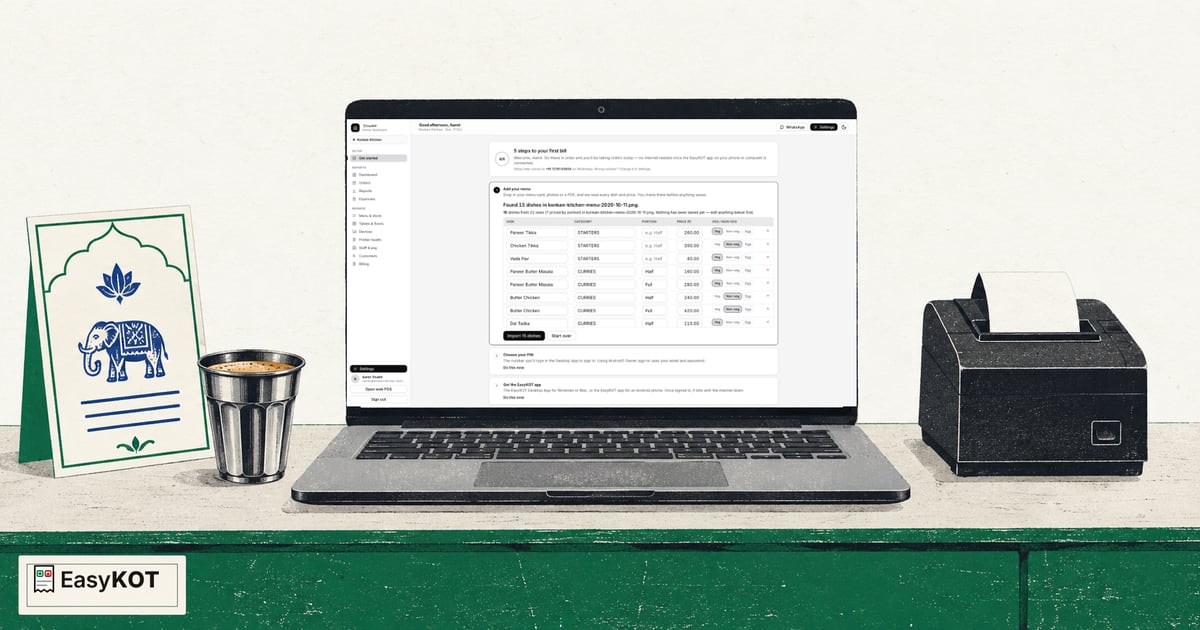
Upload a menu image, review the dishes EasyKOT reads and import the corrected menu.
Read the step-by-step guide →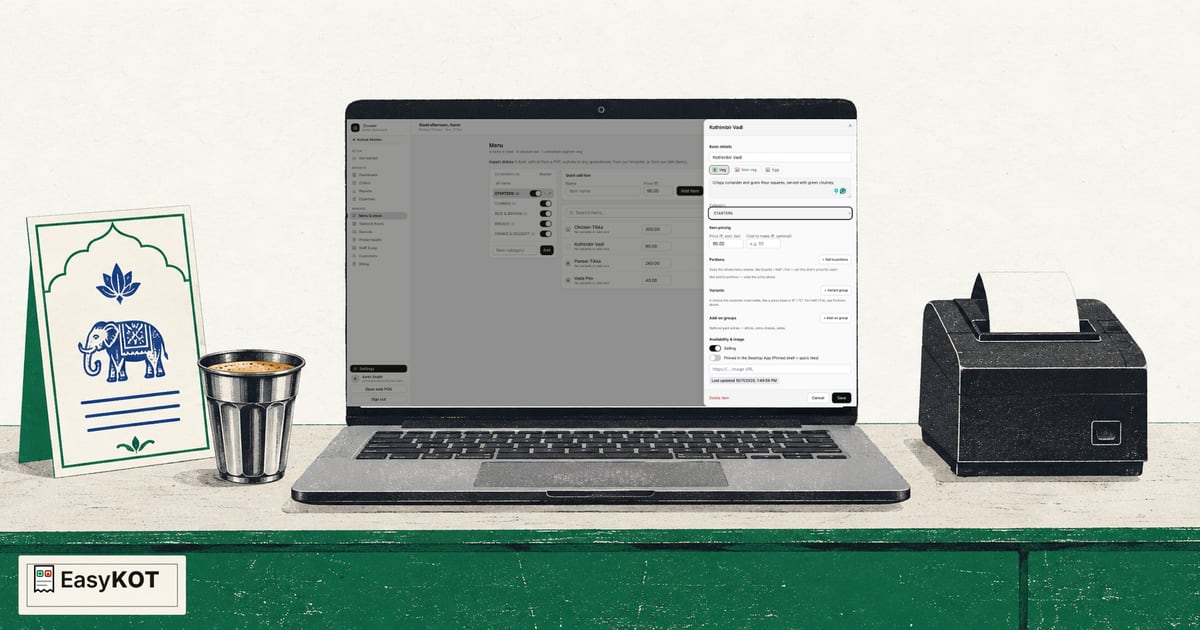
Add one dish by hand with its category, price, food type and GST setting.
Read the step-by-step guide →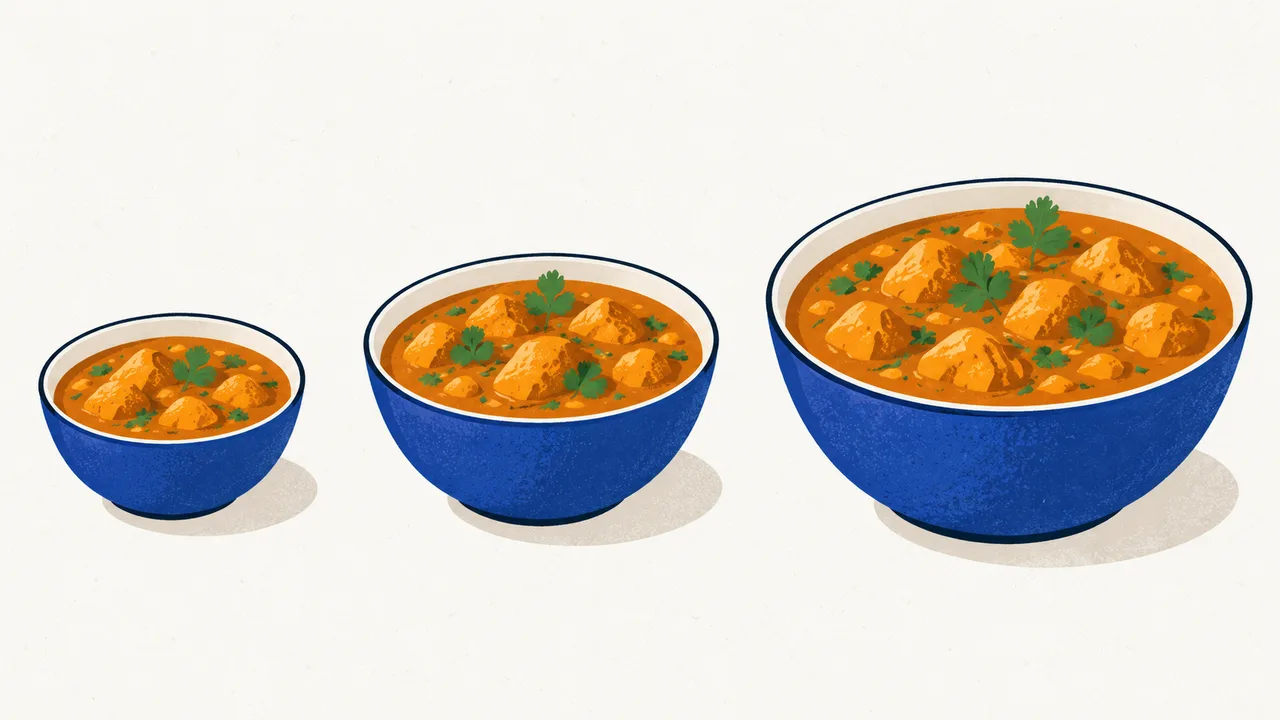
Give one dish separate Half, Full and Family prices and switch off a size you do not sell.
Read the step-by-step guide →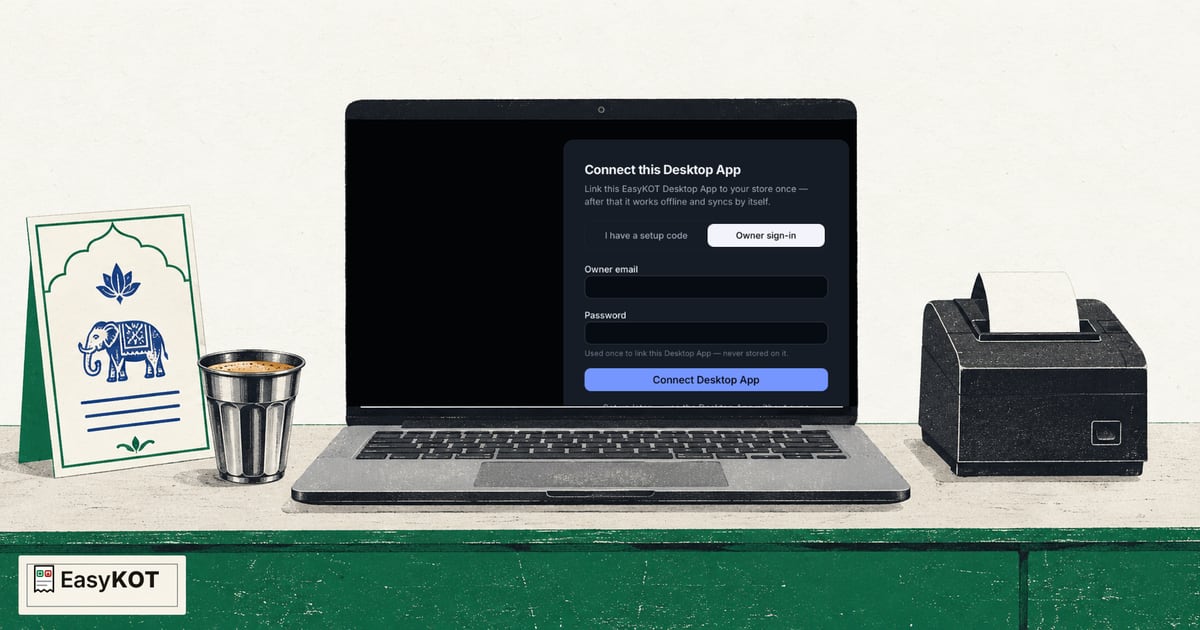
Download EasyKOT, paste the one-time setup code and verify the restaurant has synced to the Desktop App.
Read the step-by-step guide →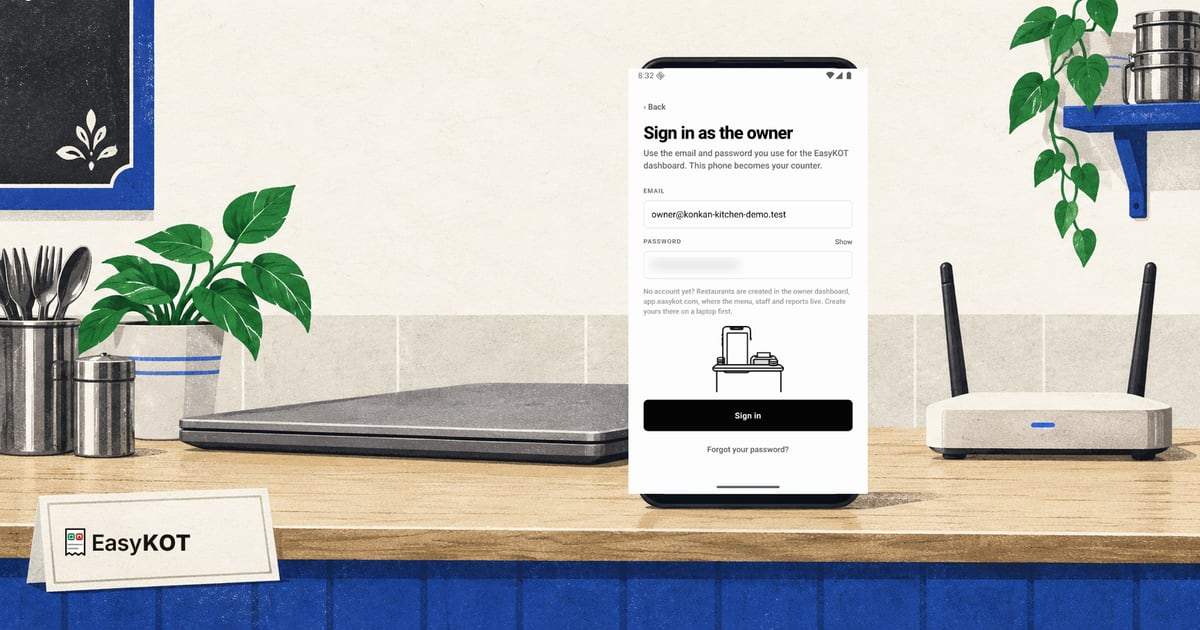
Choose Run the counter, sign in as the owner and connect the phone to the same restaurant.
Read the step-by-step guide →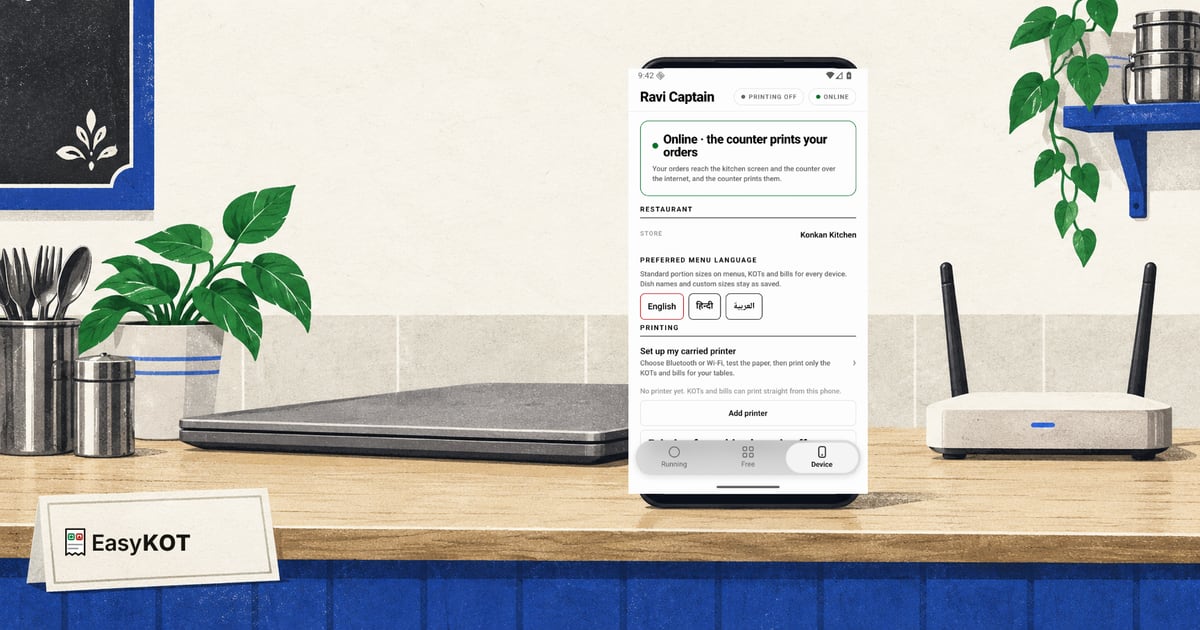
Create a one-time phone code in Staff & pay and use it to connect a Captain phone.
Read the step-by-step guide →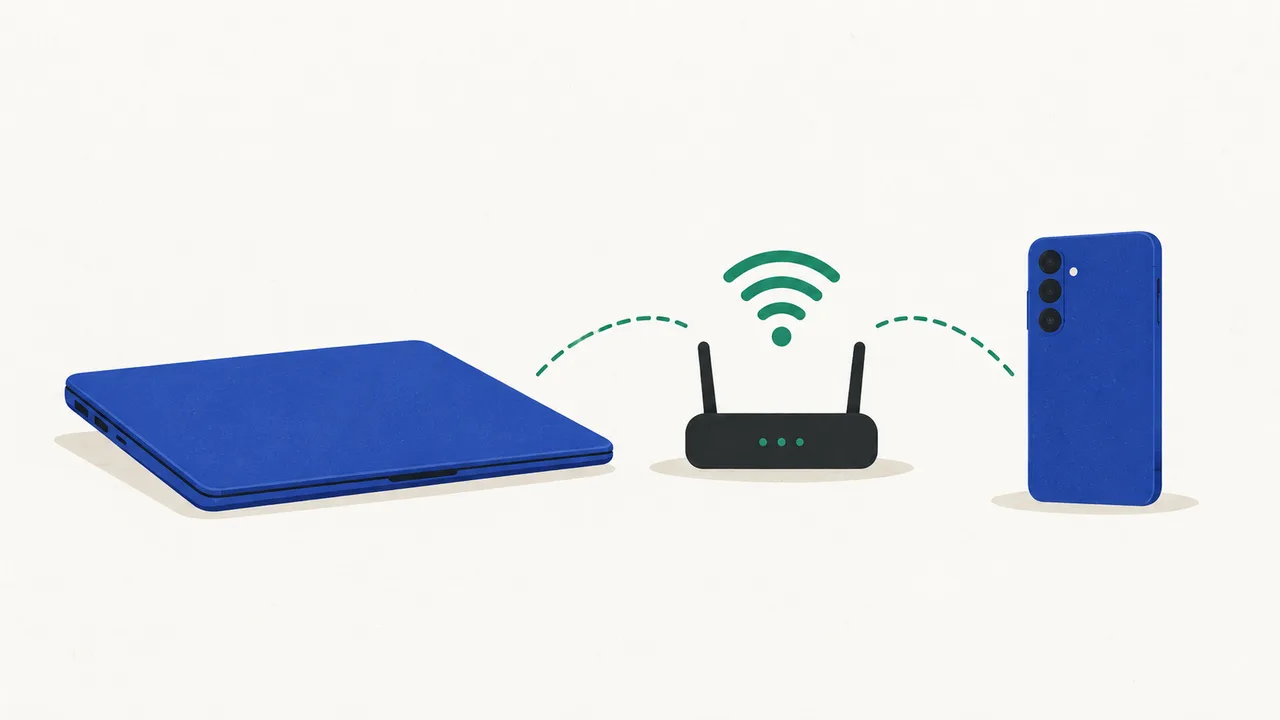
Create a phone code on the Desktop App and connect the Captain phone over the restaurant Wi-Fi.
Read the step-by-step guide →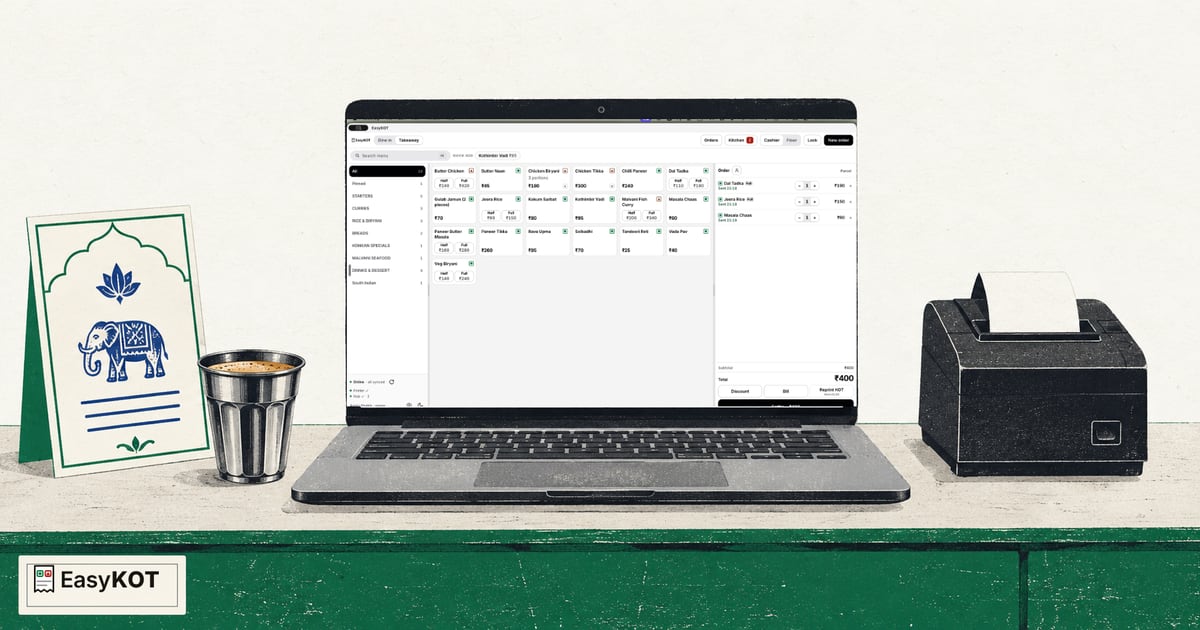
Host the local hub, pair another Desktop App and verify both counters share the same restaurant.
Read the step-by-step guide →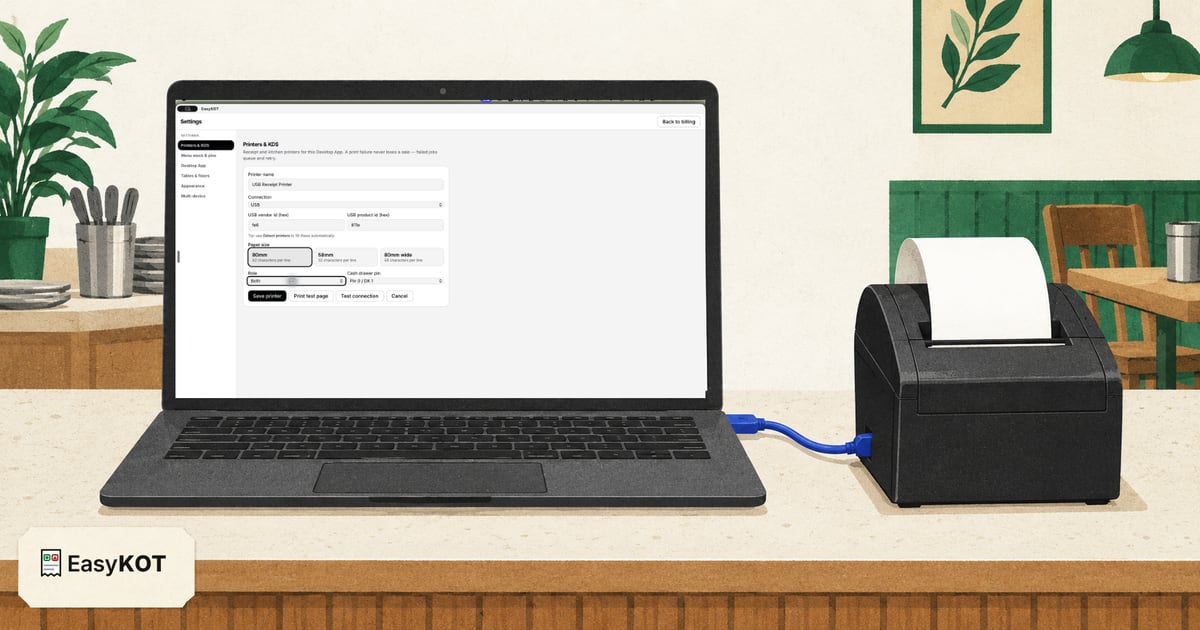
Connect an 80 mm USB printer, print a test page, then print the matching KOT and bill from one order.
Read the step-by-step guide →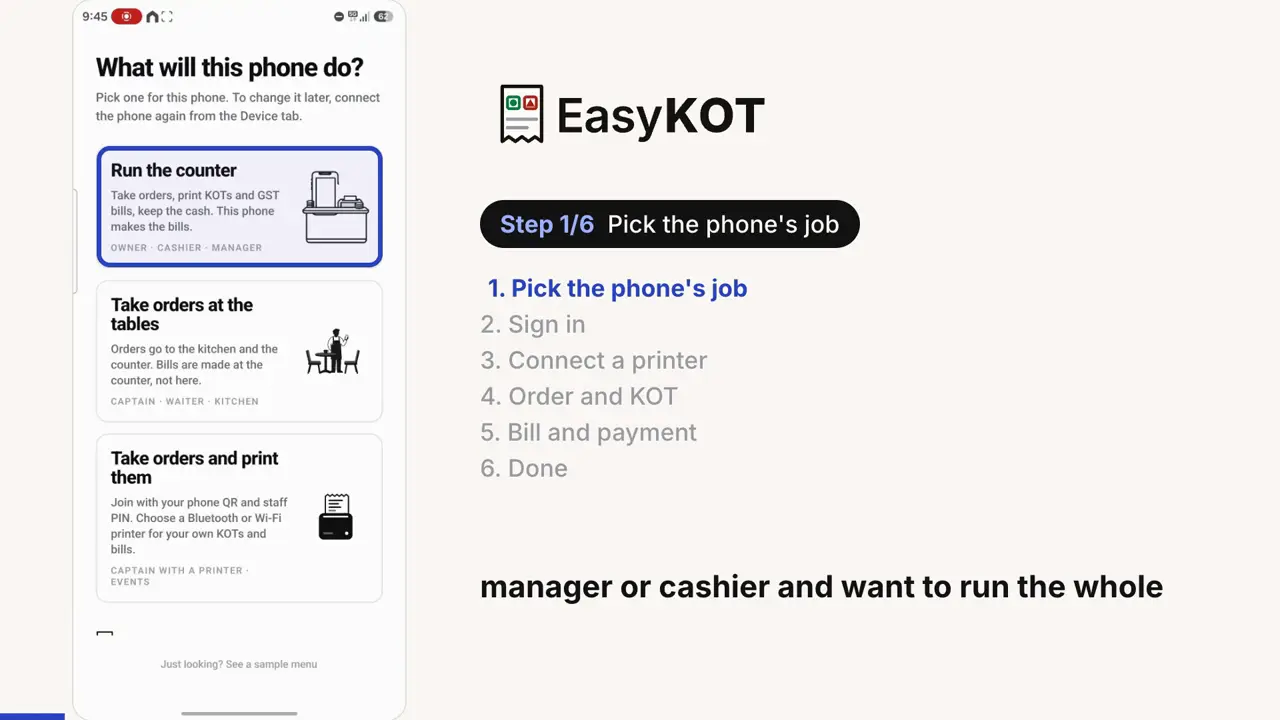
Set up EasyKOT on an Android phone: pick what the phone will do, sign in as the owner, pair a Bluetooth thermal printer, take a takeaway order, send KOTs and print the bill.
Connect a browser register, save its app files for offline use, and print through the system dialog. Check the browser's storage and printer limits before service.
Set up the browser register →Signup to first bill, every screen: Get started, choosing your Desktop App PIN, the Desktop App setup code, punching an order, and the report that proves it worked.
Walk through day one →Punch the order, fire the KOT, settle cash or UPI, print a bill carrying your GSTIN and the CGST/SGST split.
Print the first bill →Drop photos or a PDF of your menu, check the review grid, press import, then portions and add-ons.
Import the menu →No menu file? Type a dish and its price, then add the veg mark, Quarter, Half and Full prices, and extras.
Add the first dish →Draw your hall (round, square and rectangular tables where they really stand) and run service off the live floor.
Build the floor →What keeps working, what the screen says, where the bills go, and what happens the moment the line comes back.
See what survives an outage →The flows a counter runs fifty times a shift (settling with change math, parcels, the money keys that want a manager beside them) and the one-minute routine that ends the day clean.
Start a shift, record cash in and paid out, count the drawer and read the signed variance. Desktop and Android steps, with the differences made clear.
Open and close the cash shift →Type what the guest handed over: the Desktop App answers with the change to return, or records a short payment honestly.
See the settle flow →Quick percent keys, fired-dish voids with a signed reason, refunds you re-type to confirm: every press on the record.
See the money controls →One toggle makes the next check a parcel: no table, a TAKEAWAY ticket the kitchen packs, its own counter strip.
Bill a parcel →Tap the person icon, type a number or a name, and the bill prints who it was for. Find it again on the Orders list, fix a typo after settle.
Add a customer →Discard the mis-taps, say whether the money came in for the rest (a walkout is written off with a manager's PIN), and read the GST document register for gaps.
Close the day →Last night's tables still in the list: add the payment, keep the auto close, or write it off with a manager's PIN, with the effect on sales, totals and the cash box shown before anything is saved.
Answer the question →A PIN for every person, a role for every job, and manager approvals exactly where money leaks.
Set up staff →Six themes with live previews, dark mode on Shift+D, and four sizes that never shrink the buttons.
Make it yours →Every bill in Orders; sold facts in Reports by Item, Category or Variant, with an exact bill drill. On a phone too.
See your orders →A snapshot of the previous trading date prepared from 08:00 store time, with four report families behind it.
Read your numbers →The Sunday-night spreadsheet, built in: one period at a time, platform payouts and owner withdrawals typed in, and the cash carried forward to the next.
Do the week's hisaab →Your GSTIN and invoice identity, the trading-day start time that decides when today's numbers roll over, and which owner emails actually reach your inbox.
Open owner settings →A print failure never loses a sale: the settle is written first and the ticket queues and retries on its own for 5 minutes. Still stuck after that, it waits for a tap rather than trying forever. But paper is what the guest and the kitchen actually hold, so it's worth getting right on day one.
Set printer presets, larger dish names, separate bill and KOT layouts, and check a sample slip before saving.
Open the layout guide →Wi-Fi, USB or serial: let the Desktop App find it, or type the IP and port yourself. With screenshots of every field.
Connect the printer →Give one printer the bills and another the KOTs, and wire the drawer so it kicks on every settle.
Set up the kitchen printer →Pair a 58mm or 80mm Bluetooth thermal printer with a phone and print KOTs and bills, no laptop at all.
Pair the Bluetooth printer →Blank slips, garbled characters, a KOT the kitchen never got. Work through the checks in order. Your sale is already saved.
Fix the printer →Any billing software printing through Windows needs the maker's driver: the setup, the port, paper size, auto-cut and the drawer, with official download links.
Install the driver →Bill tiny, half-width or trailing blank paper from a web billing app, and Chrome's "check your printer and try again" error.
Fix browser printing →macOS refuses to open the Desktop App: a leftover process, a restart or one Terminal line, and the window on your other screen.
Open the Desktop App →Offline status, jobs stuck in the queue, a port that changed when the cable moved: clearing the spooler, in order.
Bring it back online →Each of these is titled with the exact words the Desktop App puts on the printer's row, so the page you land on is the page about your problem. The Desktop App links to them itself: when a printer row has a fault, “How to fix this” folds open with the same first step and the address of the full guide.
Clean, empty slips. The roll is in coated-side out: the scratch test settles it in two seconds.
Flip the roll →Something prints, but not your words. The paper width, the serial speed, and the emulation switch.
Fix the characters →Slips coming out joined: whether the model has a cutter at all, and how to clear a jammed one.
Fix the cutter →The router moved the printer's address overnight. The Desktop App hunts for it by hardware address first.
Chase the address →The healthy printer nobody can reach: AP isolation, guest Wi-Fi, or a second router in the shop.
Check the router →Two addresses that were never going to reach each other. Compare the first three groups.
Compare the networks →The cable that carries only power, the driver holding the port, and the Windows queue fallback.
Fix USB →The outgoing COM port Windows never made, and the phone that is still holding the printer.
Fix Bluetooth →A sleeping radio, a full buffer or a quiet paper-out, and what the print queue is telling you.
Fix the stall →An interrupted print the Desktop App refuses to retry blindly, and the DUPLICATE stamp on the copy.
Read about duplicates →The printer's own sensor says the roll is finished. Printing pauses; the tickets wait and then print themselves.
Reload the roll →A lid a millimetre open stops most printers silently. Close it within 5 minutes and the queue drains itself; any later and Print finishes the job.
Close the cover →Paper chips in the blade channel. Clear it with the printer off, then let it re-home on start-up.
Clear the cutter →Your printer answers no status questions. Nothing is wrong, every ticket is still sent, and the Desktop App says so.
Read the honest grey →A privacy prompt answered no, months ago, makes every printer look dead on a Mac. One switch fixes it.
Turn it back on →Both ride the same five-minute pairing: one Desktop App hosts a hub on your own Wi-Fi, and everything else (a kitchen screen, a second Desktop App, a waiter's phone) joins it with a code.
A spare laptop or tablet becomes the pass: pair it, lock it with a chef PIN, filter it to its station's dishes.
Set up the KDS →Choose Main register on one Desktop App, connect the next with a five-minute code: one floor, one kitchen, internet optional.
Add a Desktop App →One dashboard setting splits a fired round across the corners that cook it (the tandoor gets the kebabs, the bar gets the drinks), no second KOT number needed.
Split the kitchen →Waiters order at the table on their own phones and the KOT fires straight to the kitchen. What the app does is on the captain app page : these three are how you actually set it up and run it.
Two codes and a PIN put the order-taking app on a waiter's own phone. No per-waiter charge, ever.
Set up a waiter's phone →Table, dishes, portions, the 'less spicy' note, then fire, and the kitchen has it before the waiter walks away.
See the waiter's flow →Signup to the first takeaway bill on one phone: Run the counter, sign in, add the printer, open the cash box. Built for events and stalls.
Set up the phone →An Android phone can run the whole shop: open the shift, fire KOTs to a Bluetooth printer, settle, close the day.
See the phone-only day →What you need: A compatible Windows or Mac laptop, one compatible ESC/POS thermal printer
What you get: Billing, GST bills, KOTs on the same printer
KOTs can use the bill printer. Configure it and verify a test print before service; delivery still needs the printer's connection, paper and power.
What you need: One Android phone, one compatible Bluetooth or Wi-Fi thermal printer
What you get: Billing, GST bills and KOTs printed from the phone
Android 8 or newer; the iPhone build is not in the App Store yet. A separate enrolled Android device can run the chef screen. Without a Desktop App hub, fresh tickets between the phones need internet.
What you need: A laptop at the counter, waiters' own phones, a second printer or an old monitor in the kitchen
What you get: Table-side ordering, KOTs routed to the kitchen, bills at the counter
Paired phones can send orders through the Desktop App hub during an internet outage while that Desktop App stays powered on and the local Wi-Fi connection works.
Download the Desktop App for Windows and Mac · billing on an Android phone · everything EasyKOT does
Still stuck? Message us on WhatsApp: the button at the top of this page reaches the people who built it.
Three months free, full product, no card. Made in India, for the counter: built inside a running restaurant.