Bluetooth printer + Android phone — bill printing without a laptop.
Pair the printer in the phone's own Bluetooth settings first. Then open EasyKOT → Device tab → Printers → Add printer, choose Bluetooth printer (already paired), pick it from the list, set 80mm or 58mm, and Save printer. Press Test print. If a slip comes out, that phone can print KOTs and bills. This is how you run the whole restaurant from one Android phone. Since Captain 0.2.12 the Device section is called Printing.
Android only · 58 mm and 80 mm · no per-phone charge · see the phone-only setup →
What you need.
- An Android phone. Bluetooth printing is Android only: Apple allows only its certified printer models, which the common ₹2,000 printers are not. The iPhone captain app is not in the App Store yet either, so the printing phone is an Android, on Android 8 or newer.
- A Bluetooth thermal printer, charged and switched on. 58 mm or 80 mm, speaking ESC/POS. Keep the box: the printer ships with a pairing PIN, usually 0000 or 1234.
- One active printing phone. Stop printing on the old phone before enabling another one. The app does not coordinate two active phones for you.
- Battery, honestly. A phone that is printing all evening is a phone on a charger. Keep a cable at the counter.
Reading this on a laptop? You can try the Desktop App in your browser: it runs the real register and opens sample bills and KOTs through the normal print dialog. It cannot find a Bluetooth printer or confirm that paper came out. On a phone, the better door is EasyKOT on an Android phone.
Pair it, add it, test print.
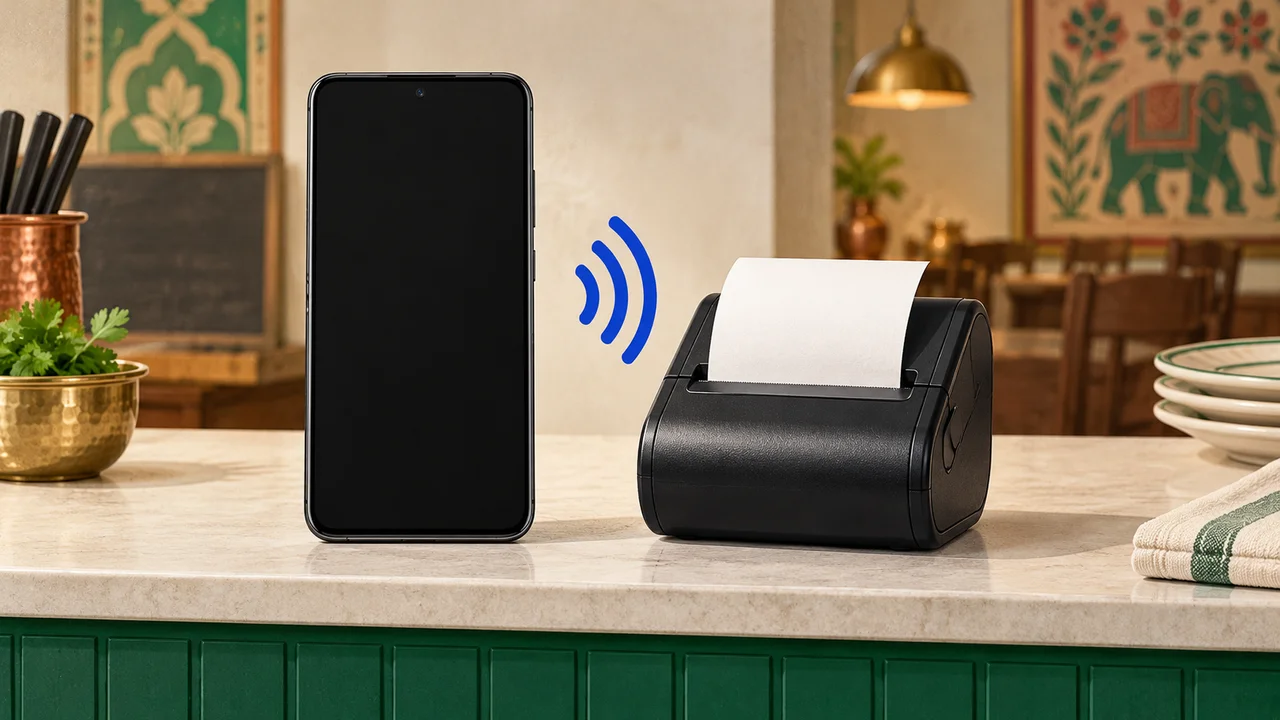
Read the video transcript
This is the recorded narration. Screen labels and steps reflect the video as published.
EasyKOT on Android. In this video, we will follow the complete process on the phone. After installing the app, this is the first screen you see. There are three options.
The first option is Run the counter. Choose this if you are the owner, manager or cashier and want to run the whole point of sale on your Android phone. You can take orders on the phone. The setup will let you connect a printer.
Once it is connected, you can print kitchen tickets and bills directly from this phone. The second option is take orders at the tables. Suppose your register app is running on a laptop at the restaurant's billing counter. Your waiters or captains walk to the tables and take orders on their phones.
Suppose orders and kitchen tickets go to the billing counter. The printer connected to the counter handles the printing. The captain does not need a separate printer in this setup. Orders are taken at the tables while the main printer stays at the billing counter.
This is the second option. The third option is for a different setup. For example, at an event, function or wedding, there may be several food counters. Carrying a laptop to every counter may not be convenient.
Several waiters or captains may be moving around and taking orders. With this option, you can give each person their own printer. They take orders on their phone and print their own kitchen tickets and bills on their own printer. With the second option, printing went to one main printer at the billing counter.
With this third option, each person uses their own printer. That is how you can have several people, each with a separate printer. For this walkthrough, we will use the first option. Tap Run the counter.
Use the same email and password that you created when signing up in the admin panel. Enter those credentials here, then tap sign in. If you have forgotten your password, use Forgot your password? to reset it.
This recording uses a test account to demonstrate the process. The phone is now connected and the menu has loaded. The next screen takes us to printer setup. We are using a Seznik thermal printer here.
First, open the phone's Bluetooth settings and pair the printer. This phone already has it paired. If yours is not paired yet, select the printer and complete the pairing request. The list shows the paired devices.
Once the printer is paired, tap done and return to the app. Now tap Add printer. There are several ways to connect a printer. Along with Bluetooth, you can connect a network printer by its IP address, whether it is on Wi-Fi or LAN.
We are using Bluetooth in this walkthrough. A Bluetooth printer must first be paired in Android settings. You can then choose it from the list of paired devices in the app. Select the Seznik printer.
Choose everything for both kitchen tickets and bills. Then select the paper size. This printer uses 58 mm paper. Save the printer settings.
Now tap Test print. A test slip should come out of the printer. Watch the actual printer footage alongside the screen. The test slip has printed.
This confirms the connection and the print on paper. Next, choose print from this phone. We want this phone to print directly rather than send the printing to a separate billing counter. The order screen now opens.
Running orders appear here. There are none yet in this recording. Use Choose table to select a table. You can see tables such as T1 and T2.
Tables are set up through the admin panel and register app. If your setup uses takeaway instead of tables, you can choose the takeaway option. Tap takeaway to open the full menu. Add the dishes you want, where half and full options are available.
Choose the portion you need. After adding the dishes, open Review order. The top shows that this is a takeaway order. You can use Assign table if you want to put it on a table.
Check the dishes and quantities here. Add a note if needed such as a request about spice. Now tap Send KOT, the order is sent for the kitchen. In this setup, the kitchen ticket prints on the printer connected to this phone.
Watch the actual ticket come out. If the customer wants something else later, tap + Add items. Here we add butter garlic naan and return to Review order. The first four dishes are already under Sent to kitchen.
The new dish is under to send. Tap Send KOT again. This time only the new dish prints. The four items sent earlier are not printed again, so the kitchen does not receive a duplicate order.
When the order is complete, open settle. There are cash and UPI options for recording payment. Collect the payment from the customer first. You can also enter the customer's name and phone number if you want those details on the bill.
Here we enter the name and then the phone number. These customer details are optional. We choose UPI to record the payment. The bill now comes out of the printer.
It includes the complete order, the customer details and the total. You can configure GST and other billing settings in the admin panel. Those settings will be covered in a separate video. That is the complete process for taking orders, printing kitchen tickets and making the final bill with EasyKOT on your Android phone.
Video English mein hai. Bluetooth printer setup 2:42 se dekhe.
Pair the printer in the phone's own Bluetooth settings
Switch the printer on, then pair it from Android's Settings → Connected devices → Bluetooth, exactly as you would a pair of earphones. EasyKOT deliberately does not hunt for unpaired printers. It only offers devices the phone has already bonded with, so pairing happens once, in the place Android already handles it.
Open the Device tab in EasyKOT and find the printer section
Device is the last tab in the app's bottom bar. On Captain 0.2.11, the section is called Printers. Since Captain 0.2.12 it is called Printing, with Carry a printer for my orders for a connected captain phone. Add printer and Bluetooth printer (already paired) keep their names.
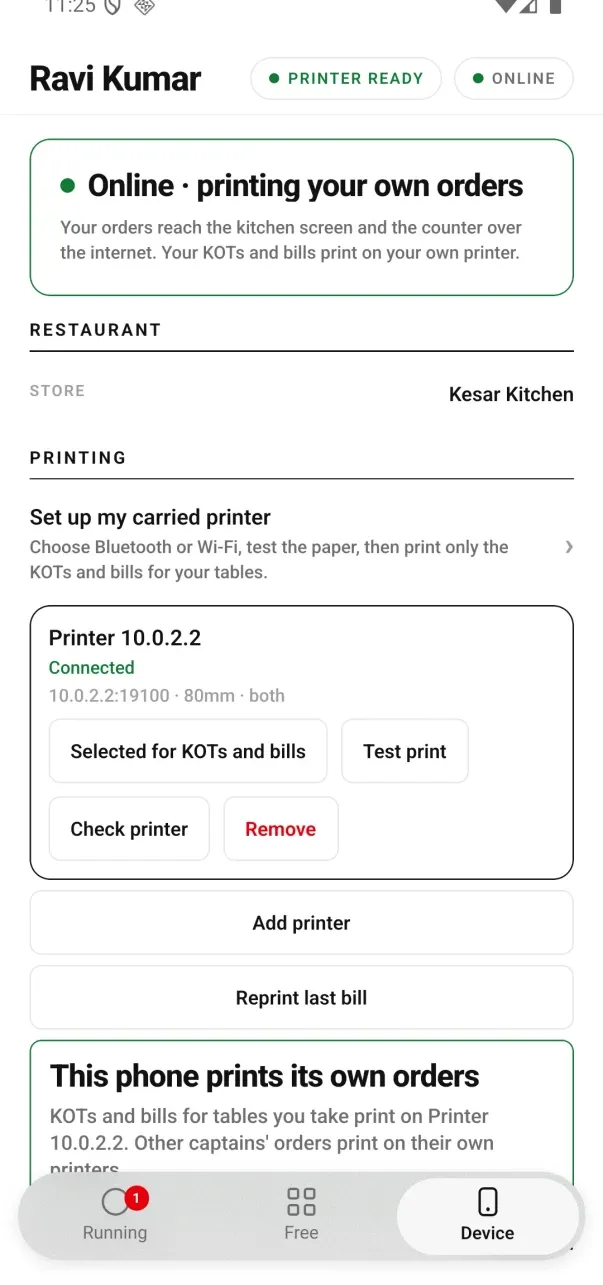
Signed 0.2.12 testing build: a captain's carried printer now lives under Device → Printing.
Tap Add printer, then Bluetooth printer (already paired)
The phone lists every Bluetooth device it is paired with, by name and address. Tap your printer. If the list comes back empty the app tells you plainly: pair the printer in the phone's Bluetooth settings first, then come back.
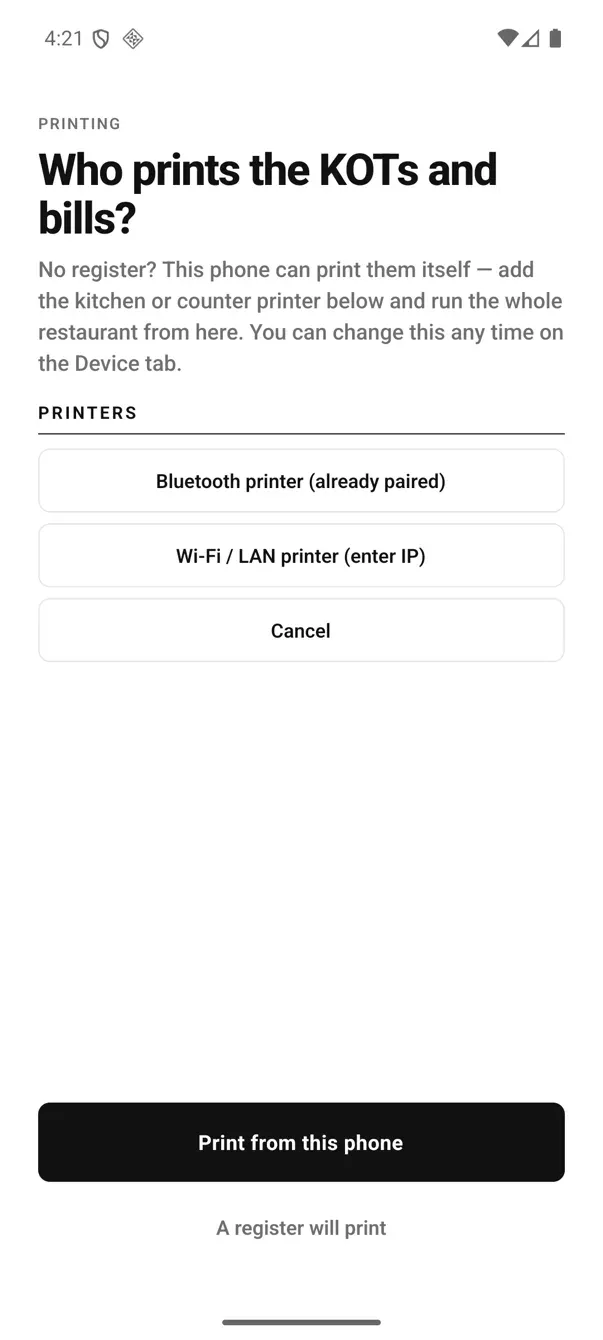
Captain 0.2.11: Device tab → Printers → Add printer, on an Android phone. Bluetooth leads because it is the one that needs no router.
Set the paper size and what this printer prints
Paper is 80mm or 58mm: match the roll you buy, and the app will not let you save until you tap one. Prints is the role: Everything, KOTs, or Bills. On a one-phone shop leave it on Everything. Tap Save printer.
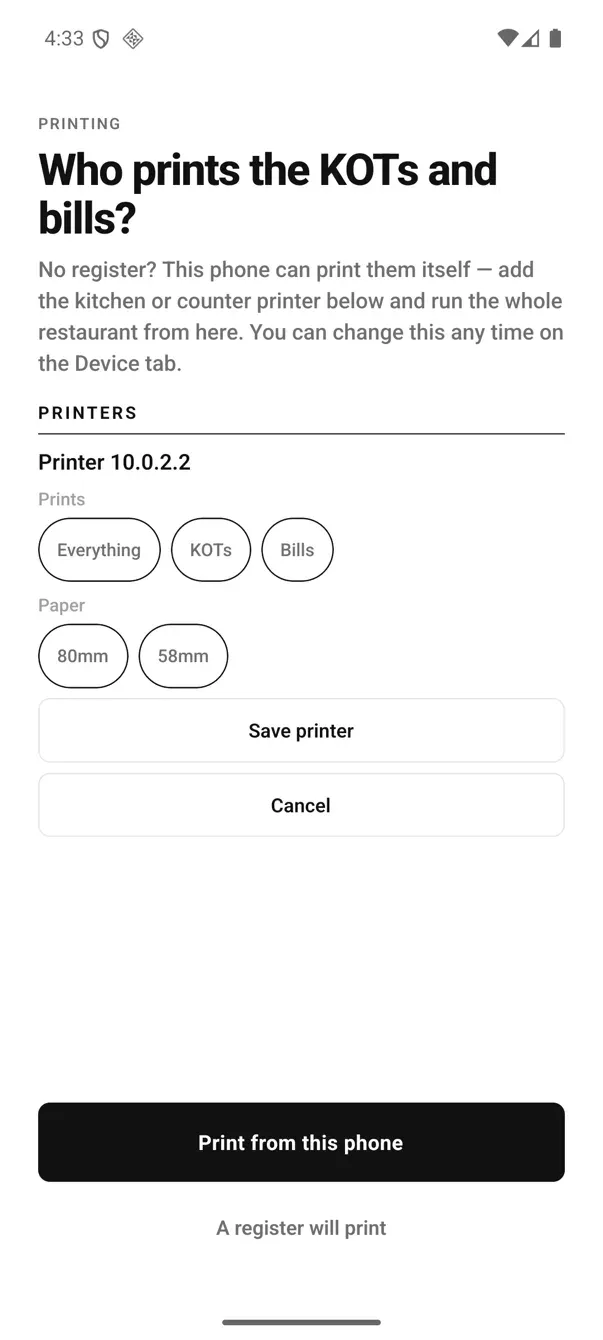
Prints is the role and Paper is the roll. On a one-phone shop, leave Prints on Everything.
Test print, then turn phone printing on
Tap Test print; the app answers "Sent — check the printer." The slip itself carries a row of digits exactly as wide as the paper size you chose, followed by its own instruction, so a wrong width is visible on the paper, not just in the settings. Once a good slip comes out, tap Print from this phone and follow the prompts. The status line then reads "This phone is the printer — KOTs and bills print here."
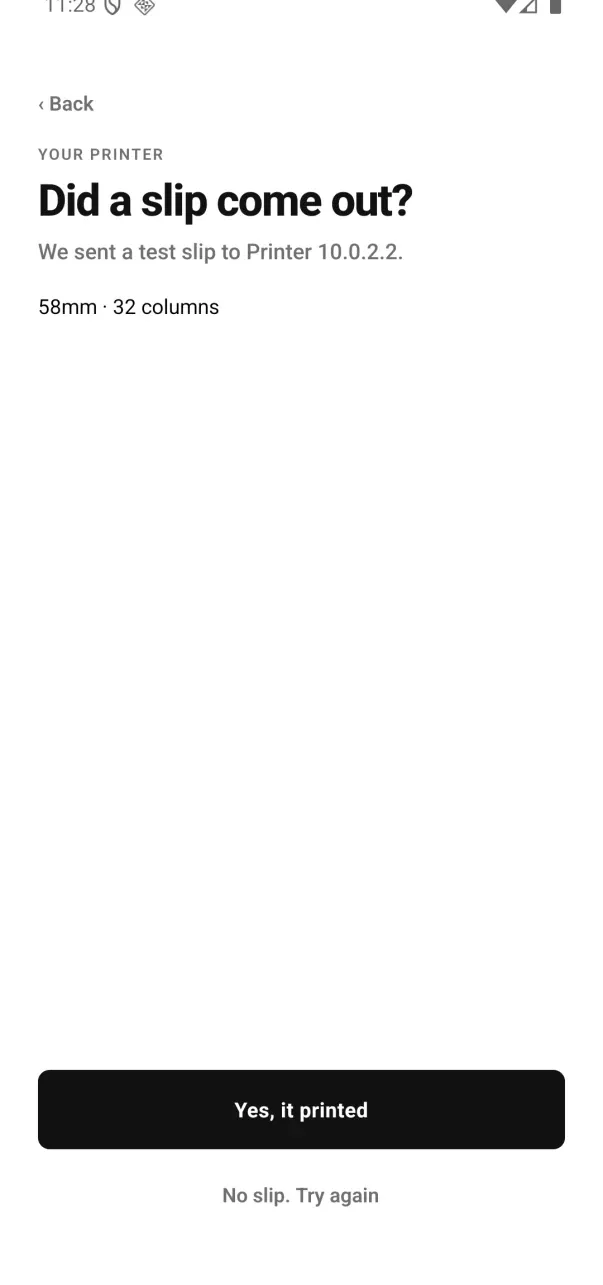
A carried printer is selected only after the person confirms that its test slip came out.
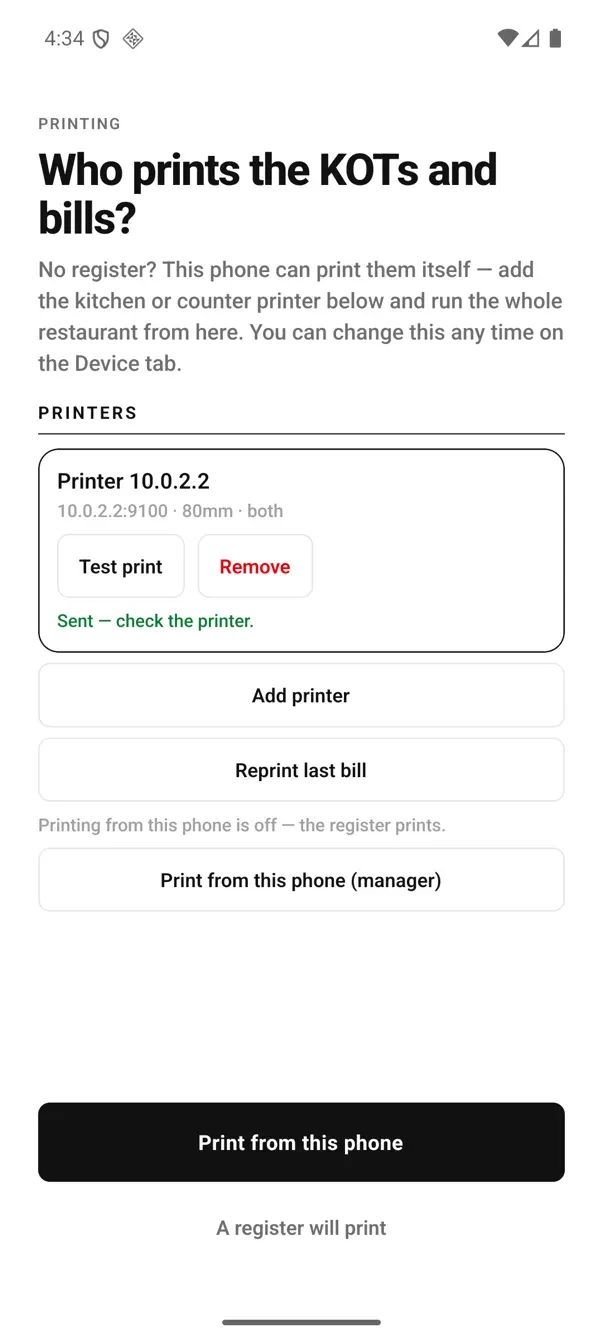
“Sent — check the printer.” The app is careful never to claim the paper came out, only that the bytes left the phone.
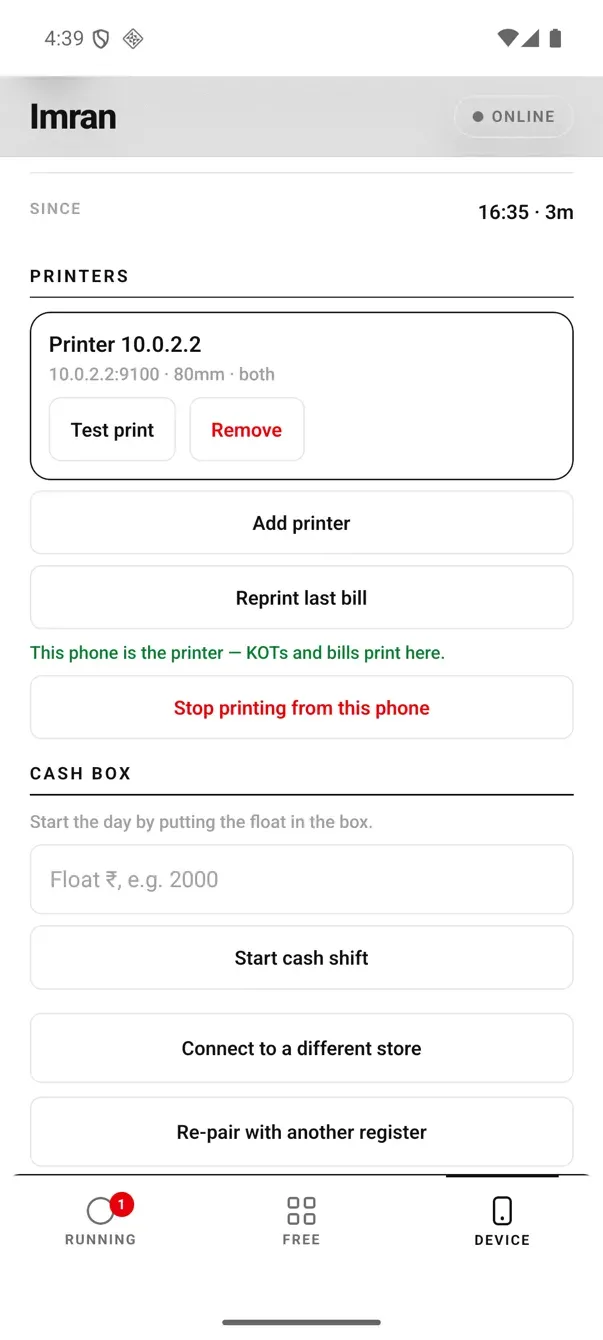
When it is active: “This phone is the printer.” Turning it back off is the single tap right below it.
The notification is meant to stay. While the phone is the printer, Android shows an ongoing notification reading EasyKOT is the printer / KOTs and bills print from this phone. That is what keeps the print queue alive while the phone is in an apron pocket. Swiping it away is not the way to stop printing. Stop printing from this phone on the Device tab is.
3 months free · ₹0 today, no card · then ₹299 + GST/month for the whole shop: what the phone-only setup includes →
"Bluetooth permission not granted."
On Android 12 and newer, an app may only talk to a paired Bluetooth device if you have given it the Nearby devices permission. The first time you tap Bluetooth printer (already paired), EasyKOT asks for it: choose Allow and the paired-printer list opens. If you dismiss the ask, tapping again asks again; the printer itself is fine either way.
Said "Don't allow" one time too many? Android stops showing the ask, and only its own settings can turn the permission on: Settings → Apps → EasyKOT → Permissions → Nearby devices → Allow. Reopen the Device tab and tap Add printer again; your paired printer will be in the list. EasyKOT tells you this exact path on the failed screen too.
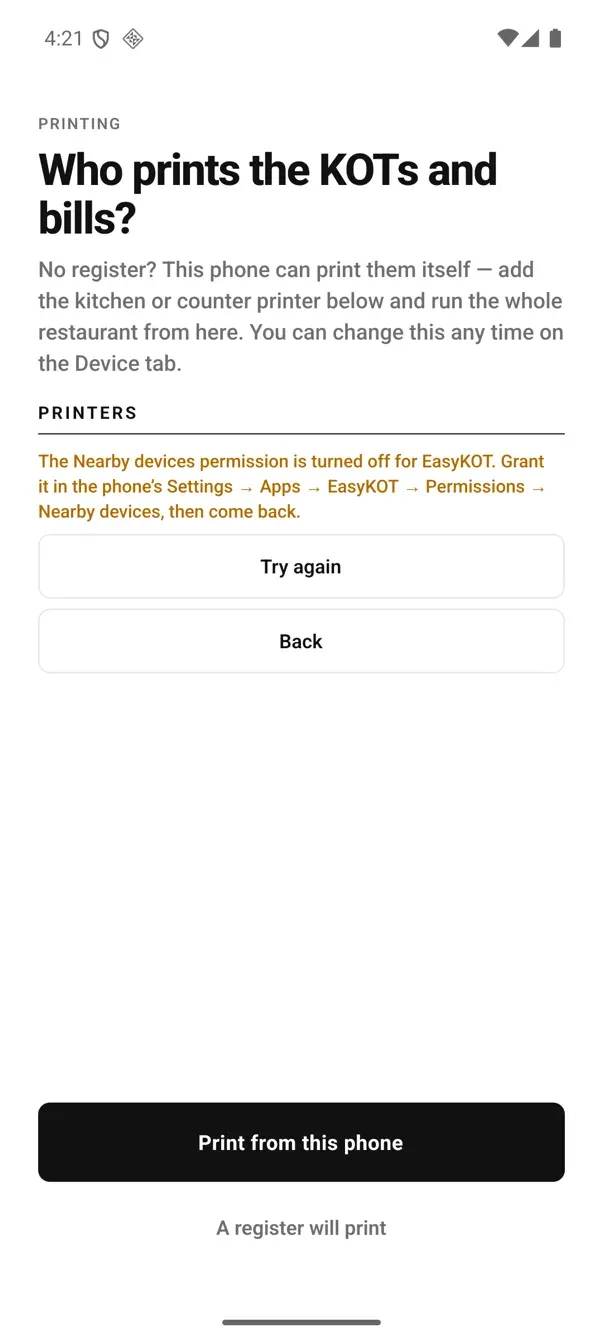
The real screen, on a real Android phone. It spells out the Settings path rather than leaving you at a dead end, and Try again works the moment you come back.
- Bluetooth is turned off means exactly that: pull down the shade and switch it on.
- No paired Bluetooth printers means the phone has not bonded with it yet. Go back to Android's Bluetooth settings and pair it there first; EasyKOT never scans for unpaired devices.
- Could not connect to printer with an address in it means the pairing exists but the printer is not answering: is it on, in range, and not already connected to somebody else's phone?
Bluetooth ya Wi-Fi printer — kaunsa le?
Bluetooth, if it is one phone at one counter
- No router in the path. The phone talks to the printer directly, so a dead broadband line or a rebooting router changes nothing.
- Cheapest to start. A battery 58 mm Bluetooth printer is the standard kit for a takeaway counter or a stall.
- One phone at a time. That is the real limit, and it is a hardware one, not ours.
Wi-Fi, if more than one device prints
- Several phones, or a phone and a laptop can all send to the same Wi-Fi printer by IP.
- It can sit in the kitchen while the phone walks the floor: Bluetooth range keeps a printer beside you.
- Reachability is knowable. A network printer answers a probe, so the app can tell you it has gone away. A Bluetooth printer's honest check is always the test print.
Either way, the phone-side flow is the same: Add printer → Wi-Fi / LAN printer (enter IP) instead of the Bluetooth option, then the printer IP and port 9100. For the Desktop App version, see connecting a Wi-Fi or USB printer to the Desktop App.
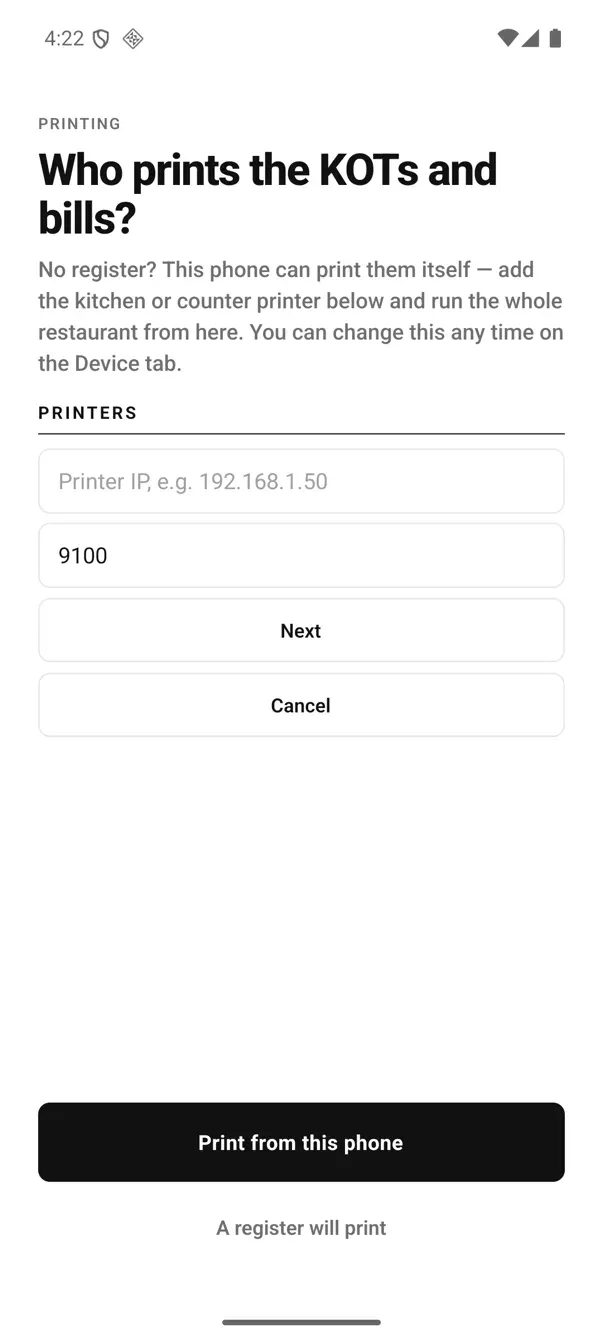
The Wi-Fi path: two fields, and 9100 is already filled in because that is the port essentially every ESC/POS printer listens on.
The printer stopped appearing in the list.
- Check the pairing survived. Some cheap printers drop the bond when the battery fully dies. Android's Bluetooth settings will show it as unpaired. Pair it again and it reappears in EasyKOT.
- Another phone may be holding it. Bluetooth printers take one connection; if last night's phone is still connected in the back office, this one cannot get in.
- The permission may have been reset. Android revokes permissions for apps you have not opened in a while. Re-grant Nearby devices and it comes straight back.
Nothing is lost while you sort it out. Every bill and every KOT is written to the phone before it is queued to print, and the queue keeps retrying on its own for 5 minutes. A ticket still stuck after that stops trying and waits on the Device tab, with Retry now and Discard, so an old ticket never prints by surprise when the printer comes back. If a ticket died mid-print the phone asks you plainly ( "One ticket may or may not have printed — check the printer and answer" ) with It printed and Print again (marked duplicate). Nobody has to guess.
Still nothing on paper? Work through the nine printer checks, in order.
Bluetooth printer se KOT bhi print hoga?
Haan. The Prints setting on each printer decides: Everything, KOTs, or Bills. One printer on Everything gives you a kitchen ticket when you fire a round and a GST bill when you settle, off the same roll, from the same phone.
- A second round prints only the new items, headed with the round number, so the kitchen never cooks a dish twice.
- Two printers, two jobs. Add a second one and set it to KOTs while the counter one takes Bills: the same split a Desktop App does with a kitchen KOT printer.
- A basic Kitchen screen is available on Android. A chef can see all open store tickets, tap Done and switch to a Prep list. A phone-only counter does not host the desktop browser KDS; a separate chef phone receives its board over internet sync and may be out of date while offline. Category station filters and the All day view remain desktop-KDS features.
- Waiters can still carry phones. Other phones running the captain app send their rounds to the printing phone. There is no per-waiter or per-phone charge. By default their rounds go to the phone printing for the store. A manager can move that store-wide fallback role to another joined phone with a saved printer, and since Captain 0.2.12 a captain can carry a printer for only their own tables (Take orders and print them).
The same Bluetooth printer, on the Desktop App.
A laptop reaches a paired Bluetooth printer as a serial port, so on the Desktop App it lives under Serial / Bluetooth, same idea, different screen. Pair it in the computer's own Bluetooth settings first, exactly as on the phone.
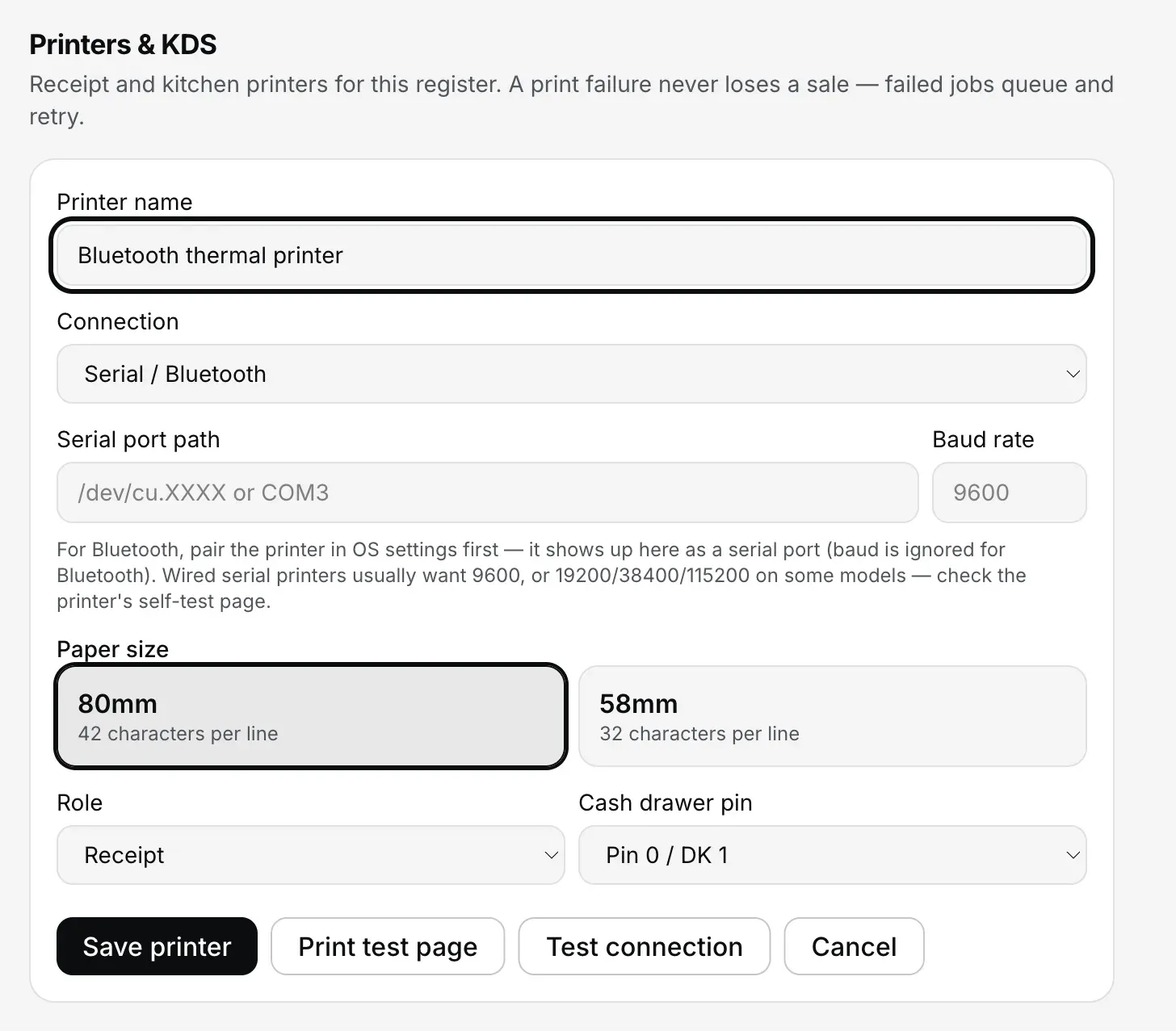
Desktop App · Settings → Printers & KDS → Add manually, on Serial / Bluetooth.
Detect printers on the laptop finds paired Bluetooth devices too, but it is honest about what it knows: a bonded printer is listed under Other devices on this computer with the reason "Paired Bluetooth device — try a test print", and a soundbar sitting next to it is demoted with "Looks like another accessory, not a printer". Nothing is hidden from you; it is just ranked.
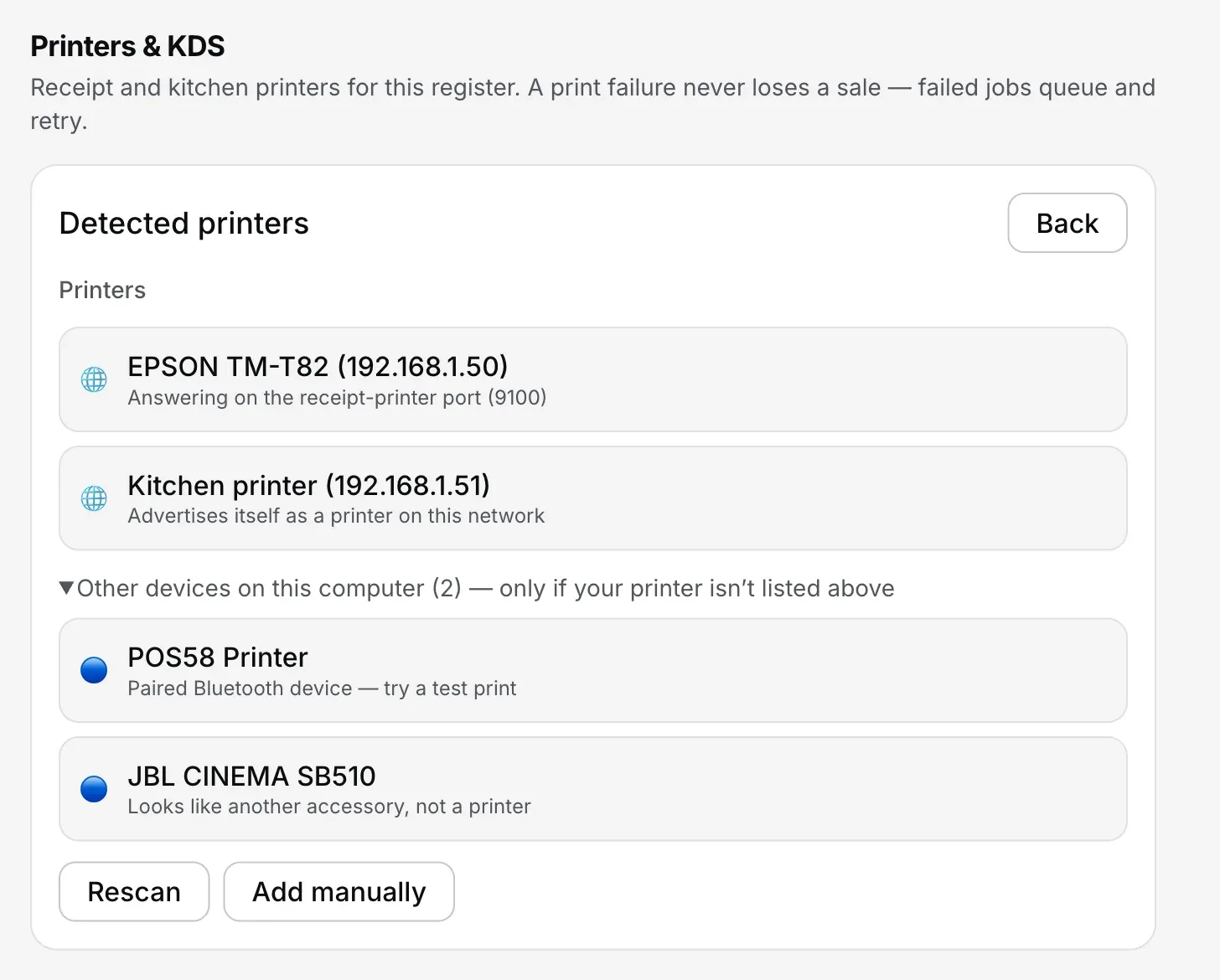
Desktop App · Settings → Printers & KDS → Detect printers → Other devices on this computer.
Always finish with a test print. A network printer can be probed, so the Desktop App genuinely knows when it goes away. A Bluetooth or USB printer shows as configured with its status unknown: the slip in your hand is the only real proof, on the phone and on the laptop alike.
Straight answers.
Which Bluetooth printers work?
Can one Bluetooth printer serve two phones?
Bluetooth thermal printer se bill print nahi ho raha — kya karun?
Do I need internet to print over Bluetooth?
Can I send a KOT to the kitchen from the same phone?
Is 58 mm wide enough for a GST bill?
How far can the phone be from the printer?
Next: run the whole restaurant from one phone · what a full service day on a phone looks like · printer not printing: the five checks · all EasyKOT guides
3 mahine try kare, phir plan chune.
Restaurant ka kaam hum samajhte hain, kyunki shuruaat bhi wahin se hui. 3 mahine free try kare, bina card details. Hamari kahani padhe.