Printer nahi mil raha, IP se bhi nahi?
Detect kuch nahi dhoondhta, aur haath se sahi IP daalo toh bhi kuch nahi hota. Yeh printer ki problem nahi hai. Router apne hi do devices ko aapas mein baat nahi karne de raha: AP Isolation, guest network, ya shop mein doosra router. Setting badalni padegi, printer nahi.
Printer chale ya na chale, sale save ho chuki hai. Desktop App bill pehle apne andar save karta hai, print uske baad. Har symptom ki poori table mein baaki saare cases hain.
Router dono devices ko dekh raha hai, bas unki aapas mein baat nahi karwa raha.
- AP Isolation on hai. Iske naam alag-alag hote hain: Wireless Isolation, Client Isolation ya AP Isolation. Isse Wi-Fi wale devices aapas mein baat nahi kar paate, jabki internet dono ka ekdum theek chalta hai. Kuch ISP routers mein yeh by default on aata hai, aur guest Wi-Fi set up karte waqt bhi yeh on ho jaata hai.
- Koi ek guest network pe hai. Guest network matlab isolation, bas accha sa naam de diya. Agar printer ya laptop shop ke guest Wi-Fi pe set hua hai, toh dono kuch bhi kar le, kaam nahi banega.
- Shop mein doosra router hai. Ek router mein doosra router lagao toh uske peeche ek alag, private network ban jaata hai. Andar wale network ke devices bahar wale tak pahunch jaate hain, lekin bahar se andar koi nahi pahunchta.
Pehle yeh karo.
Desktop App ko batane do ki problem network ki hai
Network printer chup ho jaaye toh EasyKOT Desktop App sirf fail nahi likhta. Woh check karta hai ki router jawaab de raha hai ya nahi, network ko printer ka hardware address pata hai ya nahi, aur printer ke port pe knock karne se asal mein kya hua. Router jawaab de, printer network pe dikhe, aur port pe ekdum sannata: yeh isolation ka pakka sign hai. Desktop App yahi seedha bolta hai, printer ko blame nahi karta.
Router mein AP Isolation band karo
Router ka admin page kholo (aksar 192.168.1.1 ya 192.168.0.1, router ke neeche sticker pe likha hota hai). Wireless ya Wi-Fi section mein dekho, kai baar yeh Advanced tab ke andar hota hai. AP Isolation / Wireless Isolation / Client Isolation off karo aur save karo. Router apna Wi-Fi restart karega, 1 minute mein sab wapas connect ho jaata hai.
Ya printer ko cable se router mein laga do
Isse setting ka jhanjhat hi khatam, aur yahi fix permanent rakhne layak hai. Koi bhi extra network cable lo: ek taraf printer ka LAN port, doosri taraf router ka khaali port. Printer hamesha ki tarah address le lega aur agle scan mein Detect usse dhoondh lega.
Check karo dono devices main network pe hain
Laptop pe dekho woh kis Wi-Fi naam se juda hai. Printer ka feed button dabake rakho aur switch on karo, woh apni status slip print karega. Ek pe shop ka naam aur doosre pe Guest wala naam dikhe, toh jawaab mil gaya. Router ki koi setting nahi badalni, bas sahi network pe dobara join karo.
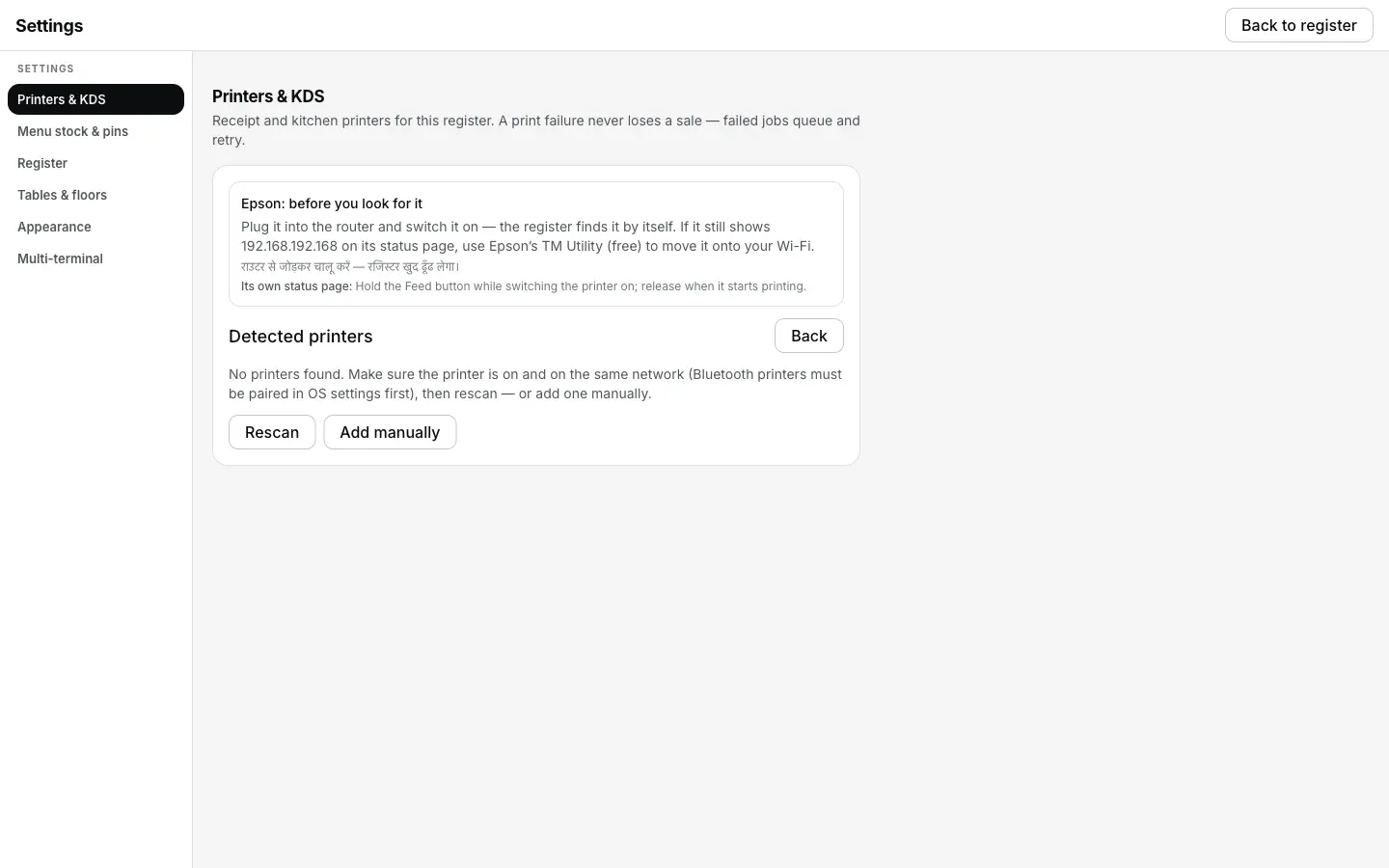
Detect ko kuch na mile, tab Desktop App gateway, printer ka hardware address aur khud port check karta hai, printer ko blame karne se pehle.
Printer ki row kya bolti hai.
Settings → Printers & KDS mein har printer ki apni row hoti hai. Us row pe status green dot se nahi, seedhe words mein likha aata hai. Is problem ke exact words yeh hain.
- Jab tak problem hai: Pehle “Offline”, jab tak Desktop App knock kar raha hai. Network check chalne ke baad row badal ke “Your router is keeping devices apart” ho jaati hai, saath mein line “Plug the printer into the router with a cable, or turn off AP Isolation.” Yeh doosra status ek aur retry nahi, diagnosis hai, aur action isi pe lena hai.
- Fix hone ke baad: “Connected”, aur queue ke jo tickets abhi bhi apne 5 minute wale window mein hain, woh line se apne aap print ho jaate hain; baaki ke liye Print dabao.
Printer ki saari problems mein yeh akeli aisi hai jismein printer pakka theek hai. Self-test print karta hai, uske paas address hai, router ko pata hai woh wahan hai, phir bhi Desktop App usse connection nahi khol pa raha. Router pe shak jaane se pehle koi bhi poori shaam printer pe barbaad kar sakta hai, isliye Desktop App router ka naam seedha le leta hai.
Jo ticket chhoot gaya, woh kaise nikle.
- Is beech jo bhi fire hua, sab queue mein hai. Settings → Printers & KDS mein har waiting ticket dikhta hai, aur saath mein yeh bhi ki woh kis cheez ka wait kar raha hai. Router beech mein atka tha, tab bhi kuch lost nahi hua.
- Doosra printer service nikaal deta hai. Queue row pe (ya fail hote hi jo dialog aata hai usmein) Send to <another printer> dabao, ticket kisi bhi connected printer pe chala jaata hai. Kitchen ko paper milta rahega, router baad mein theek kar lena.
- Skip se ticket baad ke liye bacha rehta hai. Skip — keep it for reprint job ko drop nahi karta, queue mein hi rakhta hai. Router theek hone pe woh wahin milega.
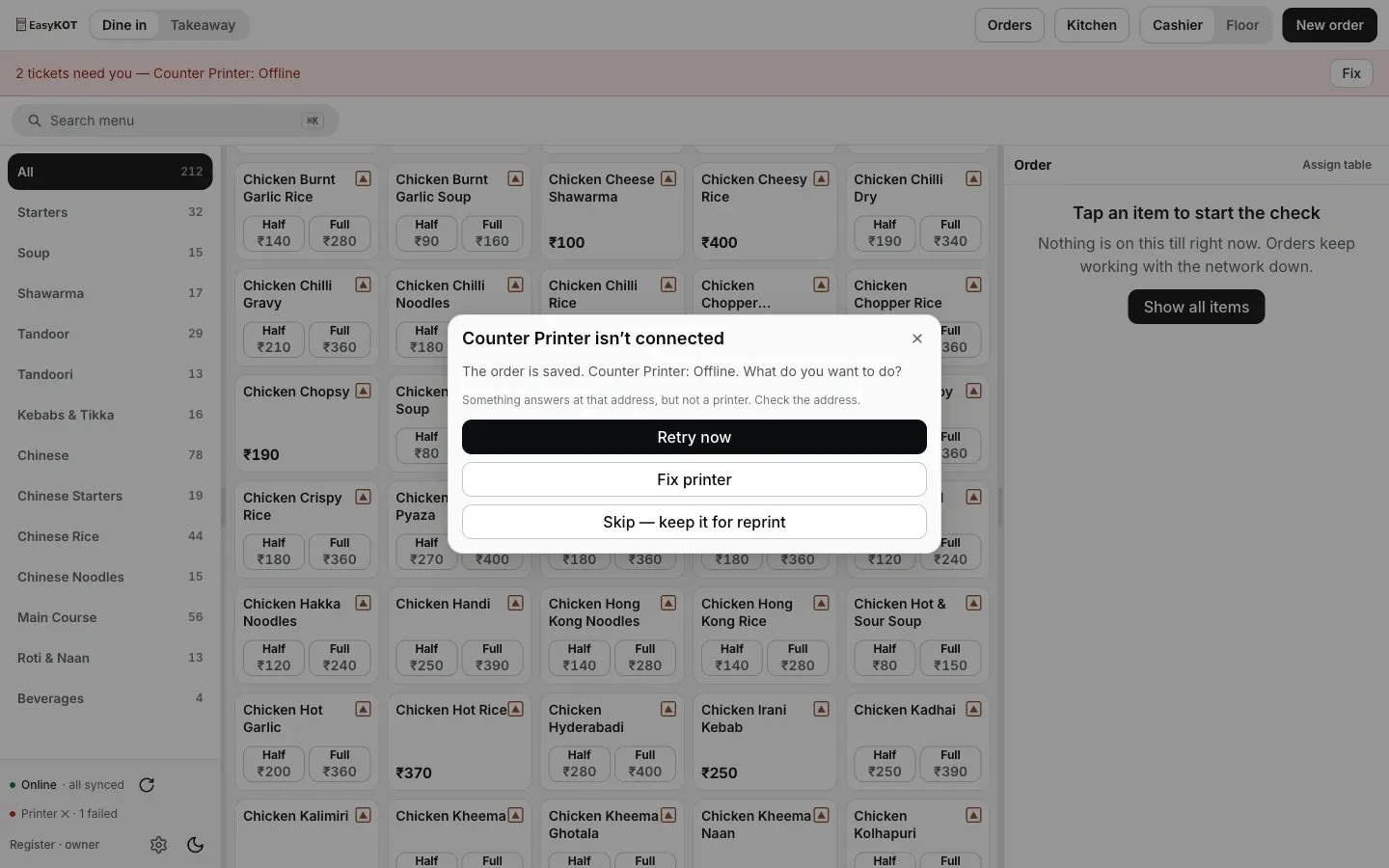
Printer kisi bhi wajah se na mile, Desktop App yahi recovery options deta hai. Dialog pe Offline likha hai, lekin yahan wajah router hai, printer kharab nahi.
Printer kahin nahi mil raha: log aur kya poochte hain
Router ki setting nahi chhedni. Koi aur raasta hai?
AP Isolation kya hai, aur yeh on kyun hoga?
Kaise pata chale ki yeh isolation hai, printer kharab nahi?
Kya isse captain phones aur kitchen screen pe bhi asar padta hai?
Yeh nahi tha? Toh yeh dekho.
Printer doosre network pe hai
Network ki doosri problem: do address jo kabhi ek-doosre tak pahunch hi nahi sakte the.
Networks compare karo →Printer Offline dikha raha hai
Kal chal raha tha. Raat mein address badal gaya, aur Desktop App khud uske liye kya karta hai.
Address dhoondho →Doosra Desktop App aur kitchen screen
Shop ke Wi-Fi pe baat karne wali baaki cheezein, aur woh pairing jo yahi router setting tod sakti hai.
Desktop App add karo →Saare printer guides guides hub pe milenge.
3 mahine try kare, phir plan chune.
Restaurant ka kaam hum samajhte hain, kyunki shuruaat bhi wahin se hui. 3 mahine free try kare, bina card details. Hamari kahani padhe.