USB printer nahi mil raha?
Cable laga hai, printer ki light jal rahi hai, phir bhi Detect kuch nahi dikhata. Sabse pehle cable pe shak karo: phone aur charger ke saath aane wale bahut se USB cable sirf power le jaate hain, data nahi, aur dikhne mein bilkul same hote hain. Cable theek hai, toh Windows pe aksar koi driver port pakde baitha hota hai.
Printer chale ya na chale, sale save ho chuki hai. Desktop App bill pehle apne andar save karta hai, print uske baad. Har symptom ki poori table mein baaki saare cases hain.
4 wajah, usi order mein jismein yeh sach mein hoti hain.
- Cable sirf charging wala hai. Aise cable jo power dete hain par data nahi, har jagah milte hain, aur dekh ke pehchaan nahi sakte. Printer ki light jal jaati hai toh lagta hai sab set hai, par computer ko koi device dikhta hi nahi.
- Kisi driver ne port pakad liya. Windows pe vendor ka driver ya OS ka print queue device ko akele pakad ke rakh sakta hai, phir EasyKOT Desktop App use khol hi nahi paata. Device Manager mein peela warning triangle dikhe, toh yahi scene hai.
- Serial chip nakli hai. Bahut se saste printer andar USB-to-serial bridge use karte hain, aur nakli chip ko asli driver mana kar deta hai. Device thodi der dikhta hai, phir Device Manager mein code 10 ke saath fail ho jaata hai.
- Printer on nahi hai, ya port mein power nahi hai. Purane desktop ke aage wale port aksar bina power ke ya dheele hote hain. Machine ke peeche wala port try karo, seedha, hub ke through nahi.
Pehle yeh karo.
Cable badlo, aisa lagao jo pakka data le jaata ho
Printer ke saath aaya cable lagao, ya woh cable jisse aapne kabhi files transfer ki hain. Computer ke peeche wale port mein lagao, hub ya keyboard ke port mein nahi. Sirf isi se bahut saare cases solve ho jaate hain, aur 30 second lagte hain.
Windows pe Device Manager dekho
Start pe right-click → Device Manager. Ab printer nikalo aur wapas lagao, aur list pe nazar rakho: kuch aana aur jaana chahiye. Peela warning triangle wala device matlab driver ki problem: use kholo, error padho, woh driver uninstall karo aur printer dobara lagao, taaki Windows apna driver daale. Mac pe yahi check System Information → USB mein hota hai.
Detect printers se dobara scan karo
Settings → Printers & KDS → Detect printers network se pehle is computer ke USB aur Bluetooth port check karta hai, isliye USB printer scan ke pehle second mein hi dikh jaata hai. Upar ki list mein aapka printer nahi hai toh neeche “Other devices on this computer” kholo. Jo printer khud ko printer nahi batata, woh chhupta nahi, bas neeche rank hota hai.
Windows pe driver queue ka fallback lo
Agar Windows printer ko dekh aur uspe print kar pa raha hai, par Desktop App use seedha nahi pakad pata, toh EasyKOT mein use Windows printer ki tarah add karo aur naam se uska queue chuno. Row pe “Windows printer (driver queue — no live status)” likha aata hai, kyunki is raaste se print toh hota hai par paper ya cover ka status nahi aata. Seedha deal hai: aaj raat billing chalu.
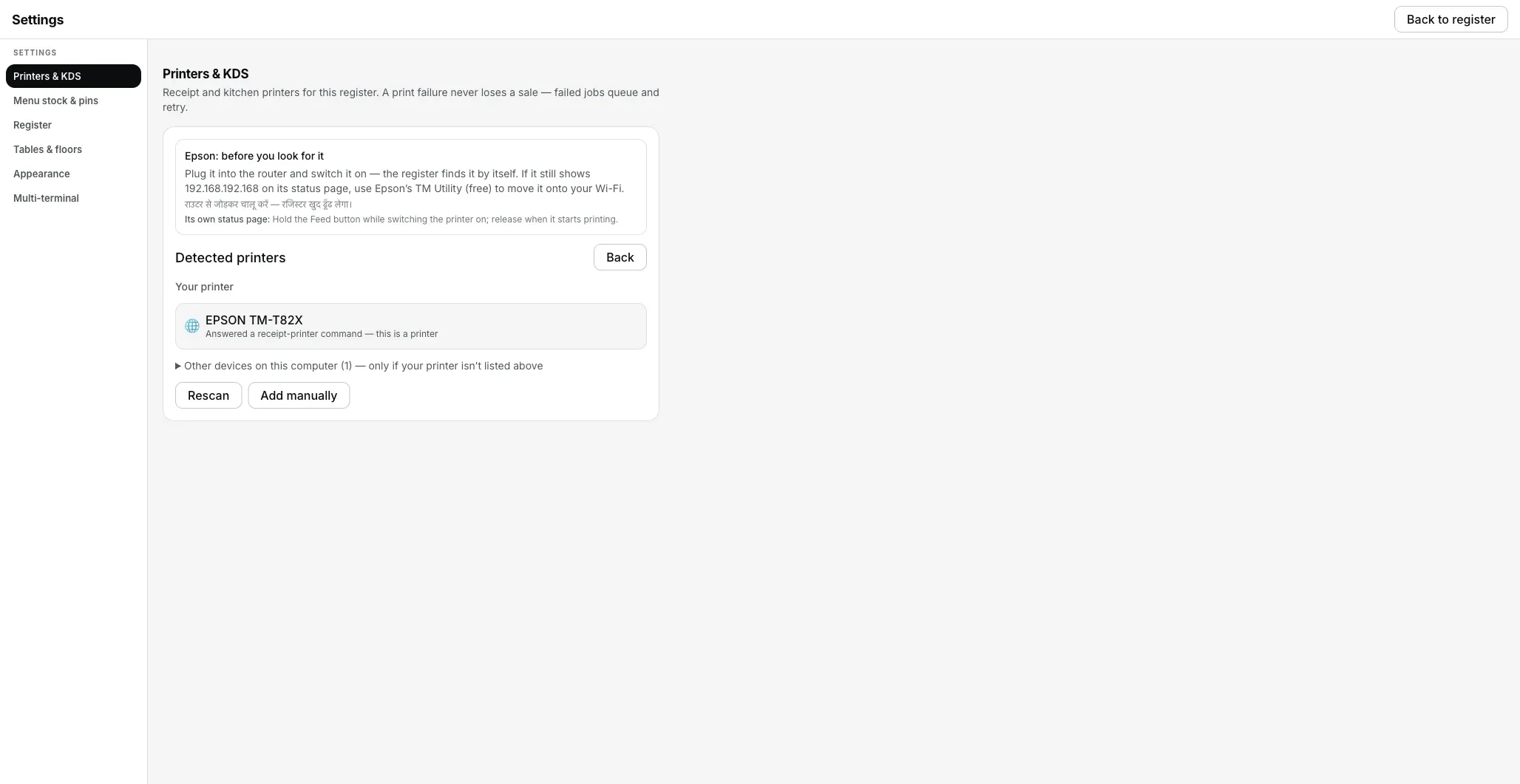
Is scan mein network printer Your printer ke neeche mila. Jo USB device khud ko printer nahi batata, woh neeche Other devices on this computer mein aata hai. Aapka printer main list mein nahi hai toh woh row kholo.
Printer ki row kya bolti hai.
Settings → Printers & KDS mein har printer ki apni row hoti hai. Us row pe status green dot se nahi, seedhe words mein likha aata hai. Is problem ke exact words yeh hain.
- Jab tak problem hai: Us USB device pe lagaataar 2 checks mein kuch na mile toh “Offline” aata hai, aur row ke neeche “How to fix this” khulta hai jismein cable, driver aur bridge chip teeno ka naam hai.
- Fix hone ke baad: “Connected”, ya “Can't verify — will still try to print” us printer pe jo job le leta hai par status ka jawaab nahi deta. Saste USB models mein yeh normal hai, koi fault nahi.
Windows driver queue se add kiya printer hamesha “Can't verify — will still try to print” dikhata hai, kyunki spooler bytes aage bhej deta hai aur wapas kuch nahi batata. Yeh label sach bol raha hai, printer mein koi kharabi nahi hai.
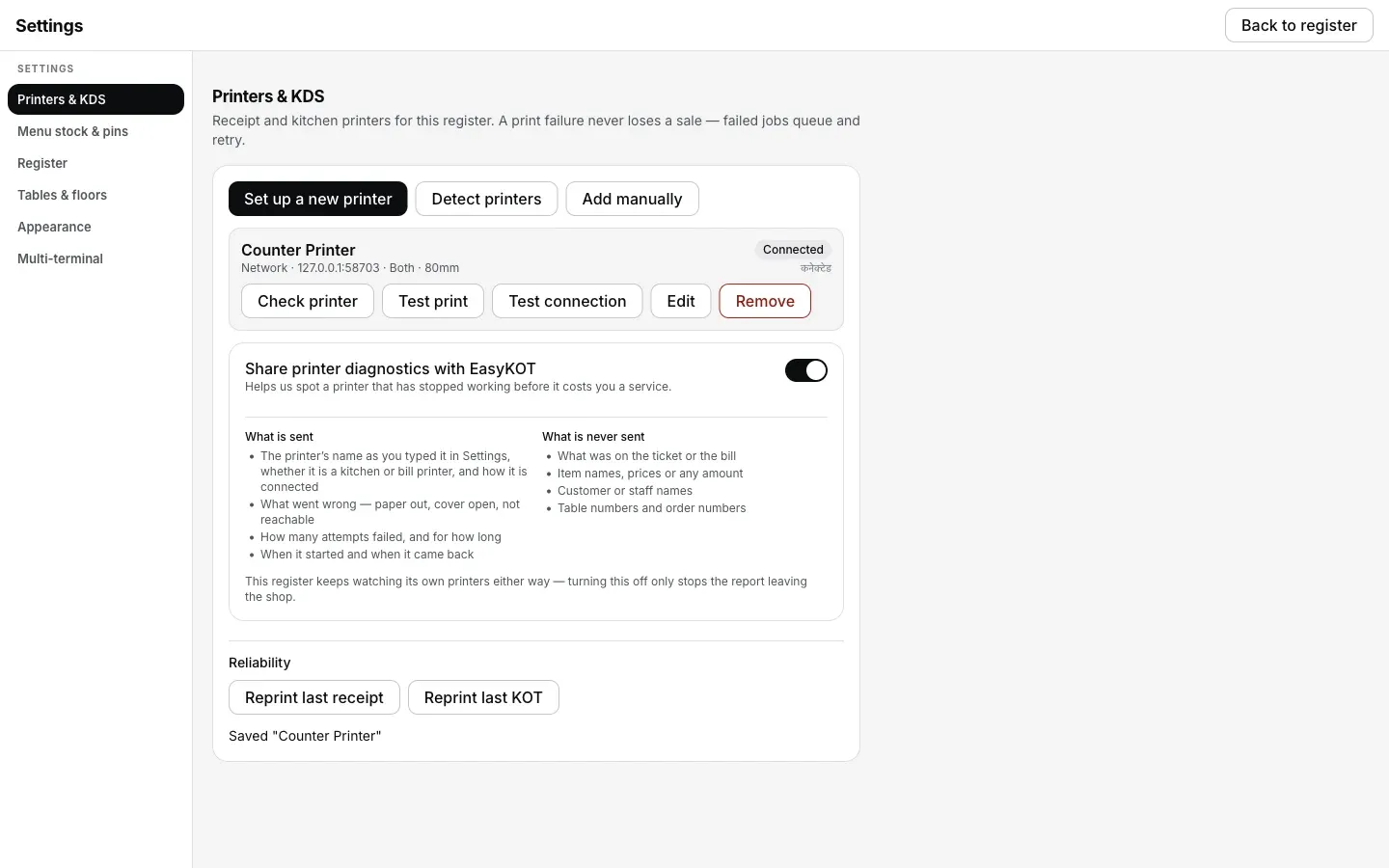
Cable aur port theek hote hi row pe Connected aata hai. Saste USB model pe Can't verify bhi aa sakta hai, woh fault nahi hai.
Jo ticket chhoot gaya, woh kaise nikle.
- Port gayab hai tab tak tickets queue mein wait karte hain. Settings → Printers & KDS mein woh dikhte hain, saath mein yeh bhi ki kis cheez ka wait hai. Printer lagao, woh line se print ho jaayenge.
- Service chalu rakhni hai toh doosre printer pe bhejo. Queue row pe Send to <another printer> ticket ko kisi bhi aur connected printer pe bhej deta hai (jaise kitchen ka network printer), taaki cable dhoondhte waqt khana na ruke.
- Printer wapas aaye toh last bill reprint karo. Settings → Printers & KDS mein Reprint last receipt aur Reprint last KOT hain. Purana bill Orders se Reprint receipt dabake wapas aata hai, DUPLICATE likha hua, aur invoice number wahi purana rehta hai.
USB printer nahi mil raha: log aur kya poochte hain
Tablet ya phone mein USB printer laga sakte hain?
Kaise pata chale ki USB cable data le jaata hai?
USB thermal printer ke liye driver install karna padega?
Pehle chal raha tha, Windows update ke baad band ho gaya.
Yeh nahi tha? Toh yeh dekho.
Bluetooth printer paired hai par chup
Woh COM port jo Windows ne banaya hi nahi, aur woh phone jo abhi bhi pairing pakde baitha hai.
Bluetooth fix karo →Kuch bhi print nahi ho raha
Har symptom ki table: wajah, fix, aur Desktop App use dekh sakta hai ya nahi.
Checks shuru karo →Thermal printer connect karo
Network, USB aur serial saath-saath: har field, screenshots ke saath.
Printer set up karo →Saare printer guides guides hub pe milenge.
3 mahine try kare, phir plan chune.
Restaurant ka kaam hum samajhte hain, kyunki shuruaat bhi wahin se hui. 3 mahine free try kare, bina card details. Hamari kahani padhe.