Bluetooth printer paired hai par print nahi karta?
Pairing aur connection do alag cheezein hain. Windows pe pairing ke baad ek outgoing COM port banana padta hai, EasyKOT Desktop App usi port pe likhta hai. Phone pe aksar wajah yeh hoti hai ki printer abhi bhi kisi doosre phone se juda hai, kyunki ek time pe ek hi device use rakh sakta hai.
Printer chale ya na chale, sale save ho chuki hai. Desktop App bill pehle apne andar save karta hai, print uske baad. Har symptom ki poori table mein baaki saare cases hain.
Paired ka matlab connected nahi. Aur phone pe printer ek hi device ko milta hai.
- Windows ne outgoing COM port banaya hi nahi. Windows printer ko pair kar leta hai aur phir wait karta hai ki koi bole, serial port banao. Woh port nahi hai toh Desktop App ke paas kholne ko kuch hai hi nahi, pairing kitni bhi theek dikhe.
- Koi doosra phone abhi bhi pakde baitha hai. Bluetooth thermal printer ek time pe ek hi device ki sunta hai. Subah jis waiter ka phone juda tha, woh tab tak link pakde rakhta hai jab tak us phone pe printer forget na karo. Baaki kisi device ko koi jawaab nahi milta.
- Printer ka radio so gaya. Battery wale printer power bachane ke liye apna radio band kar dete hain, aur wapas aane mein thoda time lete hain. Khaali baithne ke baad pehla print fail ho sakta hai aur doosra chal jaata hai. Lagta hai printer pe bharosa nahi kar sakte, jabki woh bas so raha tha.
- Android pe Nearby devices permission di hi nahi. Android 12 aur usse upar pe paired devices ki list padhne se pehle hi app ko yeh permission chahiye. Ek baar mana kiya toh printer list khaali aati hai, aur wapas jaane ka raasta saaf dikhta nahi.
Pehle yeh karo.
Windows pe outgoing COM port banao
Settings → Bluetooth & devices → Devices → More Bluetooth settings → COM Ports tab → Add → Outgoing, aur printer chuno. Windows ek port number dega, jaise COM5. Phir EasyKOT mein Settings → Printers & KDS → Add manually → Serial, aur woh port daalo. Bluetooth printer ke liye baud ignore hota hai, kyunki link ki speed operating system khud set karta hai.
Jisne printer pakda hai, usse chhudao
Har us phone pe jisne kabhi yeh printer use kiya, Bluetooth settings kholo aur printer forget karo. Phir printer band karke chalu karo. Printer doosra connection nahi le raha toh woh sahi kar raha hai: woh ek saath 2 device ko serve kar hi nahi sakta.
Android phone pe Nearby devices ki permission do
Captain app paired printers ki list padhne se pehle Nearby devices permission maangta hai. Mana ho gaya tha toh list khaali rehti hai: Android Settings → Apps → EasyKOT Captain → Permissions → Nearby devices → Allow, phir printer list dobara kholo.
2 baar print karo, pehla try radio jagata hai
Test print chalao. Kuch nahi hua toh turant dobara chalao: soye hue printer pe pehla try use jagata hai aur doosra paper pe aata hai. Doosra bhi fail ho, toh isko repeat mat karo, step 1 ya 2 pe wapas jao.
Printer ki row kya bolti hai.
Settings → Printers & KDS mein har printer ki apni row hoti hai. Us row pe status green dot se nahi, seedhe words mein likha aata hai. Is problem ke exact words yeh hain.
- Jab tak problem hai: Desktop App pe “Offline”. Computer ke liye Bluetooth printer ek serial port hi hai, toh jawaab na dene wala port bilkul nikle hue serial cable jaisa dikhta hai. Row ke neeche wala fix COM port aur printer pakde baithe phone, dono ka naam leta hai.
- Fix hone ke baad: “Connected”, ya “Can't verify — will still try to print” us printer pe jo job le leta hai par status ka jawaab nahi deta.
Captain ke phone pe jawaab alag hai. Sirf status poochne ke liye Bluetooth link nahi khola jaata, isliye app bolta hai ki Bluetooth status sirf print karte waqt pata chalta hai. Test print chalao. Check karne ke liye link kholna utna hi slow aur utna hi disturb karne wala hota, jitna print karna.
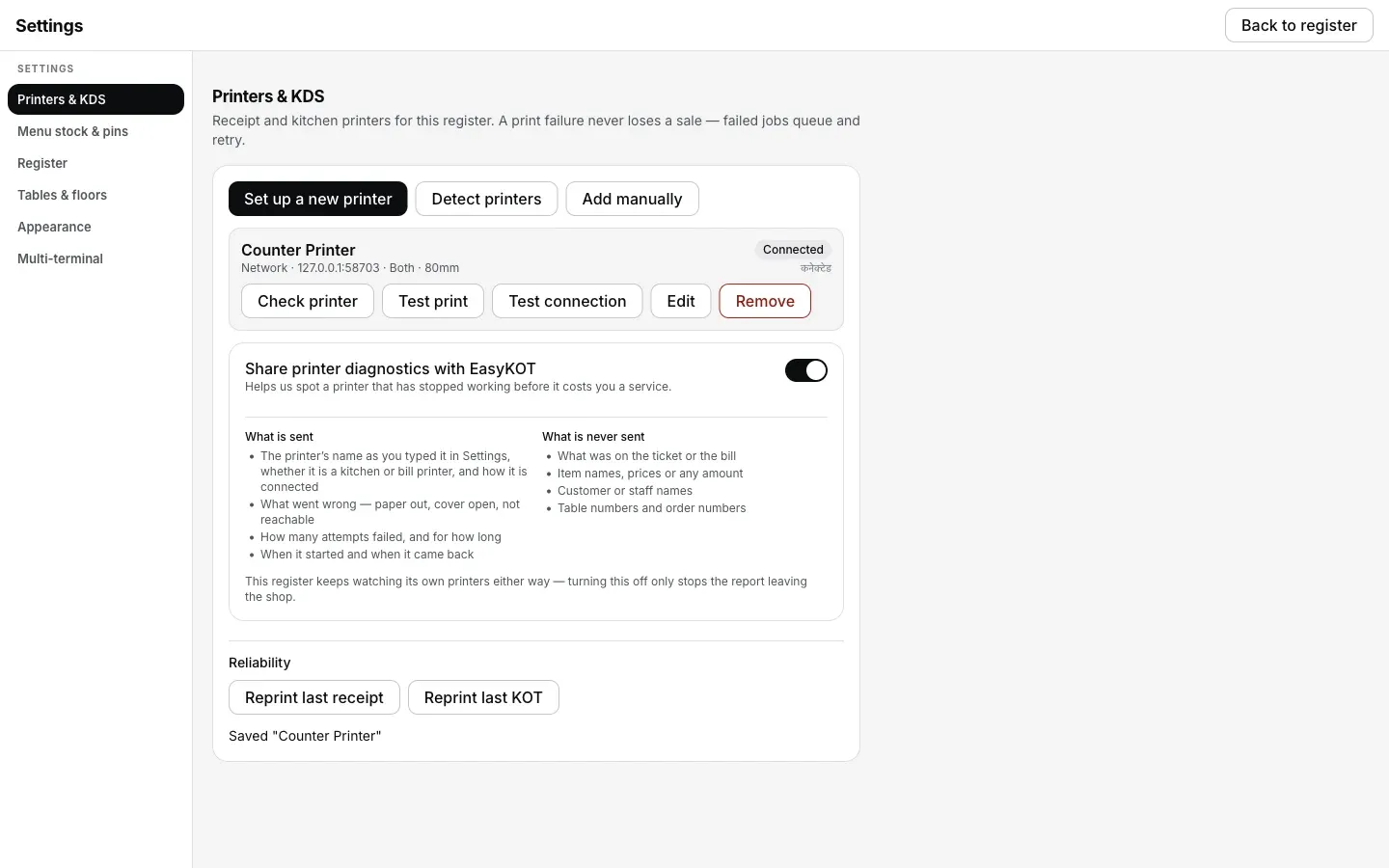
COM port banne aur printer ke wapas jawaab dene ke baad row: Connected, ya Can't verify us Bluetooth printer pe jo job le leta hai par status nahi batata.
Jo ticket chhoot gaya, woh kaise nikle.
- Bill toh isse pehle hi save ho chuka tha. Desktop App aur captain app dono pehle sale save karte hain, paper baad mein queue hota hai. Chup printer ki wajah se kabhi sale nahi jaati.
- Link wapas aaye toh naye tickets khud print hote hain. Queue KOT fire ya bill-print request ke baad 5 minute tak khud retry karta hai. Link usi window mein wapas aaye toh ticket khud print hota hai. Purane tickets aapki choice ka wait karte hain.
- Paper abhi chahiye toh haath se reprint karo. Settings → Printers & KDS mein Reprint last receipt aur Reprint last KOT hain. Fail hue ticket pe Retry now hai; purane ticket pe Print, aur doosra printer ho toh Send to <another printer>.
Bluetooth printer chup hai: log aur kya poochte hain
iPhone se Bluetooth printer pe print kar sakte hain?
EasyKOT ke saath kaunse Bluetooth printer chalte hain?
Printer Desktop App se pair karun ya phone se?
Phone ke apne test app se print hota hai, EasyKOT se nahi.
Yeh nahi tha? Toh yeh dekho.
Android pe Bluetooth printer
Phone pe poori pairing, Bluetooth settings se lekar print hue KOT tak.
Android pe pair karo →USB printer nahi mil raha
Woh cable jo sirf power le jaata hai, aur woh driver jo port pakde baitha hai.
USB fix karo →Ek baar print, phir ruk gaya
Soye hue radio ka doosra symptom: ek slip theek nikli, phir queue atak gaya.
Atka printer chalao →Saare printer guides guides hub pe milenge.
3 mahine try kare, phir plan chune.
Restaurant ka kaam hum samajhte hain, kyunki shuruaat bhi wahin se hui. 3 mahine free try kare, bina card details. Hamari kahani padhe.