Guide · cash box

Run the cash box from opening float to closing count.

Count the cash in the box and open the shift before service. Record cash added or taken out with a reason. At closing, count everything in the box; EasyKOT then shows the expected amount and the difference.

This guide covers the updated Cash box. If your screen differs, check with EasyKOT support for your app version.

Start free — ₹0 todayDemo on WhatsApp

Screenshots show the working Desktop App with demonstration restaurant, staff and amounts, without private customer data. The example uses INR; your app uses your restaurant’s currency.

EasyKOT Cash box: opening float to closing count
Read the video transcript

This is the recorded narration. Screen labels and steps reflect the video as published.

This is the Cash box in EasyKOT. It keeps track of the cash in your drawer, one shift at a time. Before service starts, open Orders and tap Cash box. No shift is open yet, and the screen lists the three steps. First, count the notes and coins in the drawer, including the change you keep for customers. Type that amount in Opening float. Here it is ₹2,000. Then tap Start cash shift. The shift is open, with ₹2,000 as the opening float. Cash sales stay hidden until you count. That way, the count is really yours. Now a customer pays in cash. Add the dish and tap Settle.

Pick Cash, and settle the bill as usual. That is all. A cash payment on a bill goes into the cash box by itself. You never type it in again. Sometimes cash moves without a bill. Open the Cash box again.

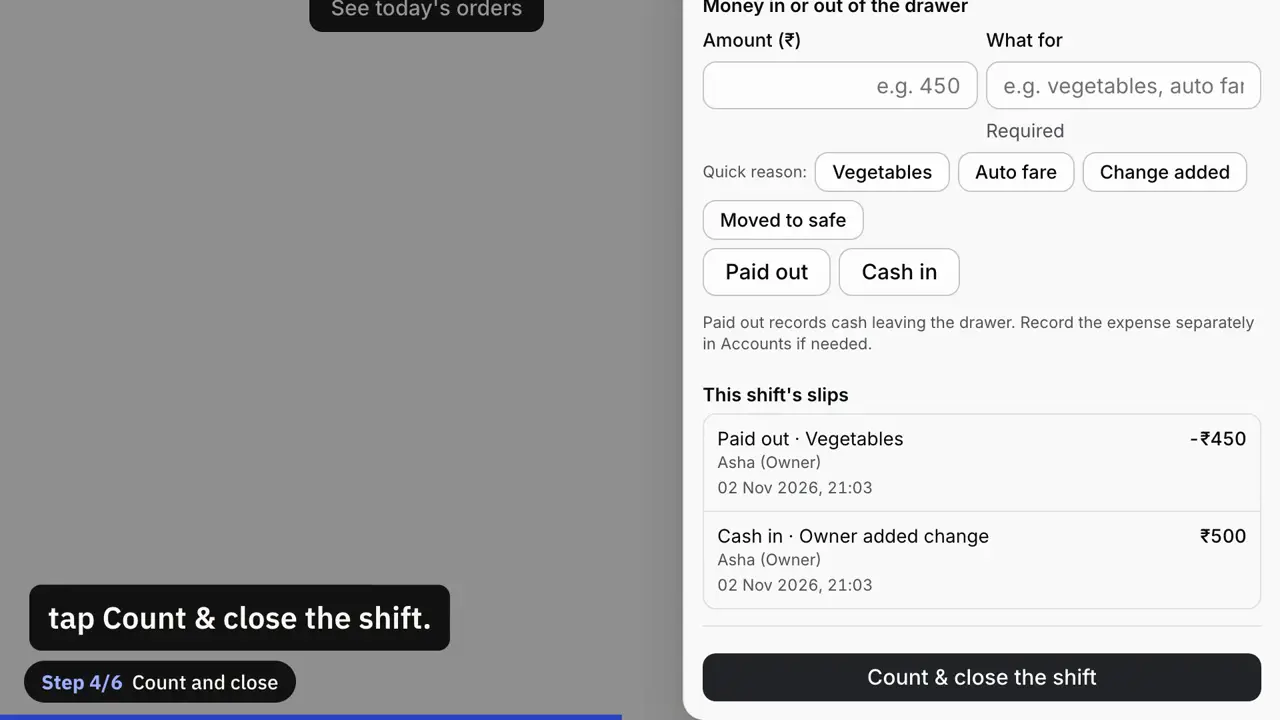
The owner put in ₹500 of change. Type the amount, and the screen tells you what each button will do. Then write the reason in What for. Money came into the drawer, so tap Cash in. Now ₹450 went out for vegetables. Type the amount, tap the Vegetables quick reason, then tap Paid out. The reason is required. Each slip shows what it was for, the amount, who recorded it, and the date and time. Paid out only tracks cash leaving the drawer. If it is a business expense, record it separately in Accounts.

At the end of the shift, tap Count & close the shift. Count every note and coin in the drawer, including the float. UPI and card money stays out of this count. The screen does not show what it expects, so type what you actually counted. Here, ₹2,260. Tap Close shift. Now the breakdown. Opening float ₹2,000, cash sales ₹210, cash in ₹500, and paid out ₹450 taken away. Expected ₹2,260. Counted ₹2,260. Variance: balanced. Next shift, a new bill, and the customer pays cash. But nobody started a cash shift.

So EasyKOT reminds you: No cash shift is open. You can tap Continue without cash shift. Better is Start cash shift. The bill waits for you. Enter the cash actually left in the drawer, ₹2,260, and tap Start cash shift. The bill comes straight back, still on Cash. Settle it as usual. At the end of this shift, count and close again.

This time the drawer has ₹2,370. It expected ₹2,470, so the screen says short by ₹100. A difference means check: the count, the change you gave, refunds, or a paid out nobody wrote down. The saved count is never edited. Talk to your owner or manager, and do not add a made-up entry to hide it. Need help with EasyKOT? WhatsApp +91 72191 83939, or go to easykot.com.
  1. 0:00 Open the shift
  2. 0:45 Cash bills count by themselves
  3. 1:10 Cash in and Paid out
  4. 1:57 Count and close
  5. 2:40 No cash shift is open
  6. 3:26 When the count is short
Choose a languageEnglish Hindi

The reminder scene in the video shows an older layout. Today a cash bill with no shift shows one quiet line, No cash shift is open., with a Start cash shift link, and Settle never waits for it.

The daily cash-box routine in 4 steps.

Step 1

Open Orders → Cash box and enter the opening cash

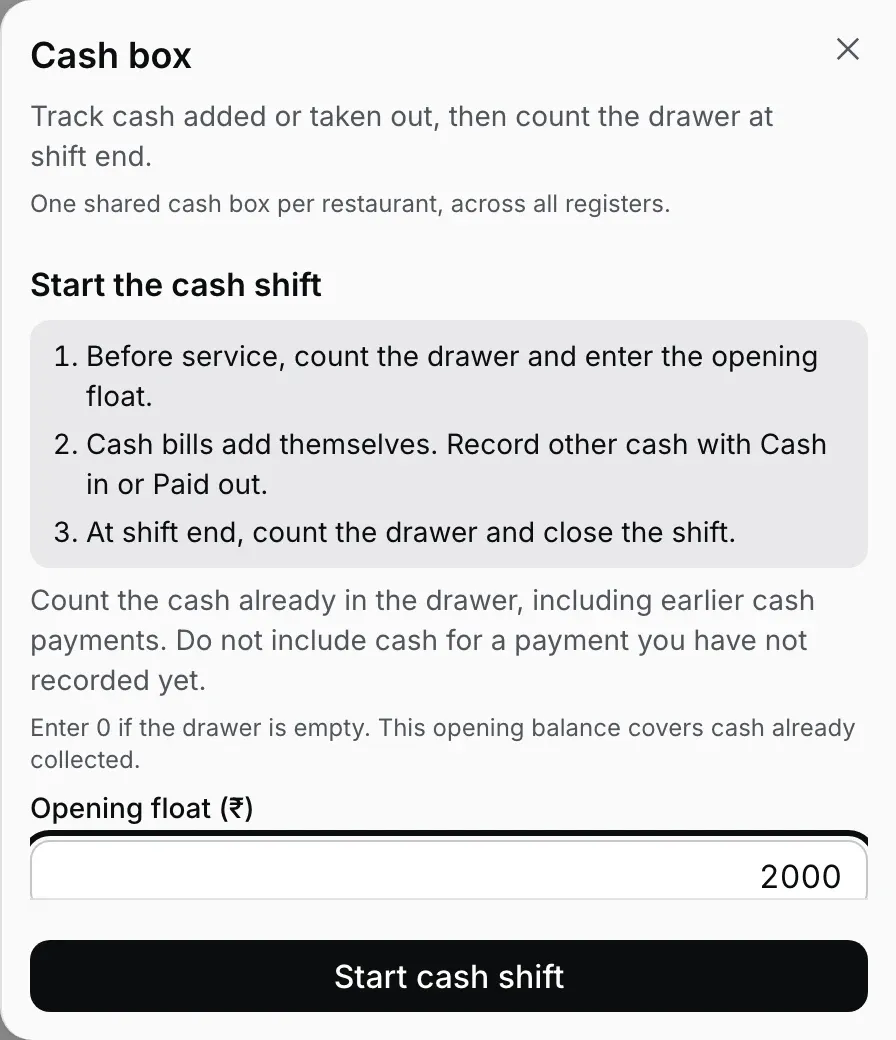
In the Desktop App, open Orders → Cash box. Count the physical cash already in the drawer. Enter it under 'Opening float (₹)' and press 'Start cash shift'. Enter 0 if the box is empty; do not leave the field blank.

At the start of service, this is normally the change float. If you start during service, include cash already collected and still in the box. Exclude cash for a pending unpaid sale. If an earlier shift is still open, check its full opening date, then count and close it first.

Desktop Cash box opening form with Opening float (₹), a ₹2,000 demonstration balance and Start cash shift
Demonstration opening: ₹2,000 in the box. Count the actual notes and coins before starting.
Step 2

Record cash added or taken out with its reason

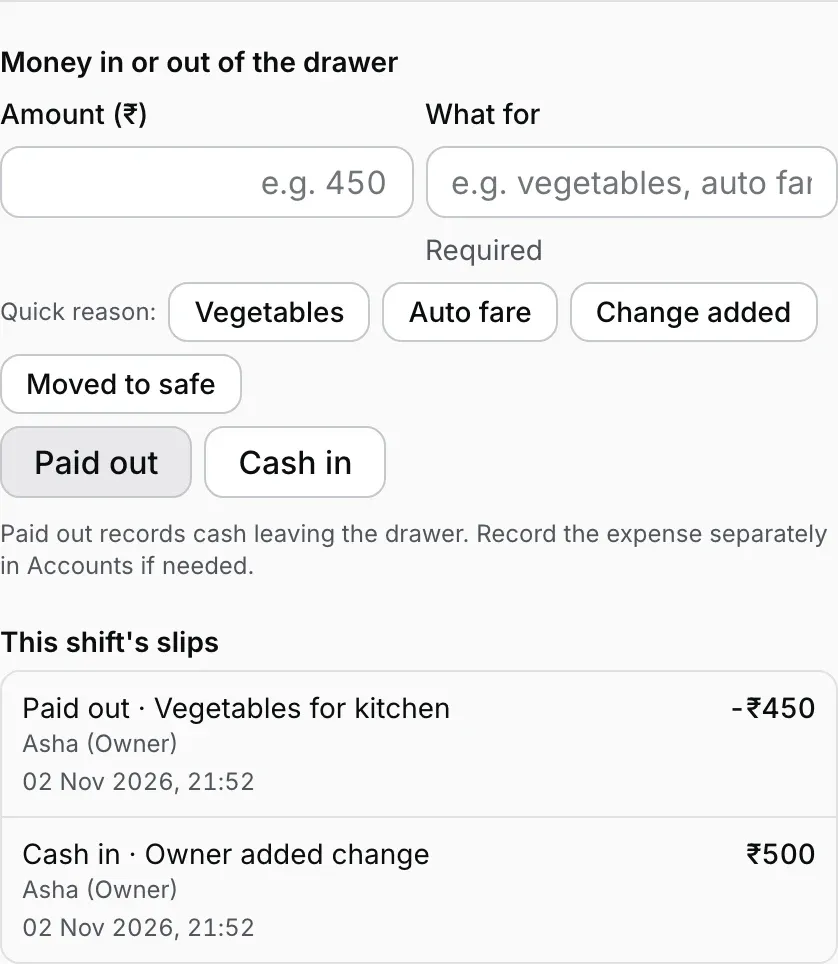
Cash payments on bills are counted automatically. Do not enter them again as 'Cash in'. For extra change or money added by the owner, enter 'Amount (₹)' and 'What for', then press 'Cash in'. For money removed from the box, fill in the amount and reason, then press 'Paid out'. The amount must be greater than 0 and the reason is required.

'This shift’s slips' shows each reason, amount, staff member and date/time. Older entries may have no recorded reason or staff name; the screen says so. Paid out records cash leaving the box. It does not create an Accounts expense automatically; record a business expense there separately when needed.

Cash movement form and this shift’s slips with reasons and staff attribution
Demonstration movements: ₹500 Cash in for extra change and ₹450 Paid out for vegetables. Bill payments do not need another entry here.
Step 3

Count the whole box before seeing the target

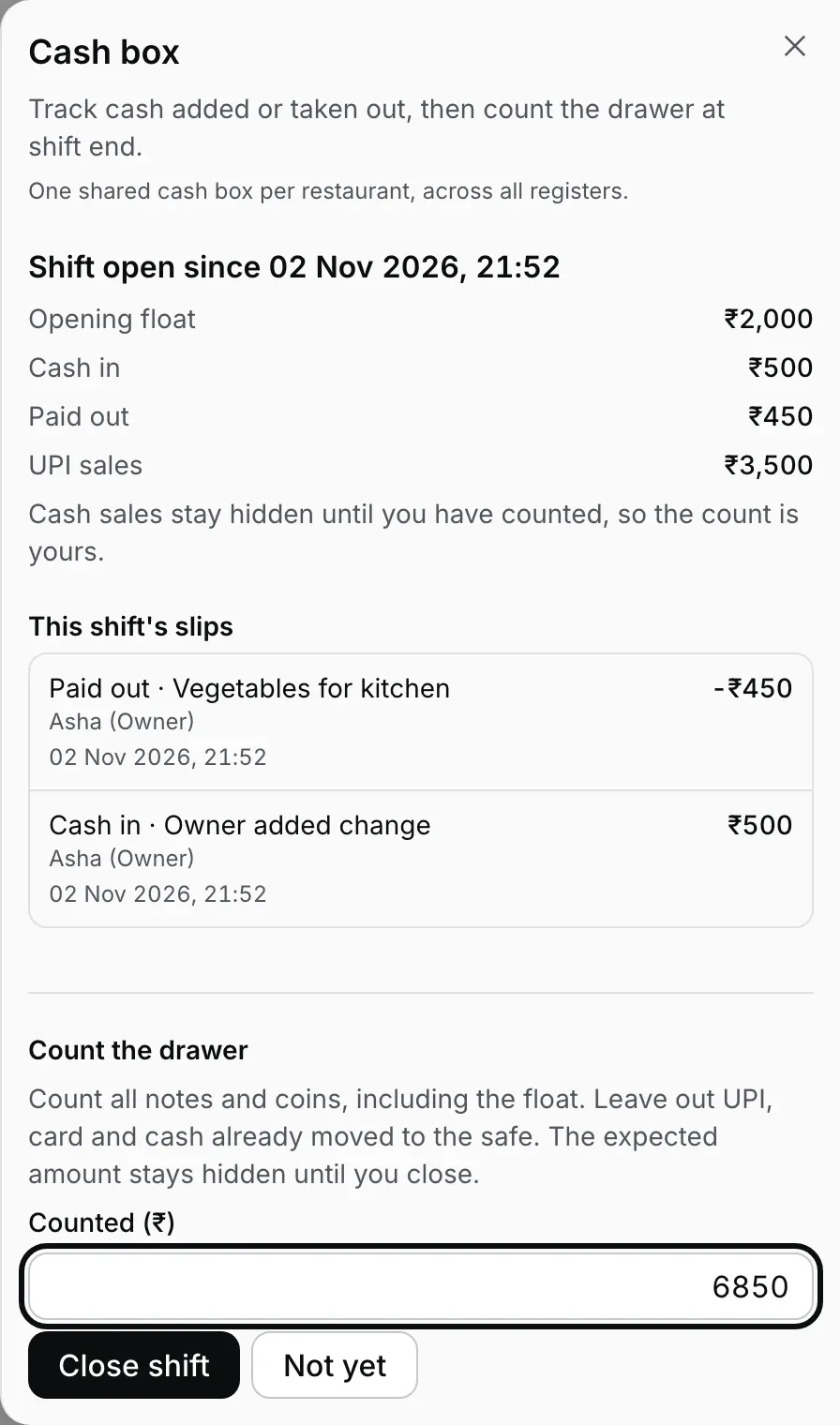
Pause cash activity and press 'Count & close the shift'. Count every note and coin, including the opening float. Exclude UPI, card and unpaid credit from physical cash. Enter the actual total under 'Counted (₹)', or 0 for an empty box.

The Desktop App hides cash sales and expected cash until the shift closes. The phone's Cash box still shows the expected amount before you count; the blind count comes in the next Captain app update. Recount before submitting if needed. If cash enters or leaves while you are counting, count again. Confirm the amount and press 'Close shift' once.

Cash box closing form with Counted (₹) and Close shift, before the expected cash is revealed
Count first. The screen keeps the expected total hidden while you enter your own count.
Step 4

Read Expected, Counted and Variance together

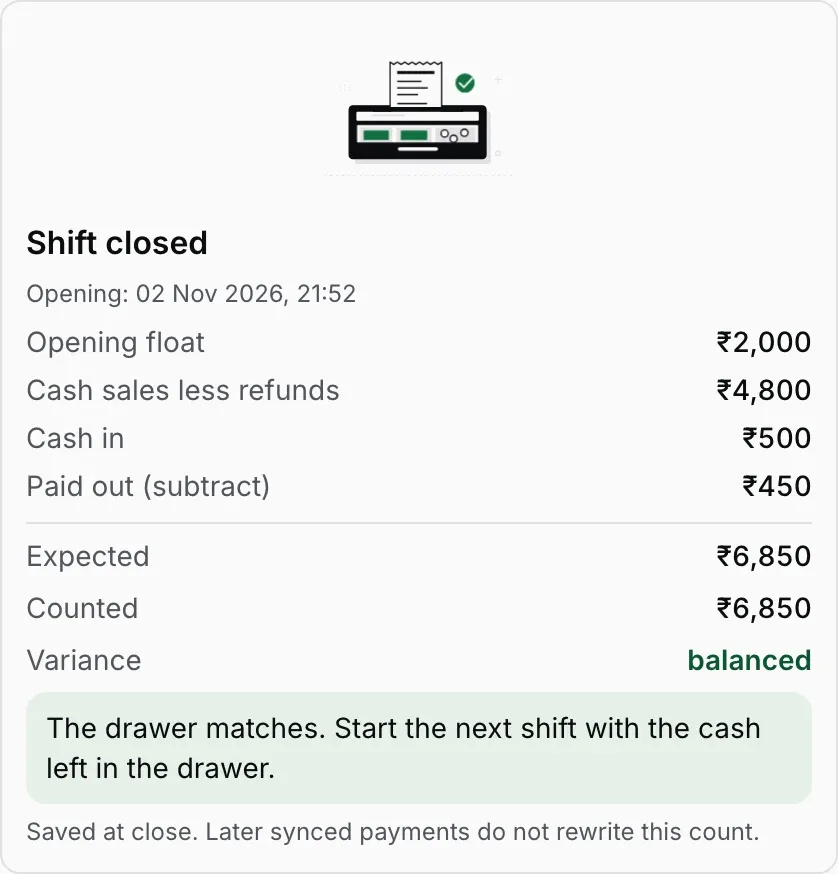
After closing, the screen shows opening float, 'Cash sales less refunds', Cash in and Paid out. 'Expected' is the cash calculated from those records. 'Counted' is the actual total you entered. 'Variance' is the difference: balanced, short or over.

In this example, Expected and Counted are both ₹6,850, so the box is balanced. This screen cannot edit a saved close. For the next shift, count the cash actually left in the box as the new opening amount; do not copy the previous closing total without checking.

Closed cash shift breakdown with Expected ₹6,850, Counted ₹6,850 and a balanced variance
Demonstration balanced close: ₹2,000 opening + ₹4,800 net cash sales + ₹500 Cash in − ₹450 Paid out = ₹6,850.

Why should the box contain ₹6,850?

Cash bill payments total ₹5,000 and the cash refund is ₹200, leaving ₹4,800 in net cash sales. Add opening float and extra cash, then subtract the paid-out.

Formula: opening float + net cash sales + Cash in − Paid out. UPI, card and unpaid credit are excluded from this physical-cash total.

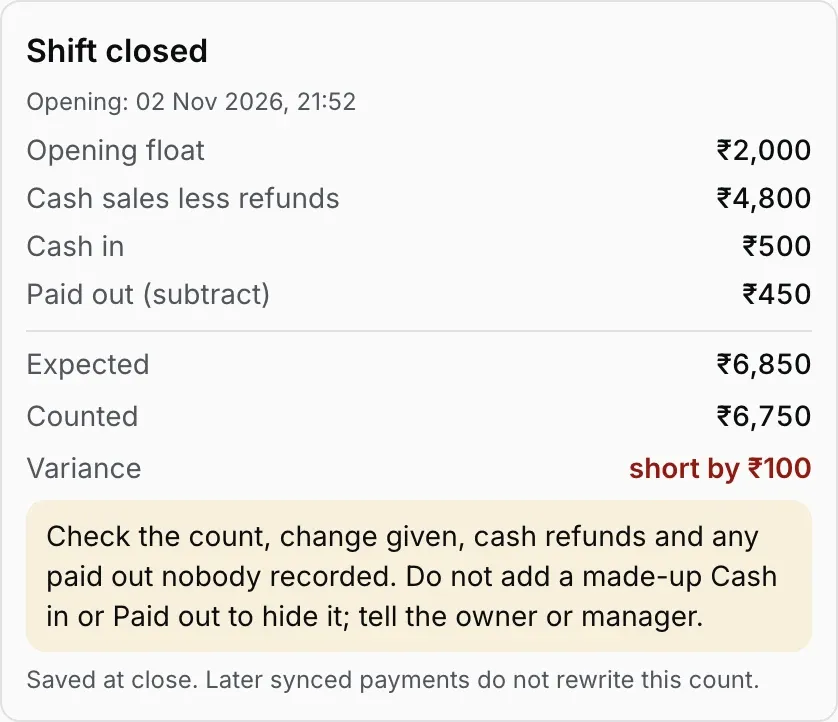
Variance = Counted − Expected. Count ₹6,850 and the box is balanced. Count ₹6,750 and it is ₹100 short. Count ₹6,950 and it is ₹100 over.

The demonstration calculation
Opening float₹2,000
Cash bill payments+ ₹5,000
Cash refunds− ₹200
Cash in: extra change+ ₹500
Paid out: vegetables− ₹450
Expected₹6,850

What to check when the box is short or over

Short means the counted cash is below expected; over means it is above expected. A difference alone does not prove that a staff member did something wrong.

  • Before submitting, recount the notes and coins, including the float.
  • Check for a missing supplier payment, change top-up or owner withdrawal.
  • Check whether bills were settled as cash or UPI/card, and whether a refund was recorded twice.
  • Check whether another device still has payments waiting to sync.

If the close is already saved, tell the owner the amount and explanation. This screen cannot edit that close and has no separate variance-reason field. Do not create an invented entry just to make the variance zero.

Demonstration close: Expected ₹6,850, Counted ₹6,750, short by ₹100
The same demonstration calculation with a ₹6,750 count clearly shows the ₹100 shortage.

Forgot to open the shift before taking cash?

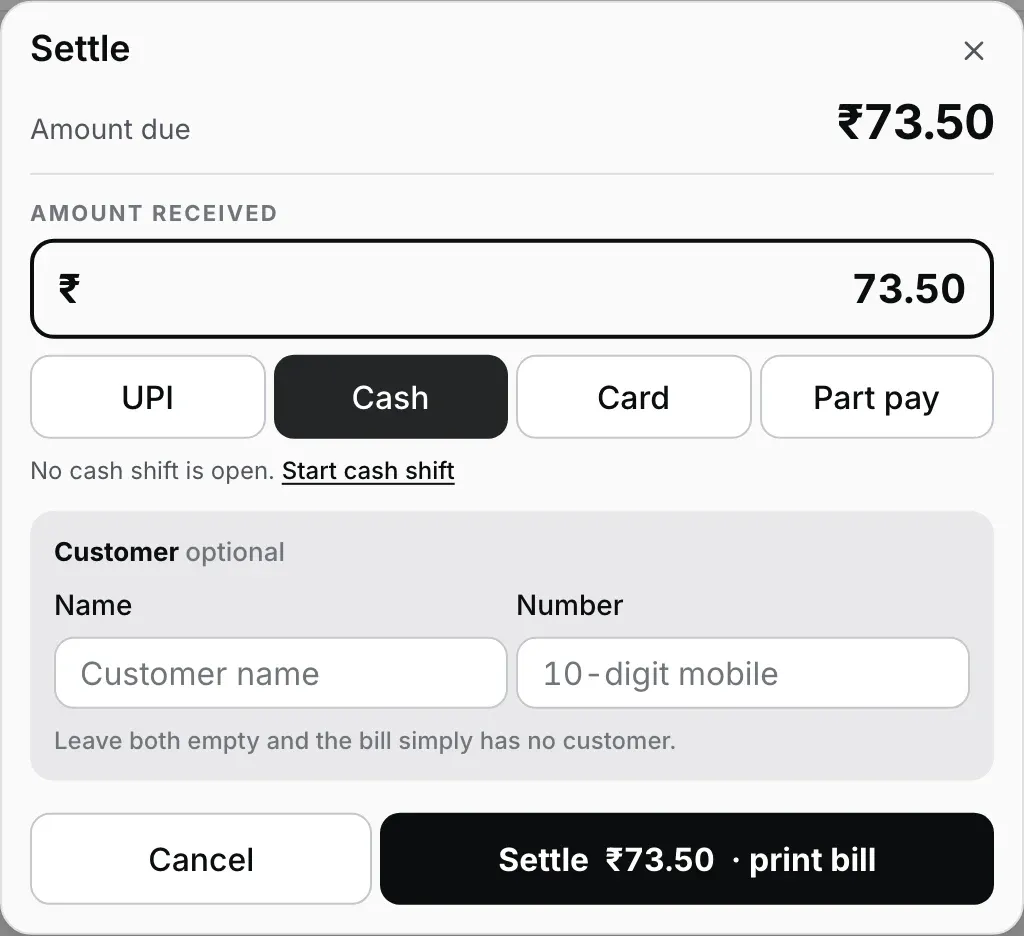
On a register that has used cash shifts before, choosing Cash with no shift open shows one small line in Settle: 'No cash shift is open.' with a 'Start cash shift' link. It never stops the payment: settle as usual, or tap the link to open Cash box first. Once the shift starts, the bill comes straight back with Cash still selected; you settle it yourself. The link never records a payment or opens a shift automatically.

For a late start, the opening amount is the actual cash already in the box, including earlier collections. Keep cash for the pending unpaid sale separate. Do not add that earlier cash again as Cash in. Starting a shift does not move earlier sales or backdate the shift.

Opening Cash box does not complete the payment. Return to the bill, finish the normal payment steps and check its status. The best routine is to open the shift before the first cash sale.

Settle with Cash selected and a small No cash shift is open line with a Start cash shift link
Demonstration bill: the link is optional and Settle works as usual. The pending sale is not recorded automatically.

Phone, offline and other questions.

Where is Cash box on the phone?
In the Captain app, open Device → Cash box. Enter the actual cash under 'Opening cash ₹' and press Start cash shift. To close, use 'Count & close shift', then 'Counted ₹' and Close shift. Today the phone shows the expected amount before you count. After the next Captain app update, the phone also hides the expected total until closing and shows the breakdown afterward. Some labels differ from desktop; the counting routine is the same.
Who can handle the cash box?
Owners, managers and cashiers can handle the cash box. On the phone, a captain needs manager approval for each cash action. That entry records the approving staff member.
What happens to refunds, UPI and card?
A cash refund recorded in the app reduces net cash sales. Do not record the same refund again as Paid out. UPI and card do not enter the physical box. Unpaid credit is not cash until a cash payment is recorded.
Is Paid out the same entry as an expense?
No. Paid out records physical cash leaving the box; an Accounts expense is separate. Money taken out by the owner is not necessarily a business expense. Record a business expense separately when appropriate, without entering the same withdrawal twice in the cash box.
Can I close without internet?
On a prepared register or phone, cash shifts and counts save on the device and sync when it reconnects. The saved Expected, Counted and Variance remain the record of that close. Payments arriving later can change the latest calculation shown in owner reports; they do not silently rewrite the saved count.
What if I have two counters or phones?
This is one shared Cash box for the store, not a separate cash account for each drawer. Opening or counting separate shifts on independent offline devices does not provide separate drawer reconciliation. Assign a responsible counter for cash handling and counting, and account for activity still waiting to sync from other devices.
What if yesterday’s shift is still open?
Check the full opening date and time. Do not ignore the earlier-day warning and start another shift. Count the actual cash and close the earlier shift first. Then open the next shift with the cash left in the box. A shift does not close automatically at midnight.
Can I fix a saved slip or closing count here?
This screen has no edit, delete or reversal flow for saved slips or closes. Tell the owner which entry, time and amount were wrong. Do not invent Cash in or Paid out entries just to balance the total. Record any actual new cash movement with a clear reason.
3 months free · ₹0 today · no card

Run it 3 months, then pay for it.

Three months free, full product, no card. Made in India, for the counter: built inside a running restaurant.