Kal raat kitne bill bane, kaunsi dish sabse zyada chali? Ab ek tap pe.
Owner dashboard mein Orders pe din ka har bill milta hai. Reports → Menu performance mein wahi bikri Item, Category ya Variant ke hisaab se milti hai. Kisi row ko kholo toh us group ke exact bill dikhte hain. Counter pe phone karke poochne ki zaroorat nahi.
Bill ki list se best seller tak, 5 steps.
Dashboard mein Orders kholo
app.easykot.com pe login karo aur left menu mein Orders kholo. Upar period button dabao (usme dates likhi hoti hain, jaise This week · 12–18 Oct): Today, Yesterday, This week, This month ya koi aur preset chuno, ya From aur To mein apni dates daal ke Done dabao. Sabse upar 4 box hain: kitne bill settle hue, unka total GST ke saath, abhi kitne check running hain, aur kitne cancelled hue.
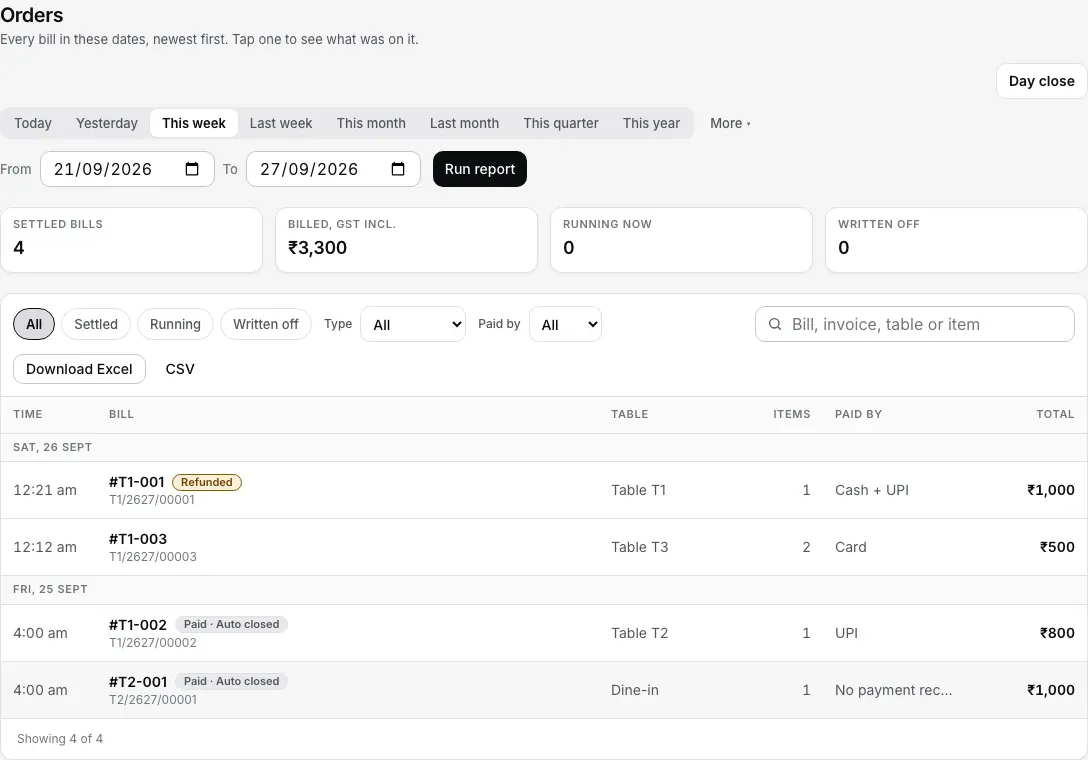
Step 1-2: saare bill din ke hisaab se, aur wahi filter list, upar ke numbers aur download pe.
Bill dhoondo: filter ya search
List ke upar All, Settled, "Running" aur "Cancelled" button hain. Type mein All, Dine-in ya Takeaway chuno; Paid by mein All, Cash, UPI ya Card. Search box mein bill number, invoice number, table ya item ka naam likho. Yeh filter list, upar ke numbers aur Excel ya CSV, sab pe ek saath lagte hain. Bill din ke hisaab se group hote hain, aur raat 1 baje wala bill pichhli raat ke din mein aata hai, kyunki restaurant ka din subah 4 baje badalta hai. Ek baar mein 50 bill aate hain; baaki ke liye neeche "Show more" dabao.
Bill pe tap karo, poora bill dekho
Bill khulte hi dikhta hai: har item kitne ka, Half ya Full, add-on aur kitchen note. Neeche Subtotal, Discount, GST, Round off aur bill ka Total hai. Captured mein sirf asli payment aata hai. Cutoff pe bill Paid · Auto closed hua ho toh bacha amount alag 'not a payment' dikhta hai. Payments mein har payment ya refund ka method, status, amount aur time milta hai; History mein order aur day-close dono ka seedha record. Baad ki sync se item aur issued bill alag ho jaaye toh Needs review dikhta hai, printed total chupke se nahi badalta. Issued eligible bill pe owner sirf ab mila paisa daal kar baaki Sales loss dekh ke settle kar sakta hai.
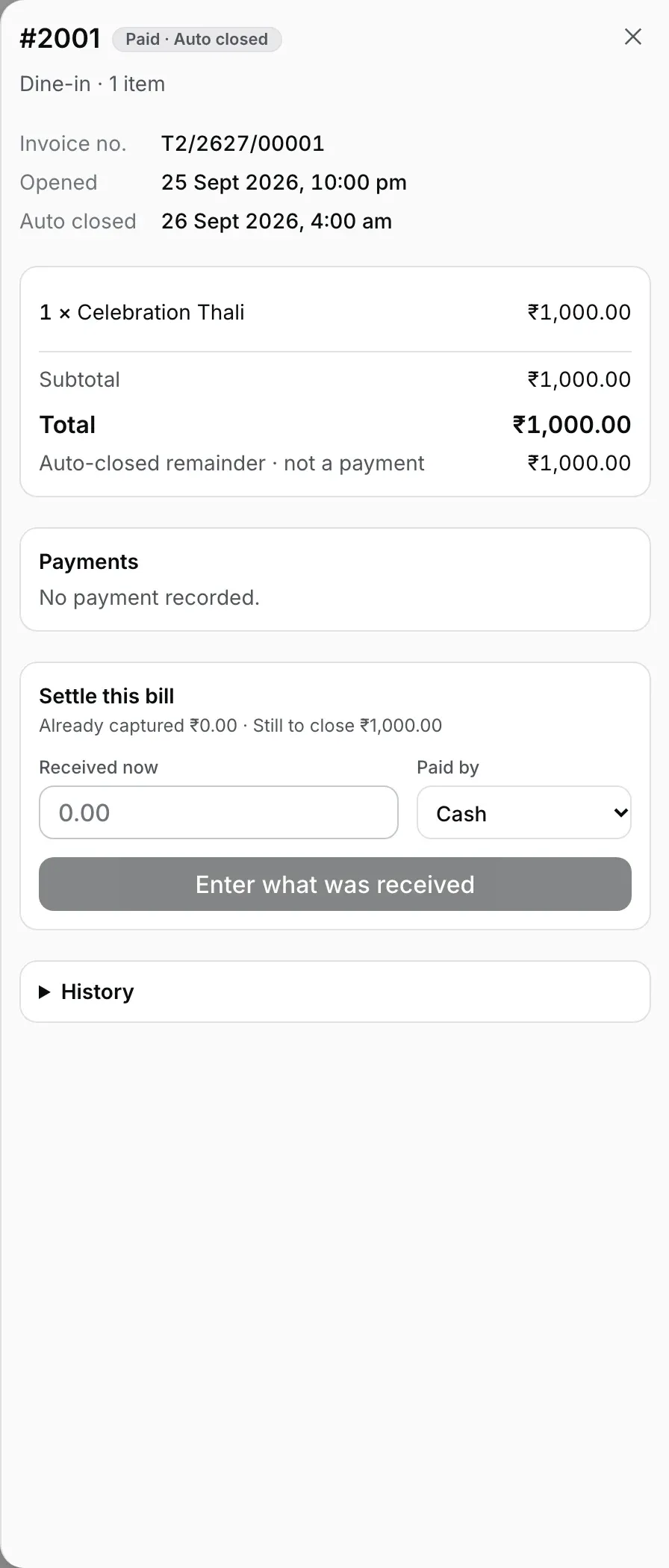
Step 3: auto close bill ko sales mein rakhta hai, payment nahi banata. Asli mila paisa alag settle hota hai.
Menu performance mein bikri dekho
Reports → Menu performance kholo. Items, Categories ya Variants chuno, phir fixed table ko search ya sort karo. Har row quantity aur bill discount aur GST se pehle ki gross sold value dikhati hai. Row kholo toh wahi dates aur group ke exact bill milte hain; Excel ya CSV bhi wahi context rakhta hai.
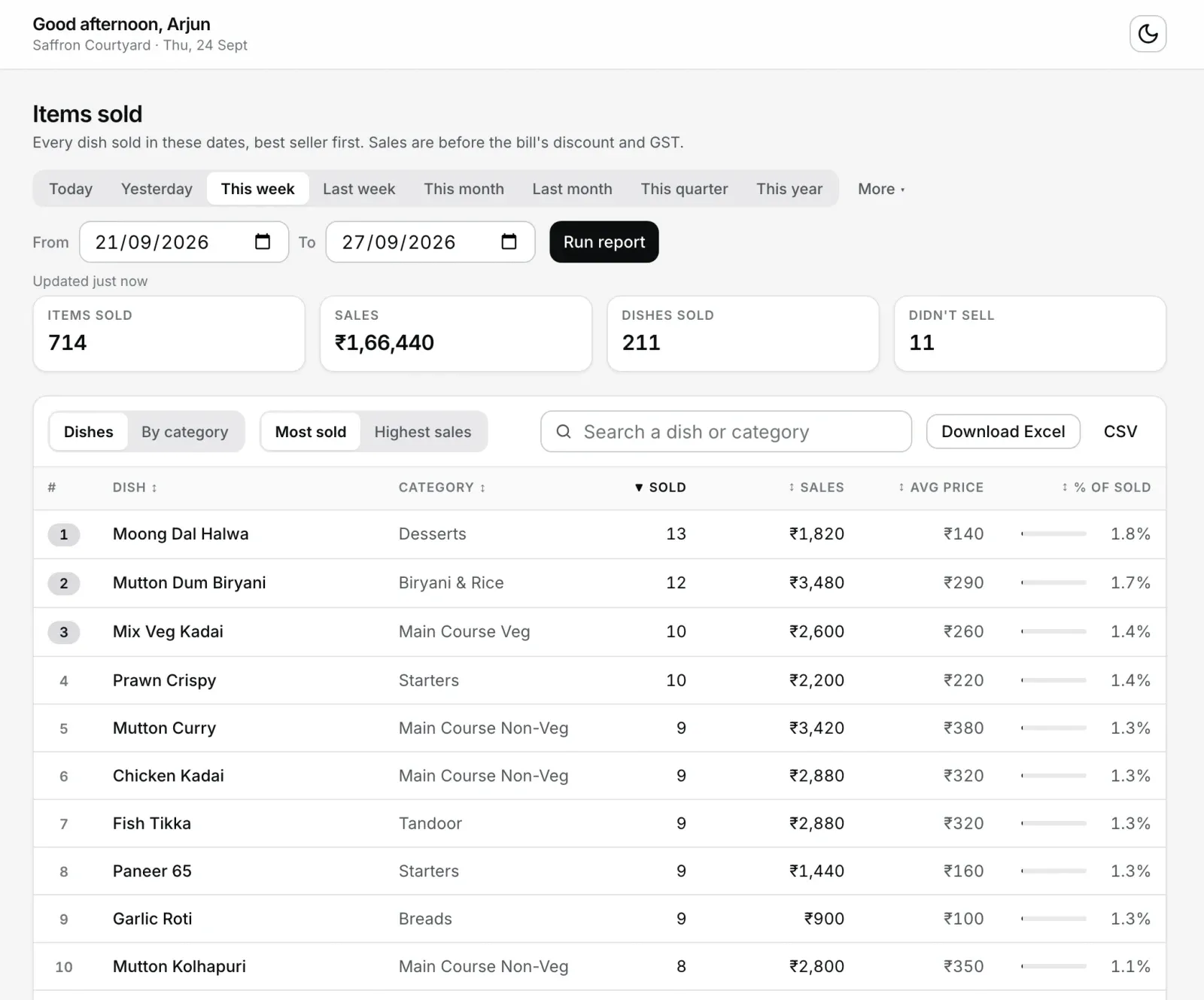
Step 4: best seller sabse upar. Column ke naam pe click karo, us hisaab se line lag jaati hai.
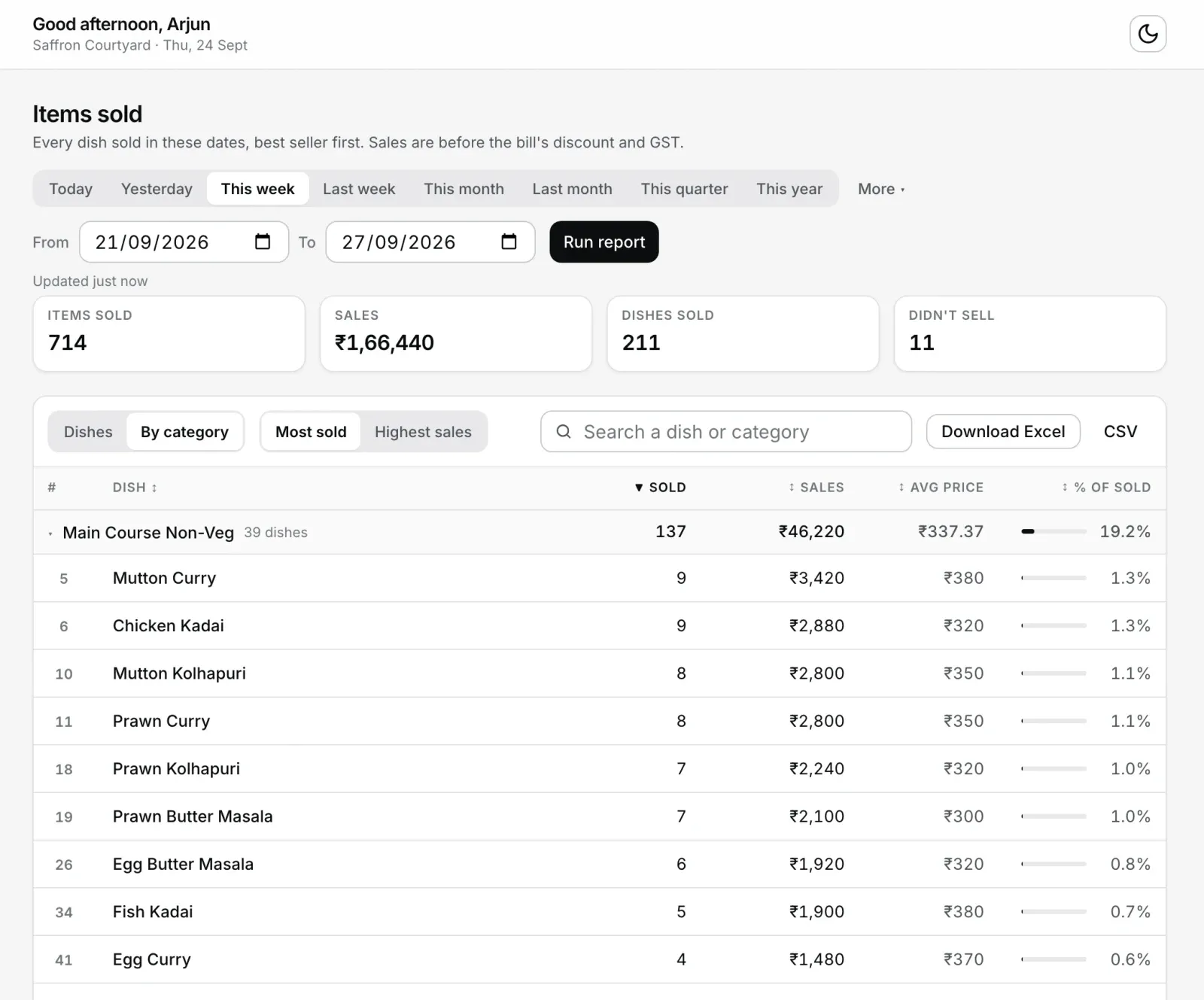
By category: har category ki ek line, uske total ke saath. Click karo toh band.
Ya bas Dashboard pe nazar daalo
Dashboard pe ab "Latest orders" card hai: aaj ke 5 naye bill, sabse naya sabse upar. Kisi pe tap karo, bill wahin khul jaata hai. "All orders →" poori list pe le jaata hai. Top sellers card ke neeche "All items sold →" poori dish list kholta hai.
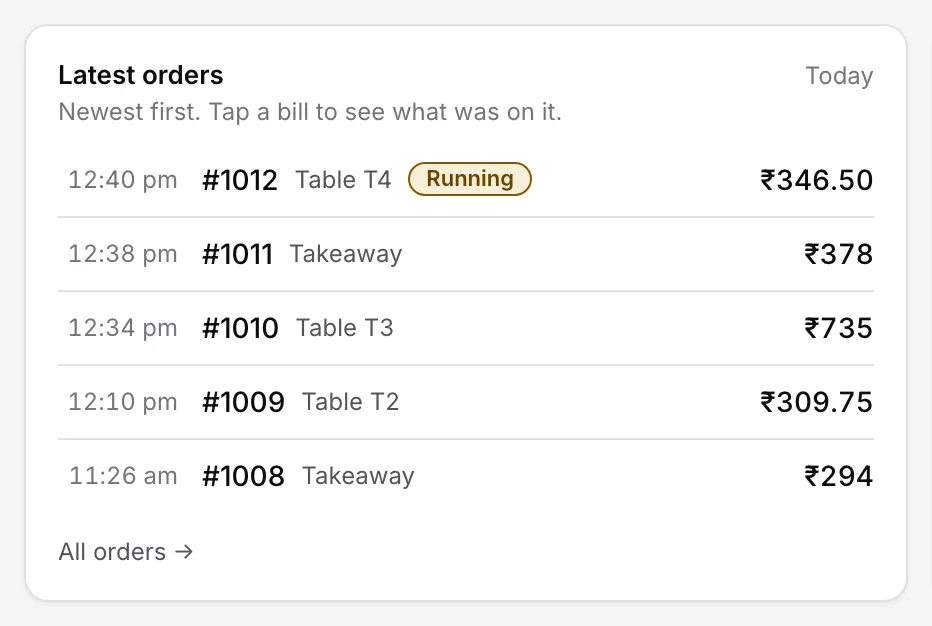
Step 5: aaj ke naye bill, dashboard kholte hi.
Phone pe bhi same dashboard hai: browser mein app.easykot.com kholo aur login karo. Upar ka menu button dabao; ek bill ke liye Orders, aur bikri samajhne ke liye Reports → Menu performance kholo. Date aur filter URL mein rehte hain, isliye refresh ya Back ke baad bhi wahi report khulti hai.
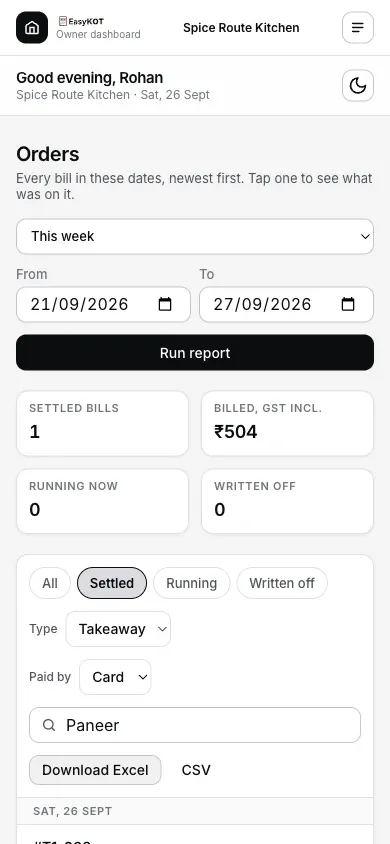
Phone pe bhi Status, Type, Paid by aur Search ek saath lagte hain.
Seedhe jawaab.
EasyKOT Desktop App pe bill bana, dashboard pe kab dikhega?
Menu performance aur Orders ka total alag kyun hai?
Paid · Auto closed ka matlab paisa aa gaya?
Kya phone pe chalta hai?
Kya list download ya Excel mein nikal sakte hain?
Har dish pe kitna profit hua, woh kahan dikhega?
Aage kya padhe.
Reports aur roz ka email
Subah ka summary email, aur Summary, Sales, P&L jaise gehre reports.
Reports dekho →Discount, void aur refund
Jo bill pe cancelled dikhta hai, woh Desktop App pe kaise hota hai.
Money controls dekho →Day close
Raat ko running checks band karo, taaki subah ki list saaf mile.
Din band karo →Saari guides ek jagah: guides hub.
3 mahine try kare, phir plan chune.
Restaurant ka kaam hum samajhte hain, kyunki shuruaat bhi wahin se hui. 3 mahine free try kare, bina card details. Hamari kahani padhe.